Introduction to ProLinkAIM Risk Review
Important
ProLink has configured AHIC Risk Elements for those organizations that follow that model. If your organization does not follow the AHIC model, you can configure any other Risk Elements.
The system administrator configures the Risk Elements that are associated to the review through the Risk Element menu option under the ProLink Admin panel. See Template Risk Elements for more information.
Note
For detailed information about Risk Elements in ProLinkAIM and how they relate to AHIC Guidelines, download the Risk Element Matrix.

Risk Reviews are important in determining the risk that might exist for a deal. A number of items (elements) are considered when evaluating the amount of risk a deal can have without being in jeopardy of recapture. Risk reviews are performed quarterly to stay on top of any issues that may arise during the lifecycle of the deal. Different elements are evaluated based upon the phase of the deal.
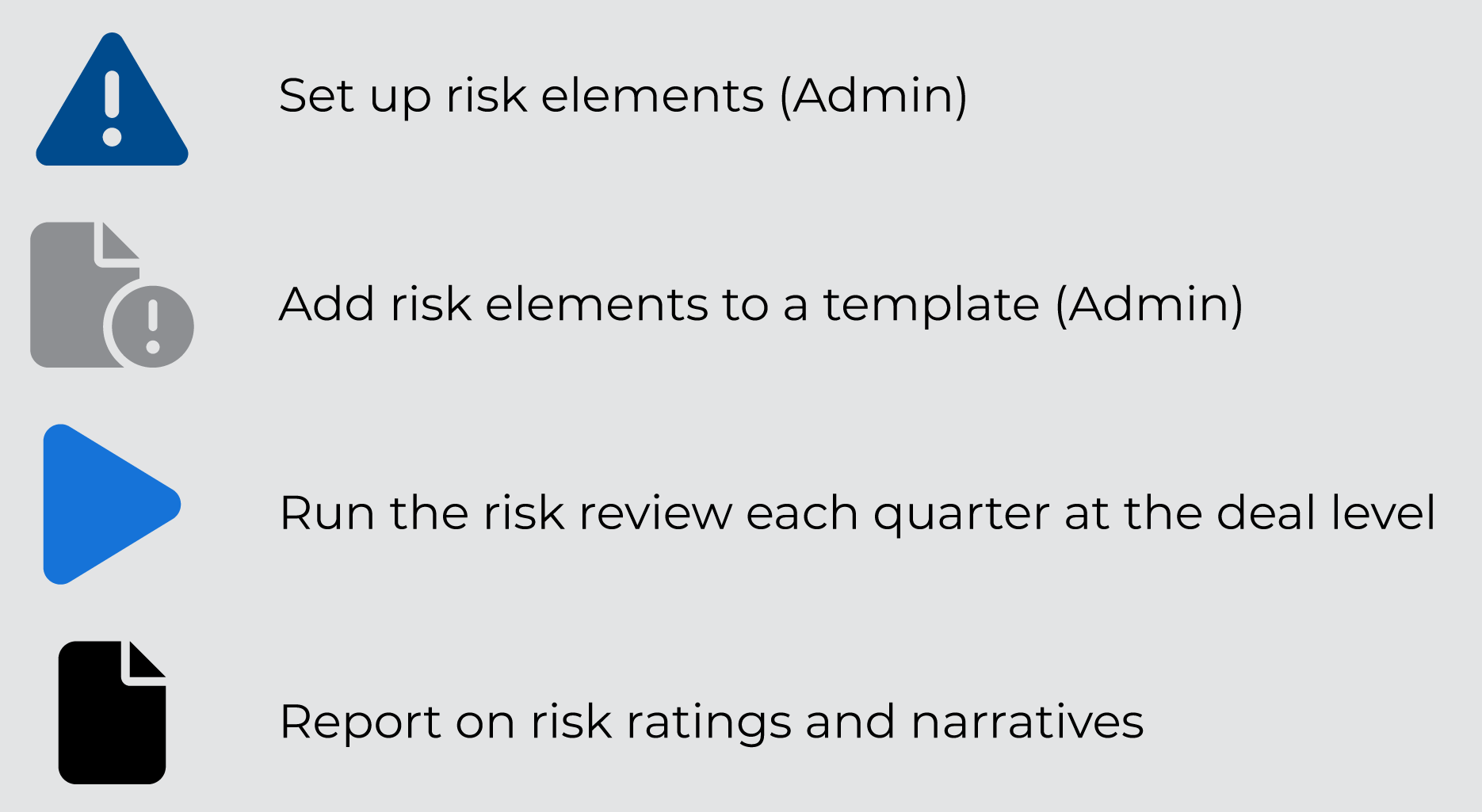
Set up risk elements—Your organization will create, update, and maintain Risk Elements through the Admin panel.
Note
Typically, ProLink helps set up Risk Elements during implementation, after which time you should not need to adjust them.
Add risk elements to a template—Your organization will add relevant Risk Elements to each Template through the Admin panel. A template is based on deal type.
Run the risk review each quarter at the deal level—Each quarter, you will run the Risk Review at the individual deal level. The system suggests a rating and provides the template narrative, which you can edit and finalize.
The New Year Process utility creates four quarter records for every deal across the system. For more information about the New Year Process, see New Year Process.
Report on risk ratings and narratives
Various quarterly reports
Risk Reviews data view
Deal data views (Overall Risk Rating column shows the latest Risk Rating)
Deal Overview screen (Deal Risk Rating field shows the latest Risk Rating)
Lower Tier Deals screen (Funds) (Current Risk Rating of each deal that belongs to the fund)
You can find the Risk Reviews list screen by selecting the Risk Reviews option in the left navigation menu of a selected deal. The default sort is by Year and Quarter, with the most recent listed first.
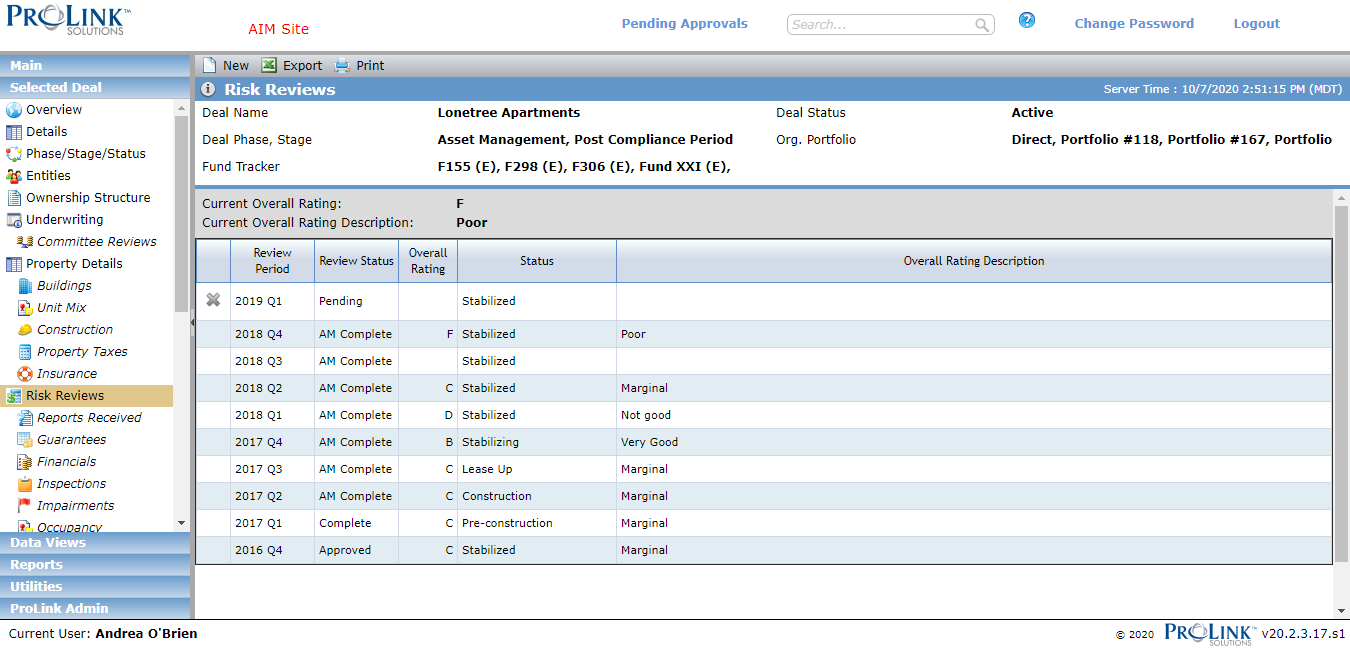
The Current Overall Rating and Description above the grid display the Overall Rating and Description from the most recent record with a status that is not Pending.
You will need to add a Risk Review record for each quarter.
Tip
The New Year Process utility creates four quarter records for every deal across the system. For more information about the New Year Process, see New Year Process.
To manually add a Risk Review:
Navigate to the deal, and then select Risk Reviews in the left navigation menu.
The Risk Reviews screen opens.
Click New in the top toolbar.
Complete the Add Risk Review popup.
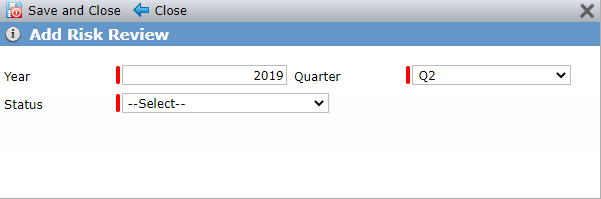
The Year defaults to the year for the next sequential record.
The Quarter defaults to the next sequential quarter.
Only one record can exist for the Year/Quarter combination.
Select the Status.
The Status selected will determine the Risk Elements that will be available for evaluation.
When you create a new Risk Review record, if the value in the Status field on Edit Property does not equal the value selected for the Risk Review, the system will not update the Status on Edit Property to be the same as the risk status.
Click Save and Close.
You can delete only the Risk Review records with a status of Pending. Click  at the beginning of the applicable row on the Risk Reviews screen. Alternatively, you can open the risk review and click Delete in the top toolbar of the Edit Risk Review screen.
The Risk Elements identified in this section follow the AHIC model.
Navigate to the deal, and then select Risk Reviews in the left navigation menu.
The Risk Reviews screen opens.
Click the row in the grid that corresponds to the risk review you want to view or edit.
The Edit Risk Review screen opens.
Make changes as needed.
If you change the Status field, when you re-evaluate, the system evaluates based on the new status, at which point the Risk Elements screen will be updated.
Caution
You cannot change the Status to Complete until a code is assigned for every Risk Element marked for validation. The system administrator identifies the Risk Elements required for validation through the Risk Element menu option under the ProLink Admin panel.
Click Save and Return.
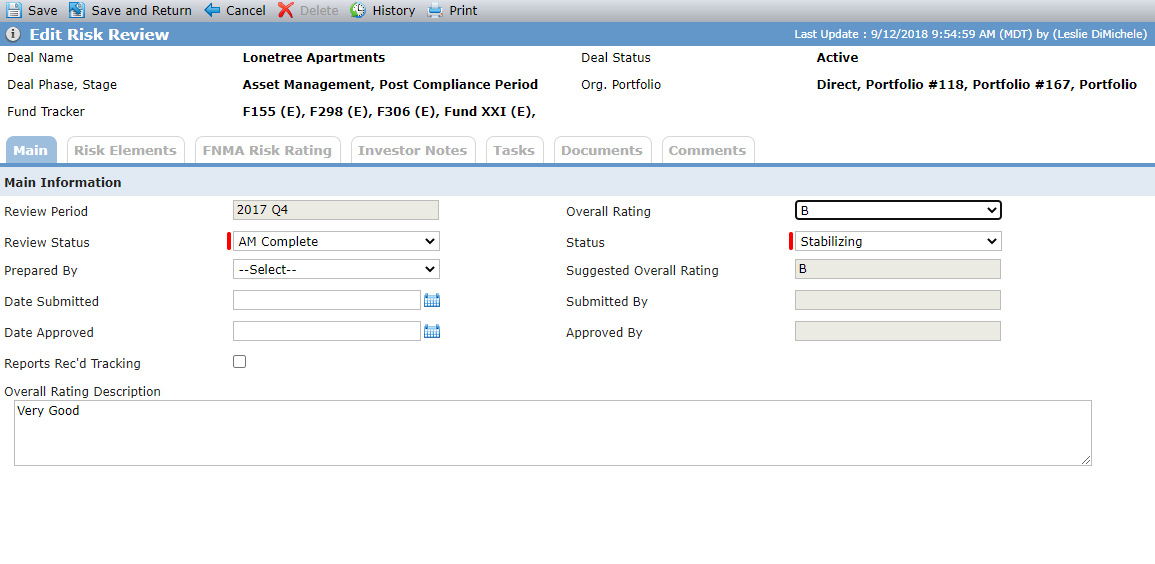
Field | Description |
|---|---|
Review Status | List populated by the PL_RiskReviewStatus system picklist.
|
Status | List populated by the PL_RiskStatus system picklist.
The field is also known as Applicable Status in the Admin panel. For each Risk Element created in Admin section of the system, the administrator determines which Applicable Status(es) should apply. All Risk Elements that exist on the deal’s Template that have the same Applicable Status will apply to the Risk Review. If you change the Status field, when you re-evaluate, the system evaluates based on the new status, at which point the Risk Elements screen will be updated. |
Suggested Overall Rating | The system populates this field when AM Complete is selected for the Review Status. The system derives the value based on the waterfall model described below. |
Overall Rating Description | The system populates this field when you select the Overall Rating, based on the configuration in the Admin - Template section. |
Waterfall Sequence | Calculation | Suggested Overall Rating |
|---|---|---|
1 | Any one Risk Element has a Code of F | F |
2 | 2 or more Risk Elements have a Code of D OR D is the only rating | D |
3 | 2 or more Risk Elements have a Code of C OR C is the only rating | C |
4 | Any one Risk Element has a Code of B, AND
| =
|
5 | Any one Risk Element has a Code of A, AND
| =
|
6 | All Risk Elements have a Code of A | A |
Following your organization's processes, you can use the Date Submitted and Date Approved fields on this tab to track submission and approval, respectively, of the Risk Review.
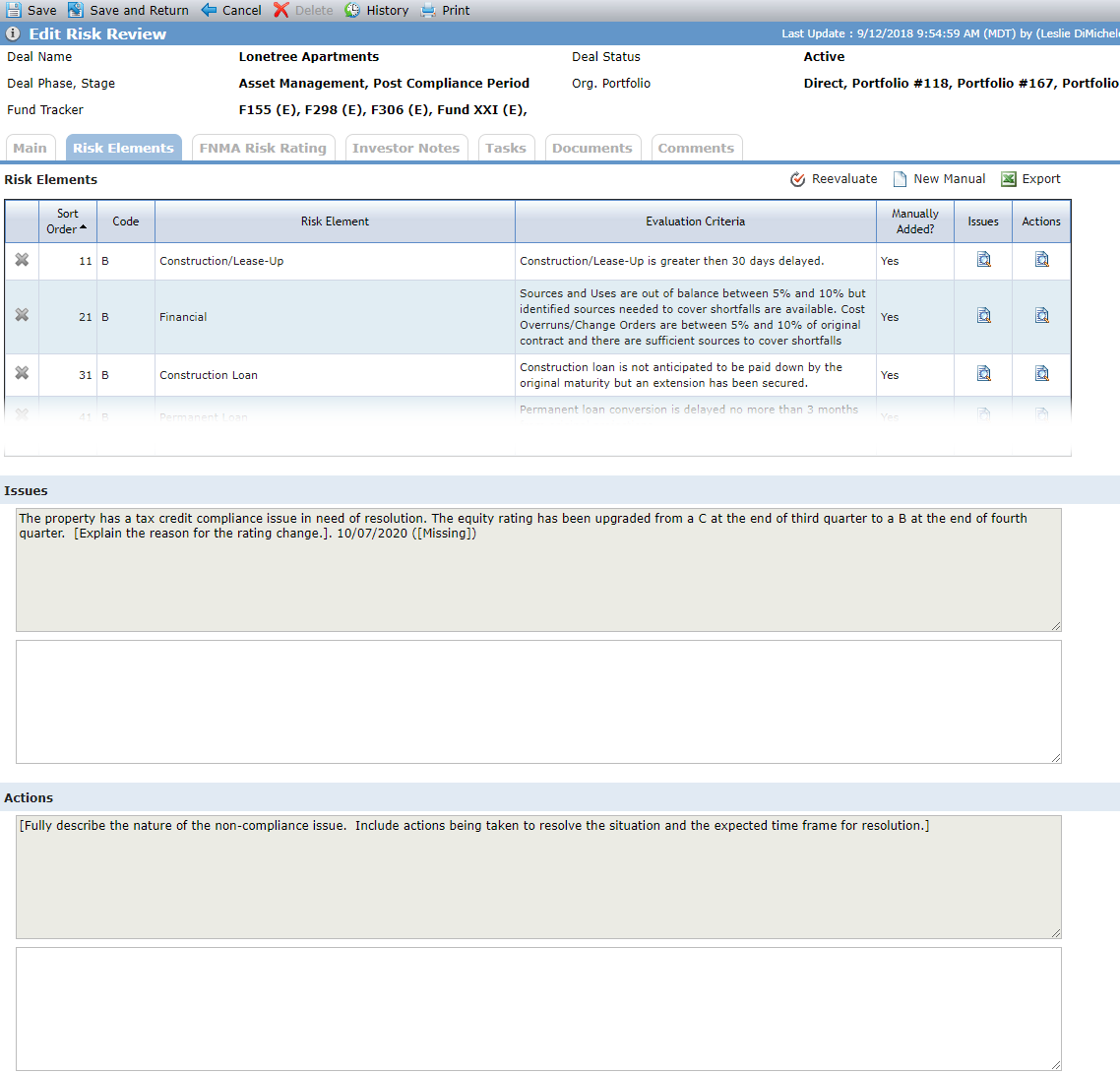
Risk Elements appear in the Selected Risk Elements grid by sort order. The system administrator assigns the sort order during Risk Element configuration.
The system administrator configures the Risk Elements that are associated to the review through the Risk Element menu option under the ProLink Admin panel. See Template Risk Elements for more information.
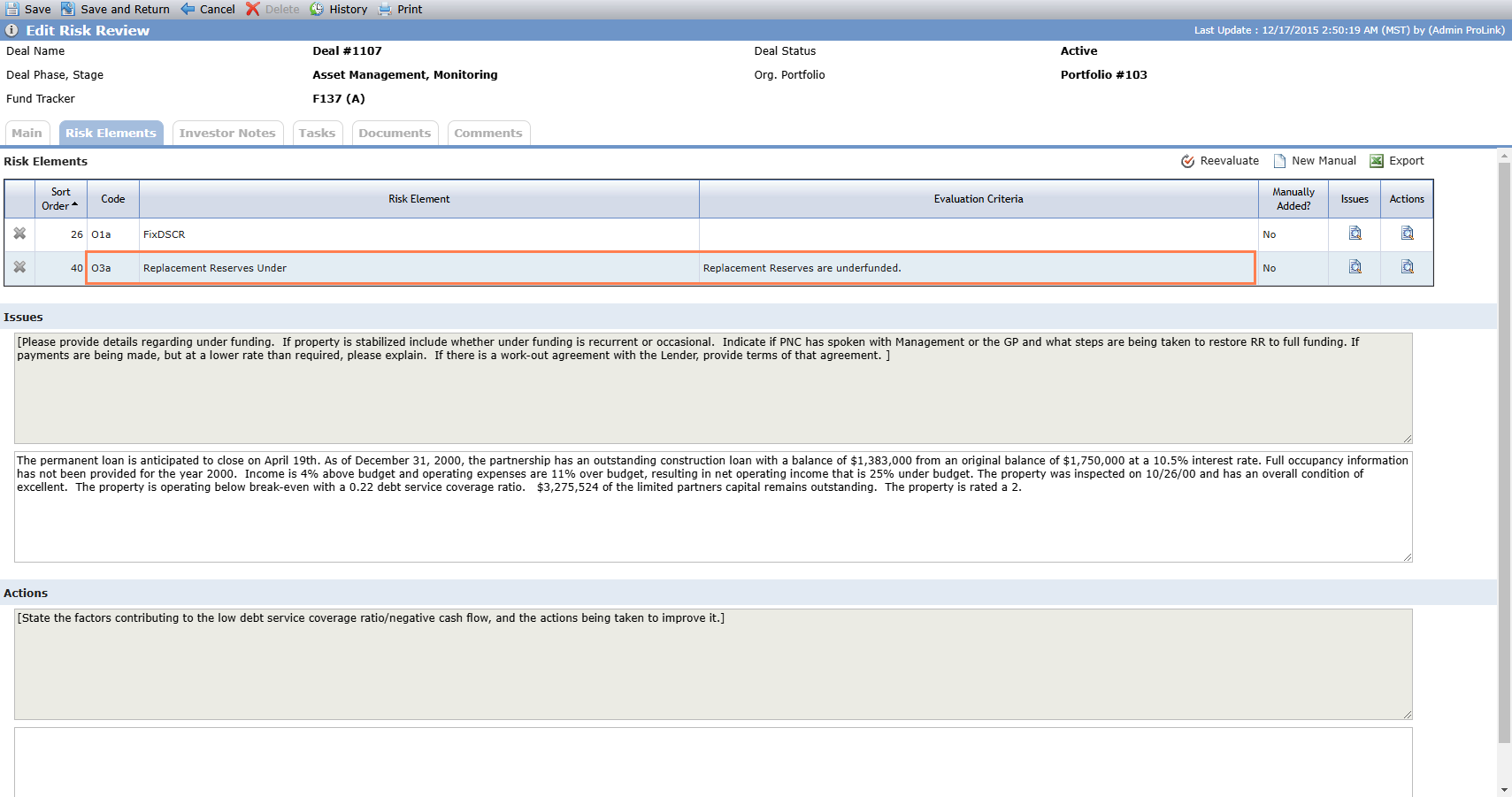
Risk Elements are either system-generated (stored procedures/boilerplate) or manually added. To execute the system-generated evaluation, you'll re-evaluate. You'll add other risk elements manually.
The Issues and Actions sections of the Risk Elements screen show concatenated text from all the evaluated risk elements. The read-only text boxes show the text from ProLink Admin Risk Elements. You can add information needed for reporting to the editable text boxes.
To see the issue text for a specific element, click the Issues button  . To see the action text for a specific element, click the Actions button .
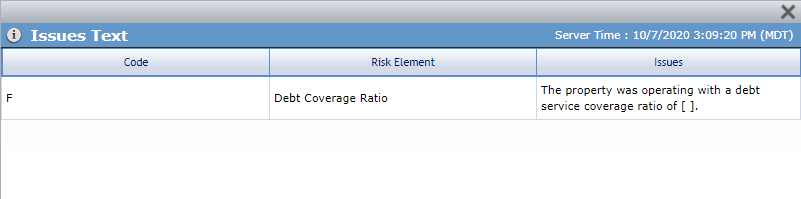
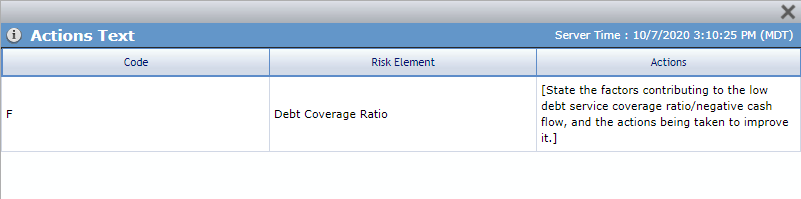
Issues Text for a specific element; Actions Text for a specific element
To execute the system-generated evaluation, you'll use the Reevaluate button. When you click the button, ProLinkAIM compares the Deal Type and Deal Phase to the Risk Elements that are associated to the Type/Phase. As part of the evaluation process, the following things take place:
Existing elements that were manually added to the Risk Review are retained on the record.
All stored procedure elements associated to the Type/Phase are evaluated.
Issues and Actions text is updated.
All risk elements that pertain to the Type/Phase will be evaluated; however, only those elements with a Code populated will be displayed in the grid.
In addition to evaluating the system, stored procedure elements, you'll evaluate other elements manually, assigning a Code when you add the element.
Navigate to the deal, and then select Risk Reviews in the left navigation menu.
The Risk Reviews screen opens.
Click the row in the grid that corresponds to the risk review you want to view or edit.
The Edit Risk Review screen opens.
Click New Manual.
The Add Risk Elements popup opens, displaying all template Risk Elements created for the Deal Type/Phase that have a Code. The grid is sorted by Risk Element, and within Risk Element by Code.
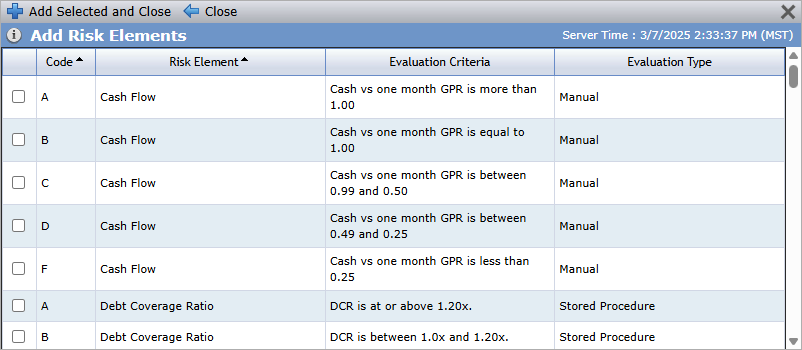
Select the appropriate code for all Manual Evaluation Type Risk Element(s) to add.
Notice you can manually add the system, stored procedure elements if you want to override the Code populated by the system. Keep in mind you'll want to delete the system-populated entry; and if you re-evaluate, the system will re-add the deleted code.
Click Add Selected and Close.
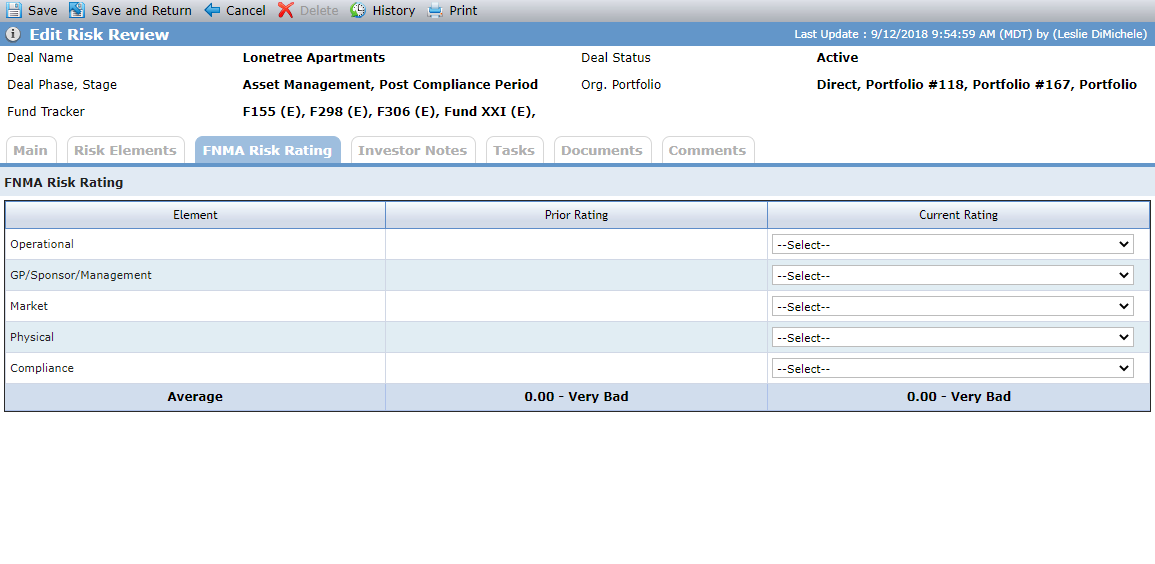
The FNMA Risk Rating tab appears only for deals where there is an owner in a Finalized Ownership Schedule that is a Syndicated Fund and the Syndicated Fund has the Use FNMA Risk Rating checkbox selected on the Fund Details screen. This tab provides for additional element evaluation if needed for FNMA requirements.
The Prior Rating column displays values from the most recent record with a Review Status of Completed. The Prior Rating Average is displayed from the Average field in the Current Rating column of the most current Risk Rating that has a Review Status of Complete.
The Current Rating Average displays the sum of the numerical values for the Current Ratings column divided by 6.
Note
The system administrator configures the values for the FNMA Risk Elements through the Risk Element menu option under Templates in the ProLink Admin panel.
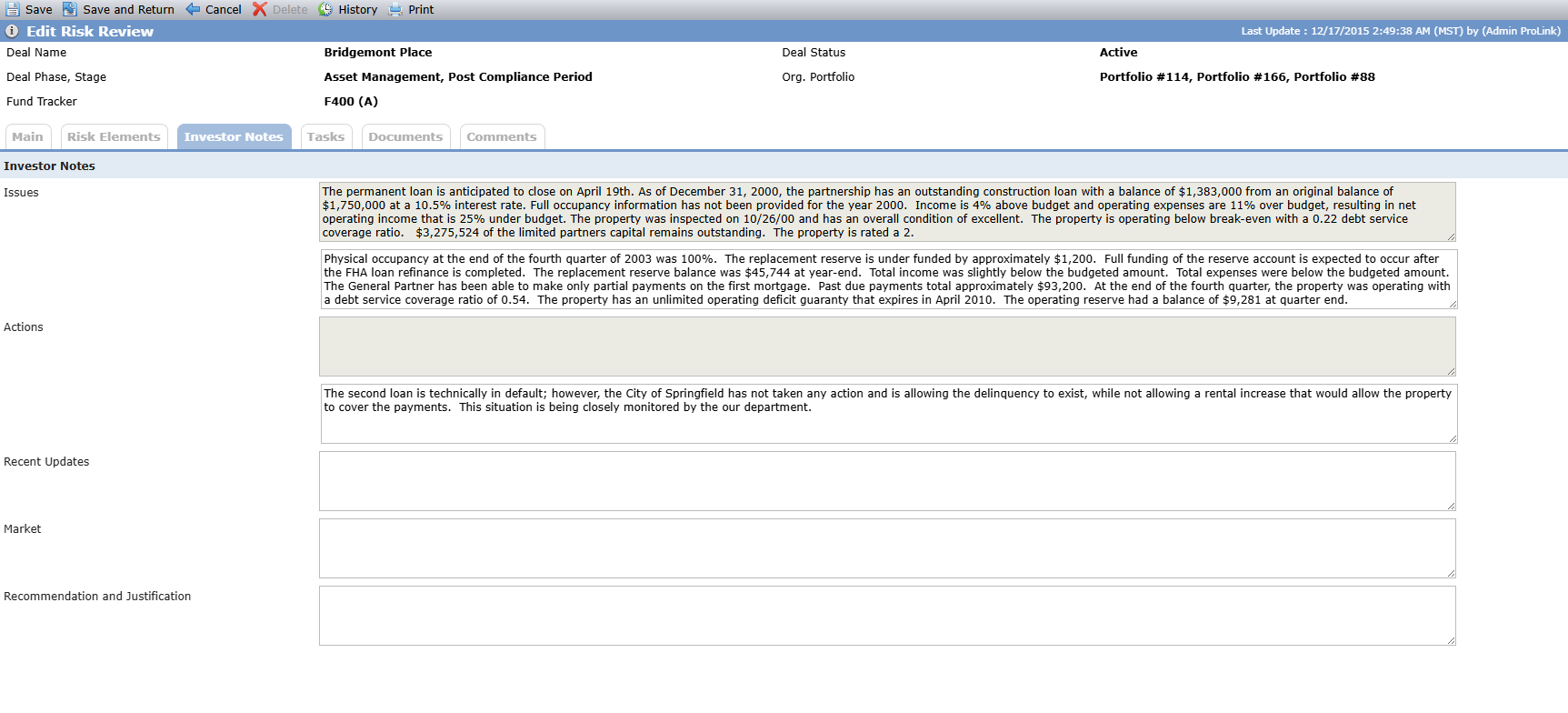
The Investor Notes tab appears only when the Review status is not equal to Pending. The data from these fields are pulled into the Monthly and Quarterly Development Reports.
The read-only Issues text is displayed from the Issues field on the Risk Elements tab. The read-only Actions text is displayed from the Actions field on the Risk Elements tab.
The editable text boxes allow you to enter additional information for reporting purposes.
Let's look at an example.
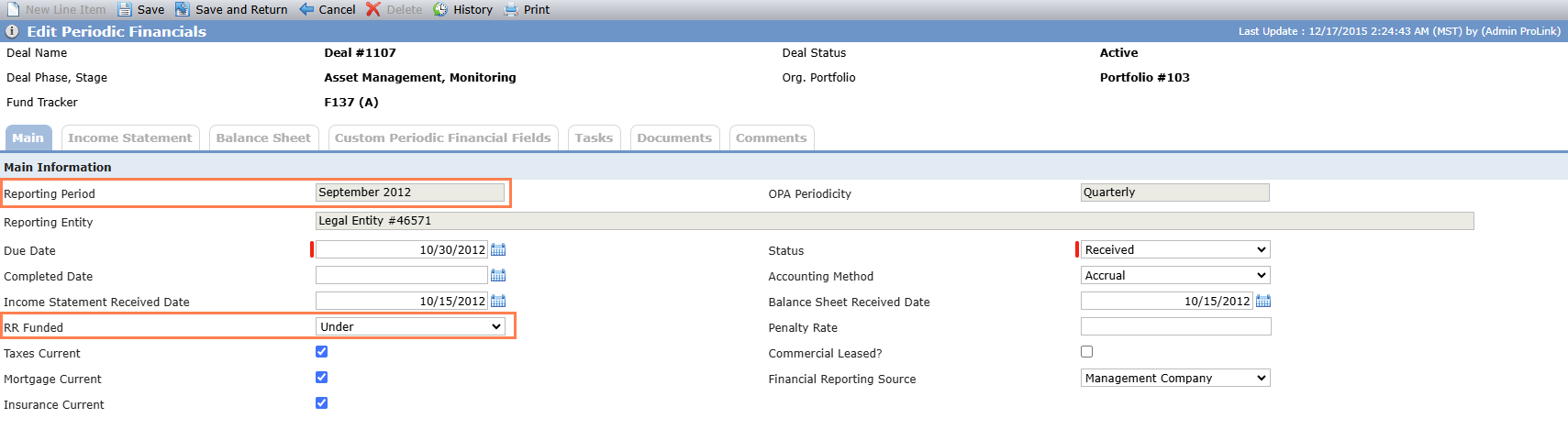
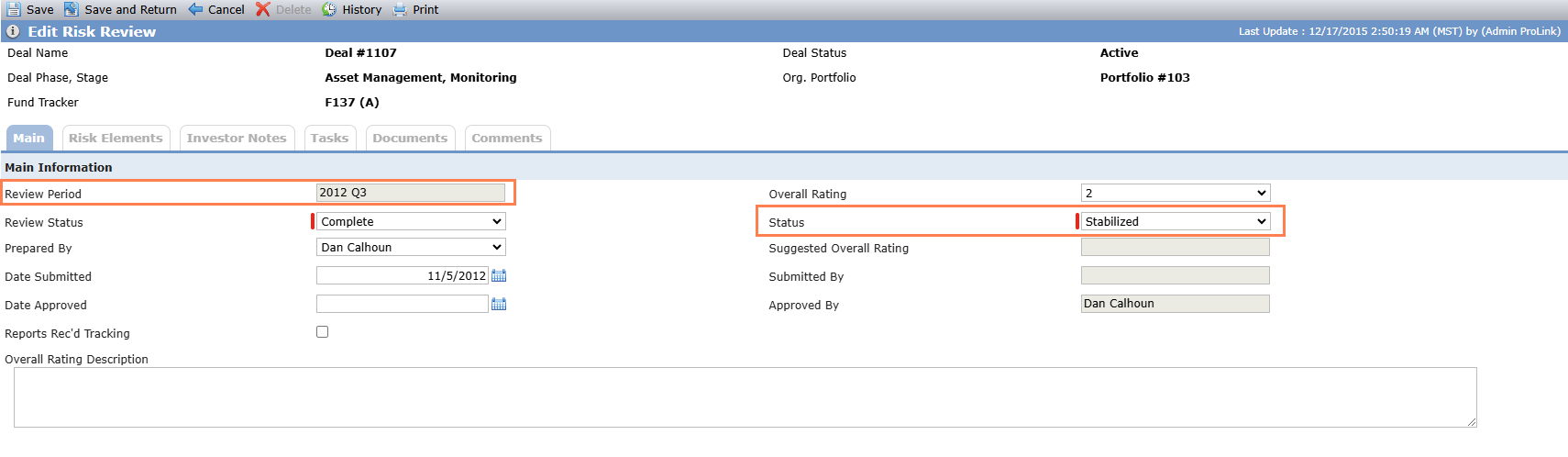
The administrator has configured the Risk Elements in ProLink Admin. One of the Risk Elements is Code O3a (Replacement Reserves Under), which is a system (stored procedure) Risk Element that checks the value of the RR Funded field on the Edit Periodic Financials screen - Main tab for deals with the Status of Stabilizing or Stabilized.
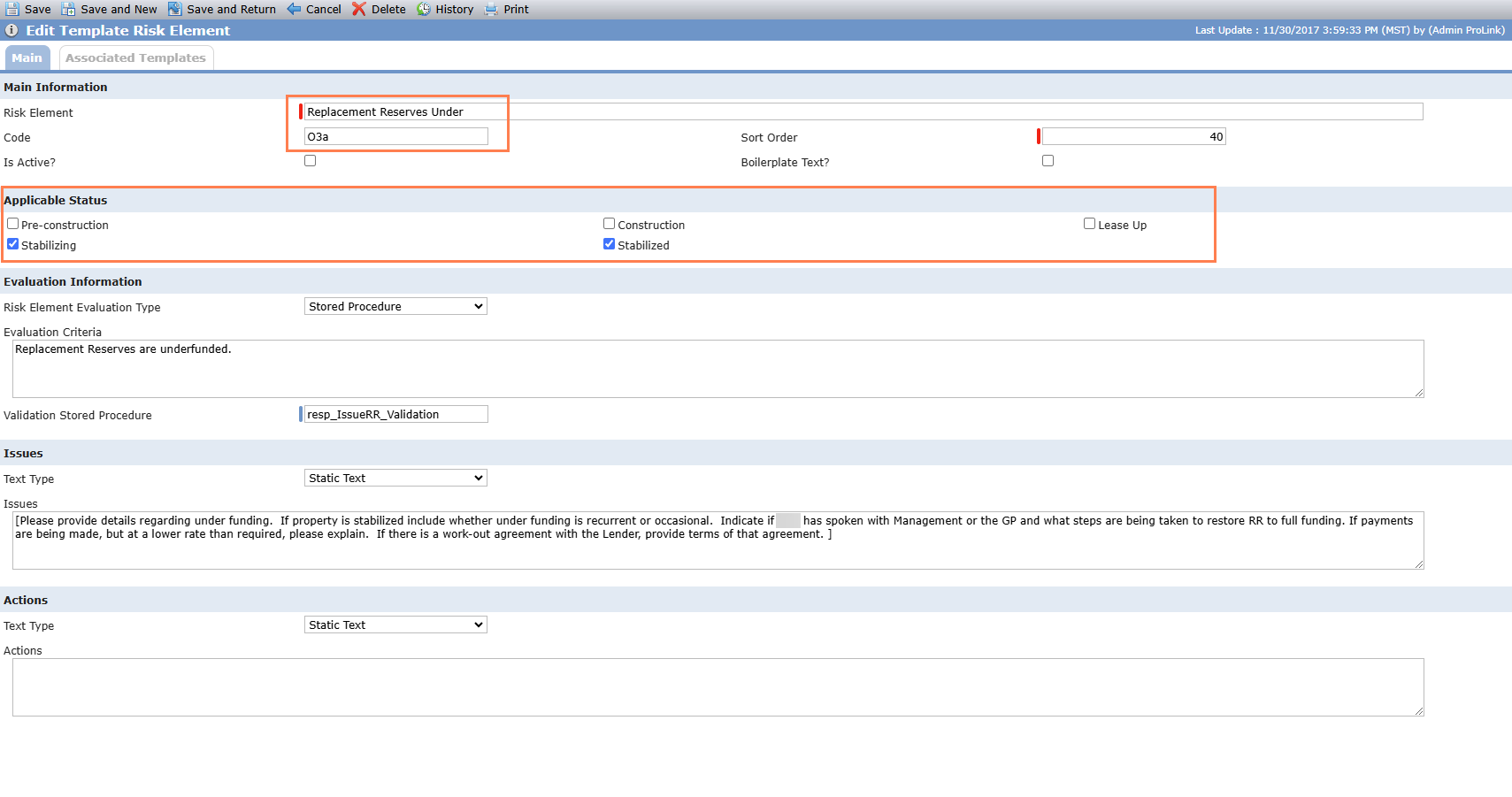
The administrator associated the Risk Element with the LIHTC Template.
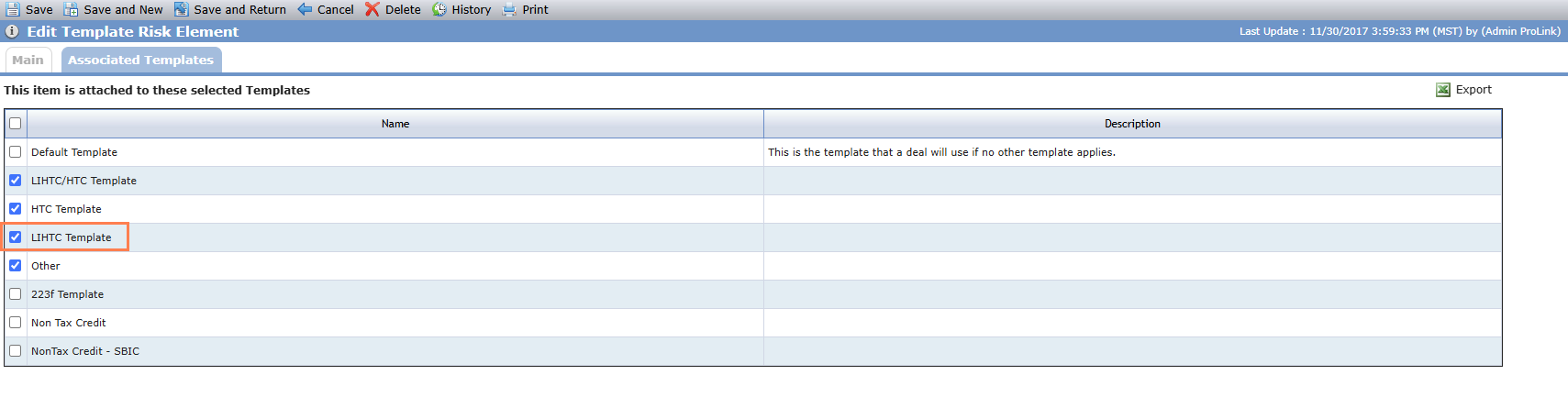
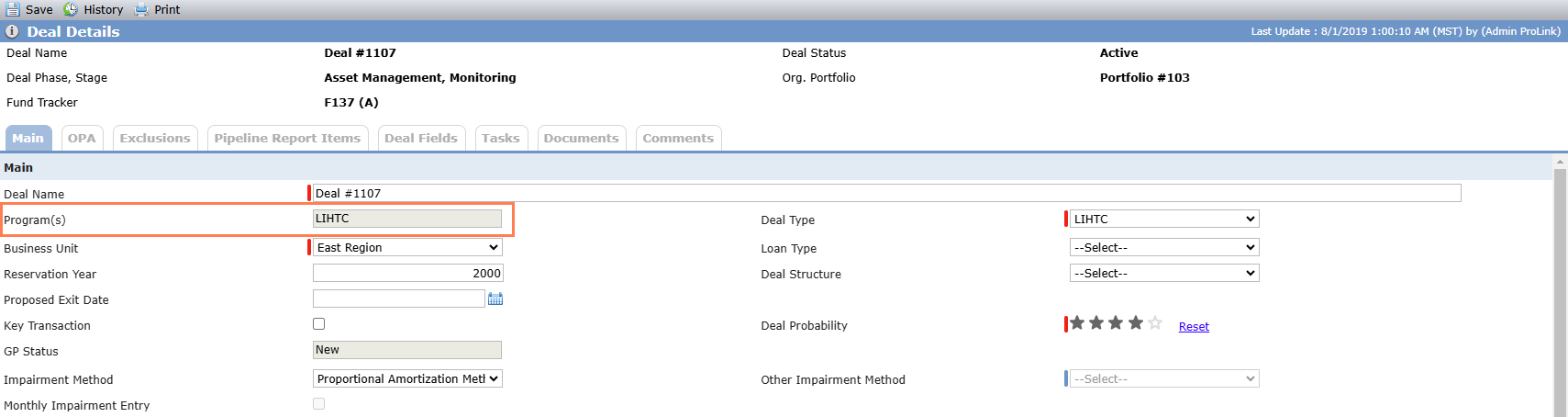
Now we can look at a particular LIHTC deal.
The RR Funded field is "Under" for the Reporting Period of "September 2012."
The Risk Review for the Review Period of "2012 Q3" is in a Status of "Stabilized."
One of the systematically identified Risk Elements is O3a (Replacement Reserves Under). The Asset Manager can review the system-populated Issues and Actions text for the Risk Element and then enter their own comments to address the Risk Element for the deal.