Edit the Benefits Schedule
Although benefits are calculated using the fund's lower tier deal benefit amounts, you may find you need to modify the amount at the fund level.
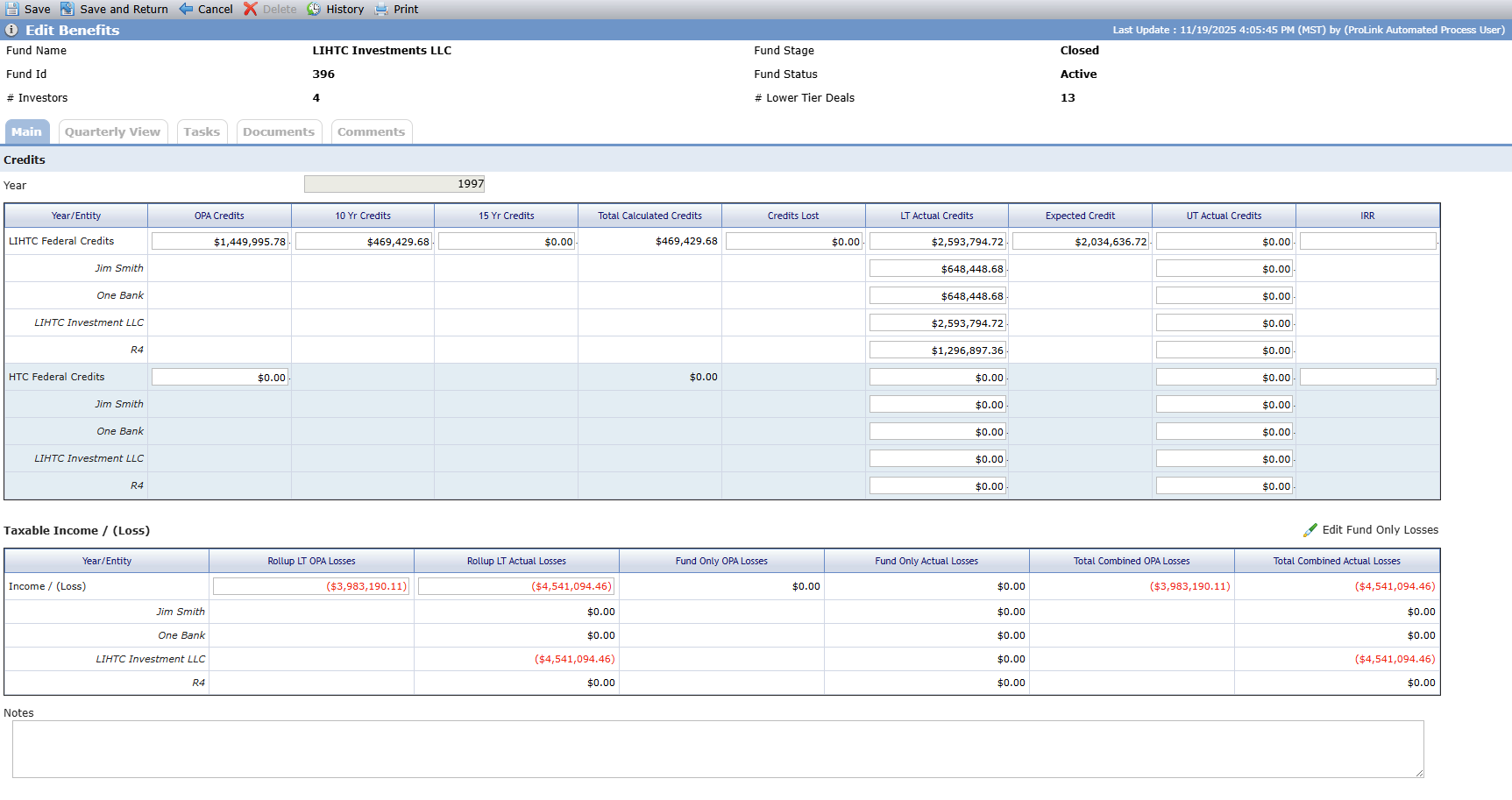
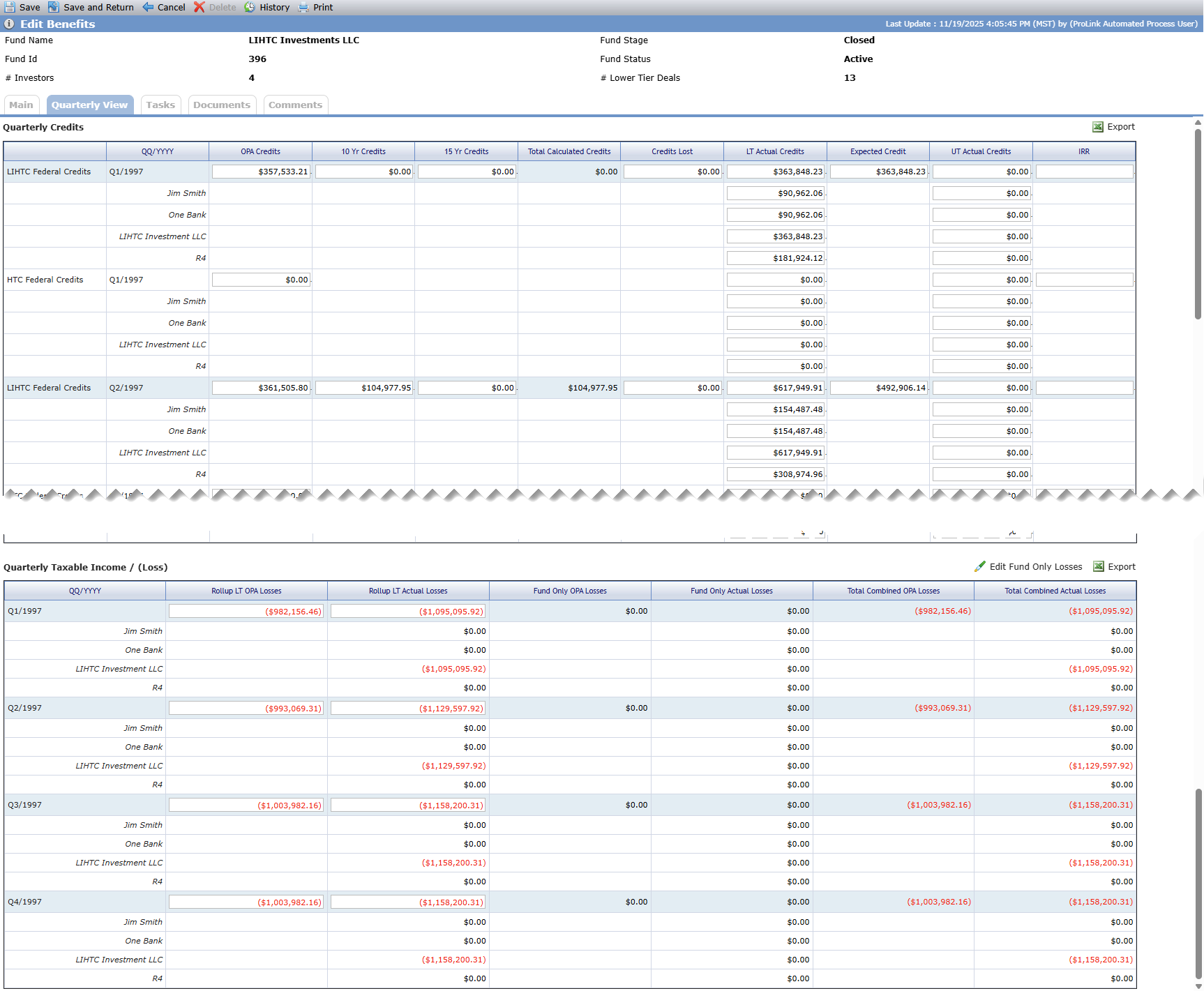
The Edit Benefit screen is where you can manually enter benefit values (for values that are not calculated). A number of calculated fields can be overridden on the screen.
You can override amounts for the fund or an individual investor at an annual or quarterly level.
Tip
ProLink includes data views to help report on benefits across the portfolio:
Fund Benefits Schedule - Annual
Fund Benefits Schedule - Quarterly
Fund Owners Benefits Schedule - Annual—Displays a row for each fund owner benefit year, allowing you to report on benefit schedules by investor entity per fund. You can click a row to navigate to the applicable Fund Edit Benefits screen. You can quick search on Fund Name, Fund Abbreviation, or Name.
Note
In the Fund Benefits Schedule - Annual and Fund Benefits Schedule - Quarterly data views, the "Fund Benefits IRR" column provides data from the Fund Benefit Schedule IRR field, while the "IRR" column provides data from the Fund Details IRR field.
Override Calculated Values
Important
You need the Fund - Benefits Schedule - Modify security privilege to edit the benefits schedule.
You can change the values that have editable fields. If you edit a quarterly value on screen, the system updates the annual values accordingly. However, updating the quarterly values through SmartDox does not affect the annual values.
Caution
Keep in mind that if you recalculate the benefits from the lower tier deals, then the system will override any manually edited values.
Edit Fund-Only Losses
Navigate to the Benefits Schedule.
Click into the row of the applicable Benefits record.
The Edit Benefits screen opens.
From the Main tab for annual benefits, click Edit Fund Only Losses above the Taxable Income / (Loss) grid.
OR
From the Quarterly View tab for quarterly benefits, click Edit Fund Only Losses above the Quarterly Taxable Income / (Loss) grid.
The Edit Annual/Quarterly Fund Only Losses popup opens.
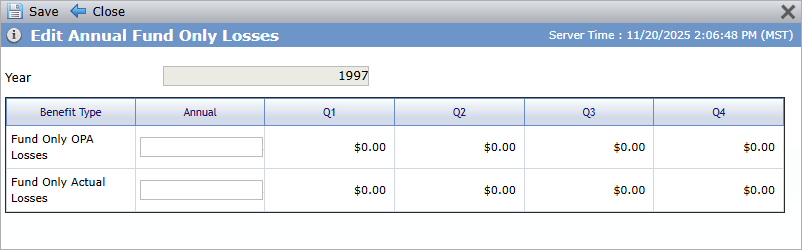
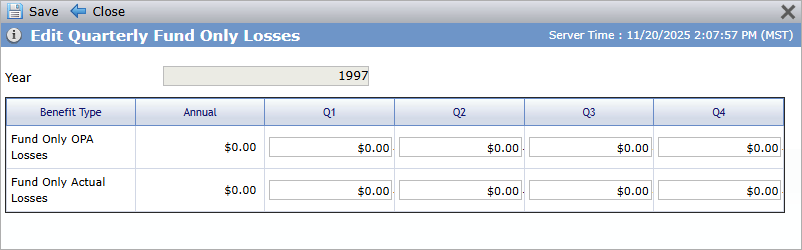
Make your changes.
Click Save.
Saving these changes does not result in recalculating or saving any other Benefits Schedule fields.