Quarter 1, 2025 ProLinkAIM Release Notes
ProLink Solutions is pleased to announce the Quarter 1, 2025 release. You've come to the right place to review what's new and tickets delivered.
UAT Build: February 20, 2025
Production Build: March 13, 2025
What's New
The release introduces the following new functionality.
New Fund-Level Impairments Functionality
To better support organizations that syndicate LIHTC investments and make direct investments in the same deals, ProLink introduces fund-level impairments functionality. As a result, you can track impairment and book value at the fund level. With this release, ProLink implemented functionality for the Manual Impairment method, which makes use of a new utility to set the values.
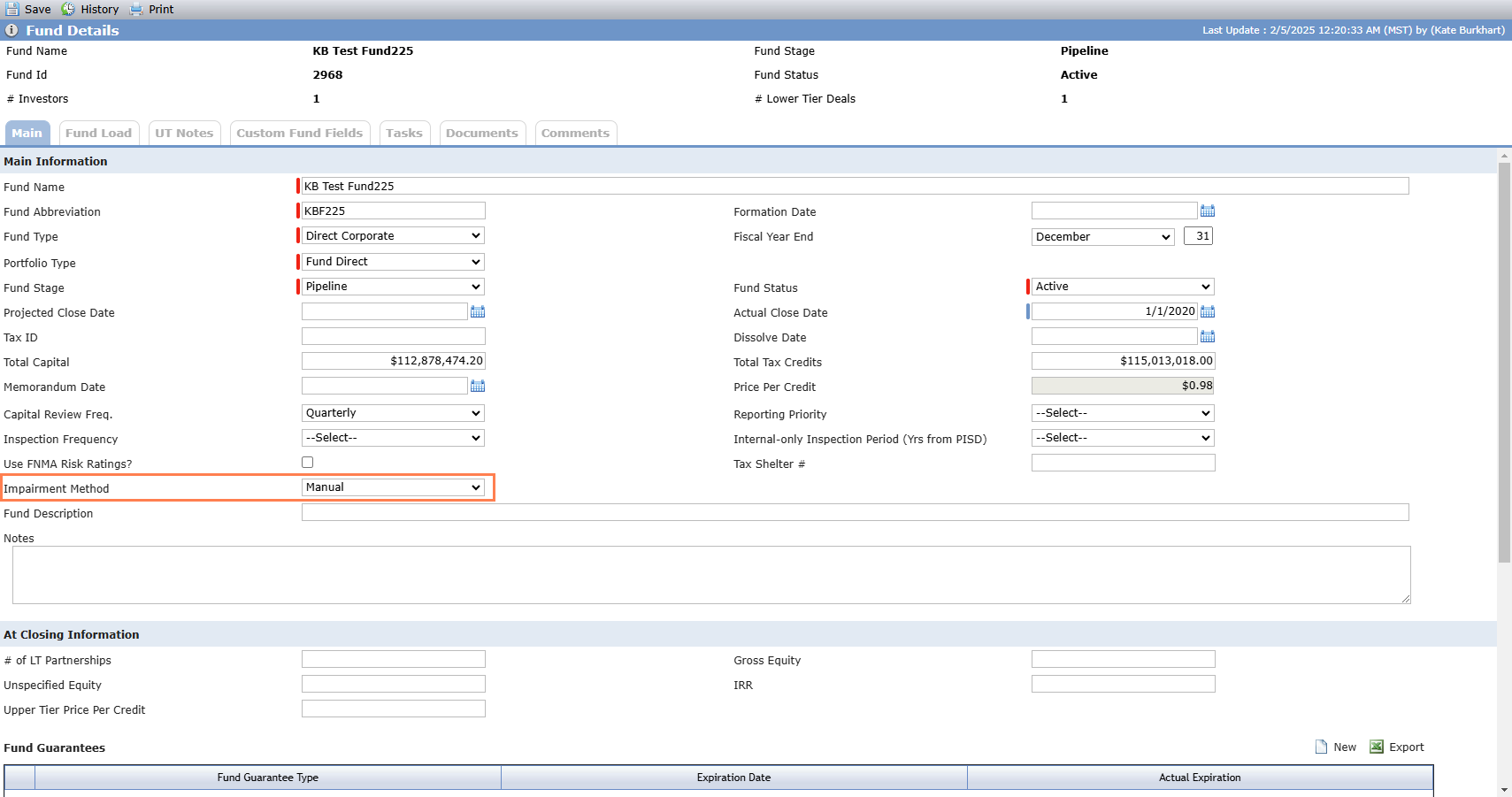
You can set the Impairment Method for the fund on the fund's Deal Details - Main tab. Options include "No Selection" (default) and "Manual." Your user role must have the following security privileges: Fund - Fund - Modify, Administrative - System Administrator - Modify.
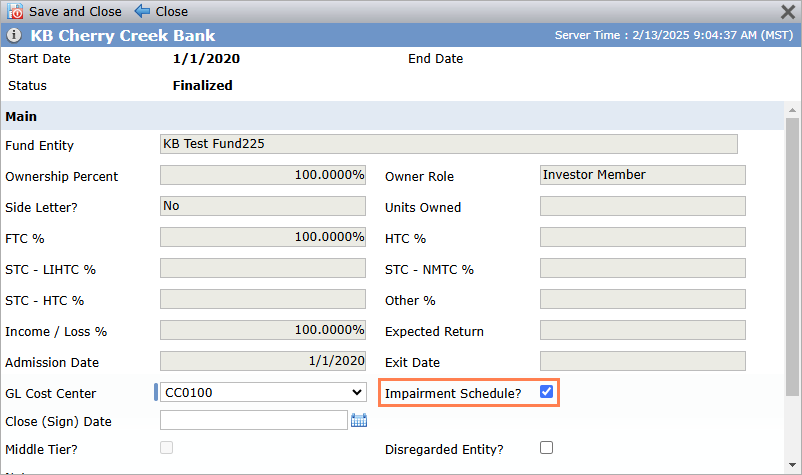
When you access the Fund Edit Ownership popup, the Impairment Schedule checkbox is available when the Owner Entity has the Is Bank Affiliate checkbox selected. When the Impairment Schedule checkbox is selected, the Owner Entity is available for selection on the new Fund Impairment screen. If you subsequently clear the Impairment Schedule checkbox, the Owner Entity will no longer be available in the Impairment Schedule owner list, and the system deletes all previously calculated Impairment records for the Owner Entity.
For a selected fund, the system includes a new option called Impairments, which opens the Edit Impairments screen. The screen includes the common Tasks, Documents, and Comments functionality.
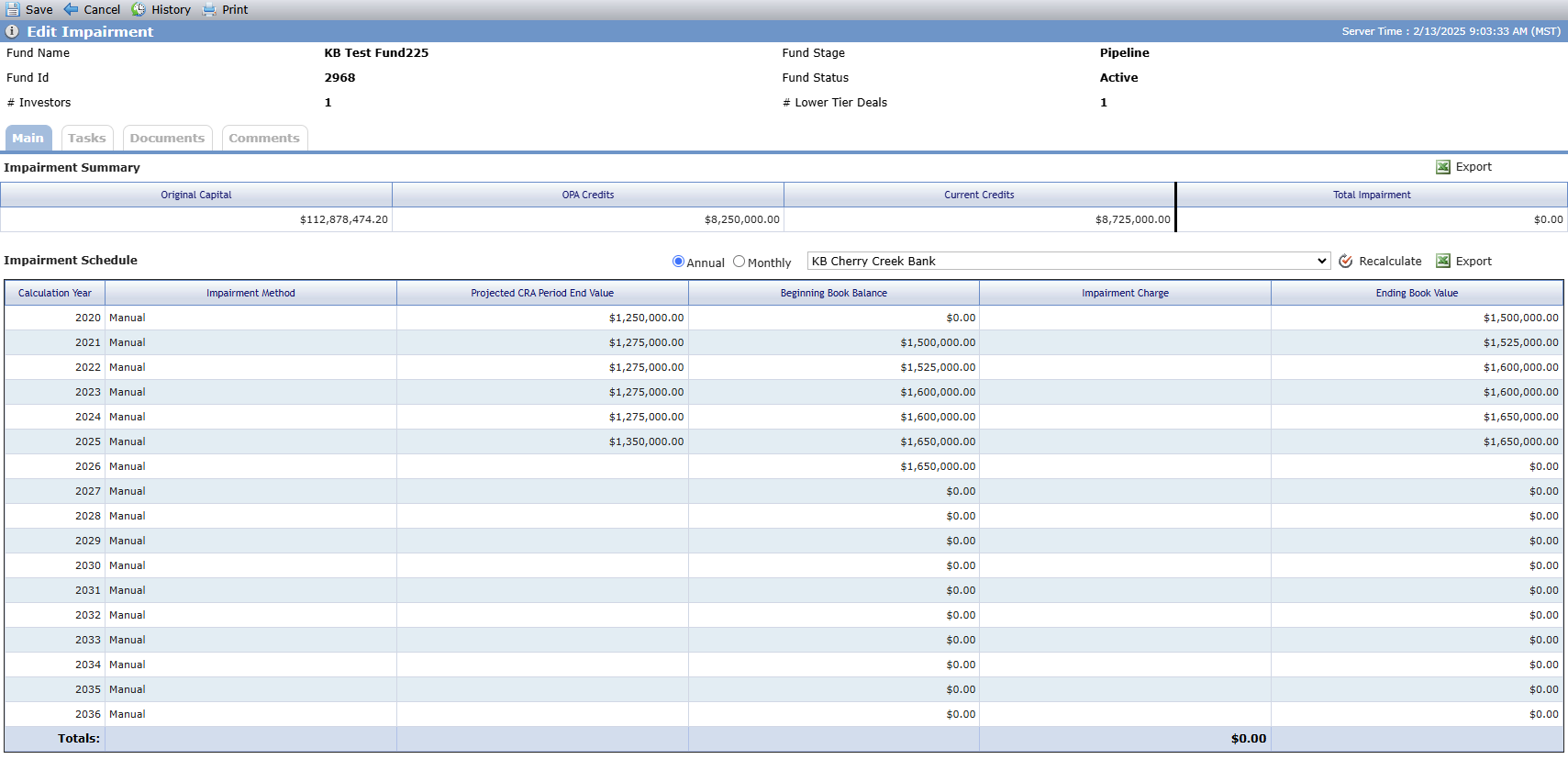
The Main tab includes:
Impairment Summary grid—Displays summary impairment information from the fund and all owner impairment schedules.
Original Capital—The fund-level total Commitment Amount from the equity schedule.
OPA Credits—The sum of total OPA credits from all tax credit grids on the Fund Benefit Schedule.
Current Credits—For LIHTC, sum the Expected Credits if not equal to zero; otherwise, the OPA Credits, from the Fund Benefits Schedule. For all other tax credit types, sum the LT Actual if available; if that equals zero, sum the Current Credits; if that equals zero, sum the OPA Credits.
Total Impairment—Sum the impairment charges from all impairment schedule rows, for all fund owners, across the annual impairment schedules on the fund.
Impairment Schedule grid—Displays the impairment information for the selected owner.
Can view impairment monthly or yearly.
The owner list contains any Owned or Owner Entity on an Ownership Schedule with the Impairment Schedule checkbox selected.
Recalculate functionality—Use to recalculate impairment for the Owner Entity that is currently selected.
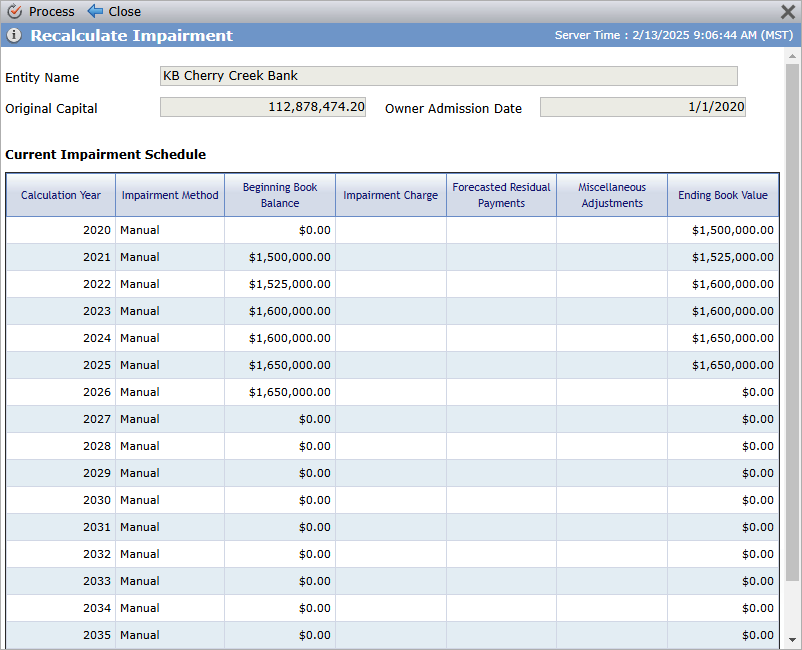
If it is the first time the Manual Impairment process is run, the system will create the impairment schedule with $0 for the Ending Book Value for each year; all other columns will be blank. The start date of the impairment schedule will be the selected Owner Entity's Admission Date. The end date will be the start date plus 16 years. You can add additional years through the new Fund Book Value Mass Update Import utility.
Subsequent runs of this process will set the Beginning Book Balance to the prior period's Ending Book Value for each period, either previous month value or previous year value depending on the periodicity of the impairment schedule.
Calculation Year—The year for the Impairment Schedule record (annual view).
MM/YYYY—The month and year of the Impairment Schedule Month record (monthly view).
Impairment Method—The Impairment Method used the last time the record was recalculated.
Projected CRA Period Ending Value—Updated only through the new Fund Book Value Mass Update Import utility.
Beginning Book Balance—For Impairment Schedule Month records, this value is the prior month's Ending Book Balance. For Impairment Schedule Year records, this value is the prior year's Ending Book Balance.
Impairment Charge—The monthly or yearly Impairment charge. Blank for the manual impairment method.
Ending Book Value
ProLink created a new utility, called Fund Book Value Mass Update Import, which allows you to import book values for fund-level impairment schedules.
Note
The existing utility is renamed to Deal Book Value Mass Update Import.
Your user role must include the existing security privilege, "Utilities - Panel - View," to access the utility and must include the new security privilege, "Fund Book Value Mass Update Import - Modify," to use the utility.
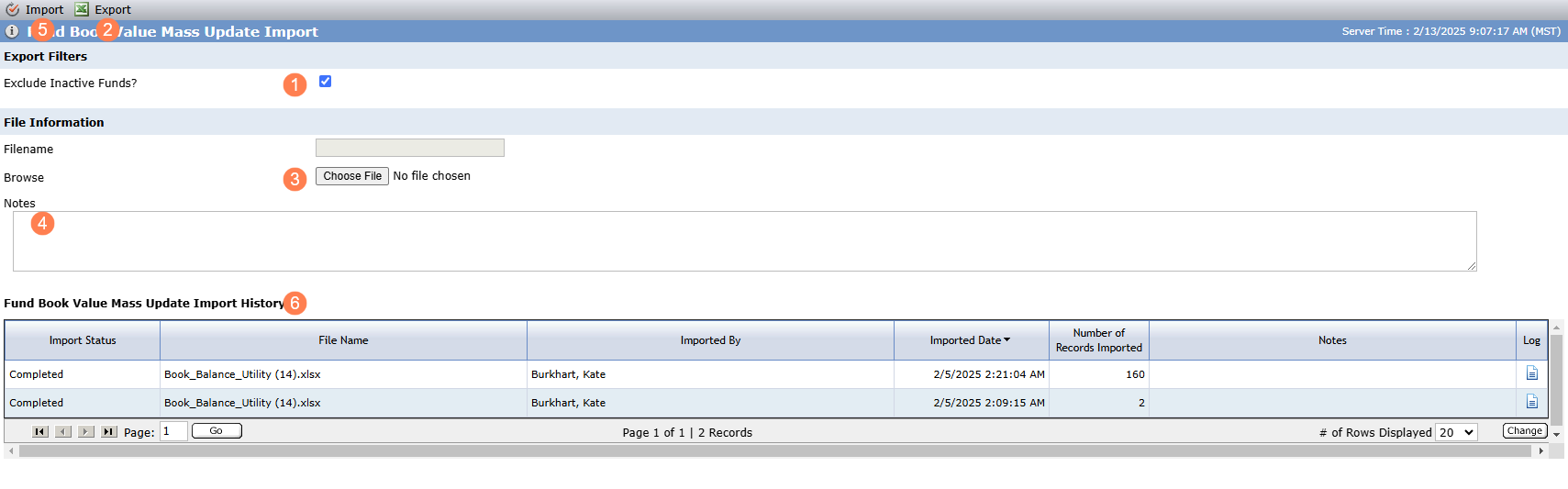
Clear or select the checkbox to Exclude Inactive Funds from the exported template.
Export the template.
Complete the template. When it's ready, click Choose File to select it for import.
Optionally, add Notes about the import template.
Import the updated template.
View the import history.
The template is a Microsoft Excel workbook containing two sheets, each populated with the same list of Fund Ownership where the fund's Impairment Method is "Manual" and the Owner has the Impairment Schedule checkbox selected.
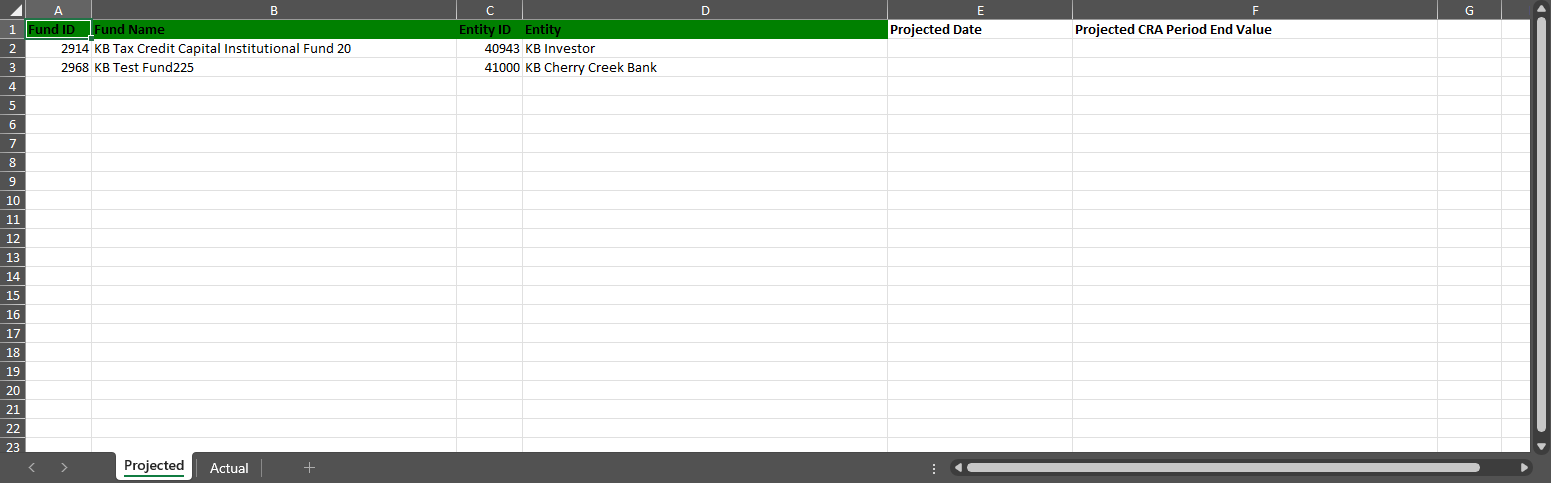
Projected
Fund ID—System populated
Fund Name—System populated
Entity ID—System populated
Entity—System populated
Projected Date—User populated
Projected CRA Period End Value—User populated
The system saves this value to the applicable Impairment month/year record. If a record does not exist, the system creates it if the Month/Year in the template immediately follows the last Impairment month/year record. Otherwise, the system logs an error that there is a gap in the impairment schedule.
Actual
Fund ID—System populated
Fund Name—System populated
Entity ID—System populated
Entity—System populated
Date—User populated
Ending Book Value—User populated
The system saves this value to the applicable Impairment month/year record. If a record does not exist, the system creates it if the Month/Year in the template immediately follows the last Impairment month/year record. Otherwise, the system logs an error that there is a gap in the impairment schedule.
New Data Views
ProLink added the following new data views:
Deal Benefit Schedules - Owner—Displays a row for each deal owner benefit year, allowing you to report on benefit schedules by owner entity per deal. You can click a row to navigate to the applicable Deal Edit Benefits Schedule screen. You can quick search on Deal Name or Name.
Fund Impairments—Displays a row for each fund Impairment record, allowing you to view each impairment year per owner entity per fund. You can click a row to navigate to the applicable Edit Impairment screen for the fund. You can quick search on Fund ID, Fund Name, or Entity Name.
Fund Owners Benefits Schedule - Annual—Displays a row for each fund owner benefit year, allowing you to report on benefit schedules by investor entity per fund. You can click a row to navigate to the applicable Fund Edit Benefits Schedule screen. You can quick search on Fund Name, Fund Abbreviation, or Name.
Impairment Schedule - All—Displays a row for each fund annual Impairments record and each deal annual Impairments record, allowing you to see book values across deal and fund investments. For example, you can report on all impairment entries for an owner/investor entity across both deal and fund investments. No click-through functionality is available. You can quick search on Fund or Deal ID, Name, or Entity Name.
Track Manager Approvals on Fund Accounting Transactions
The Edit Fund Accounting Transaction screen (Fund Equity Schedule) includes new fields to help you track manager approvals:
Manager Date Approved—Enter or select the date approved. You can update this field if your user role has the "Fund - Equity Schedule - Fund Accounting Transaction - Manager Date Approved" security privilege (new) and the "Fund - Equity Schedule - Fund Accounting Transactions - Modify" security privilege.
Manager Approved By—Read-only field that is populated with the user's name when the Manager Date Approved field is saved.
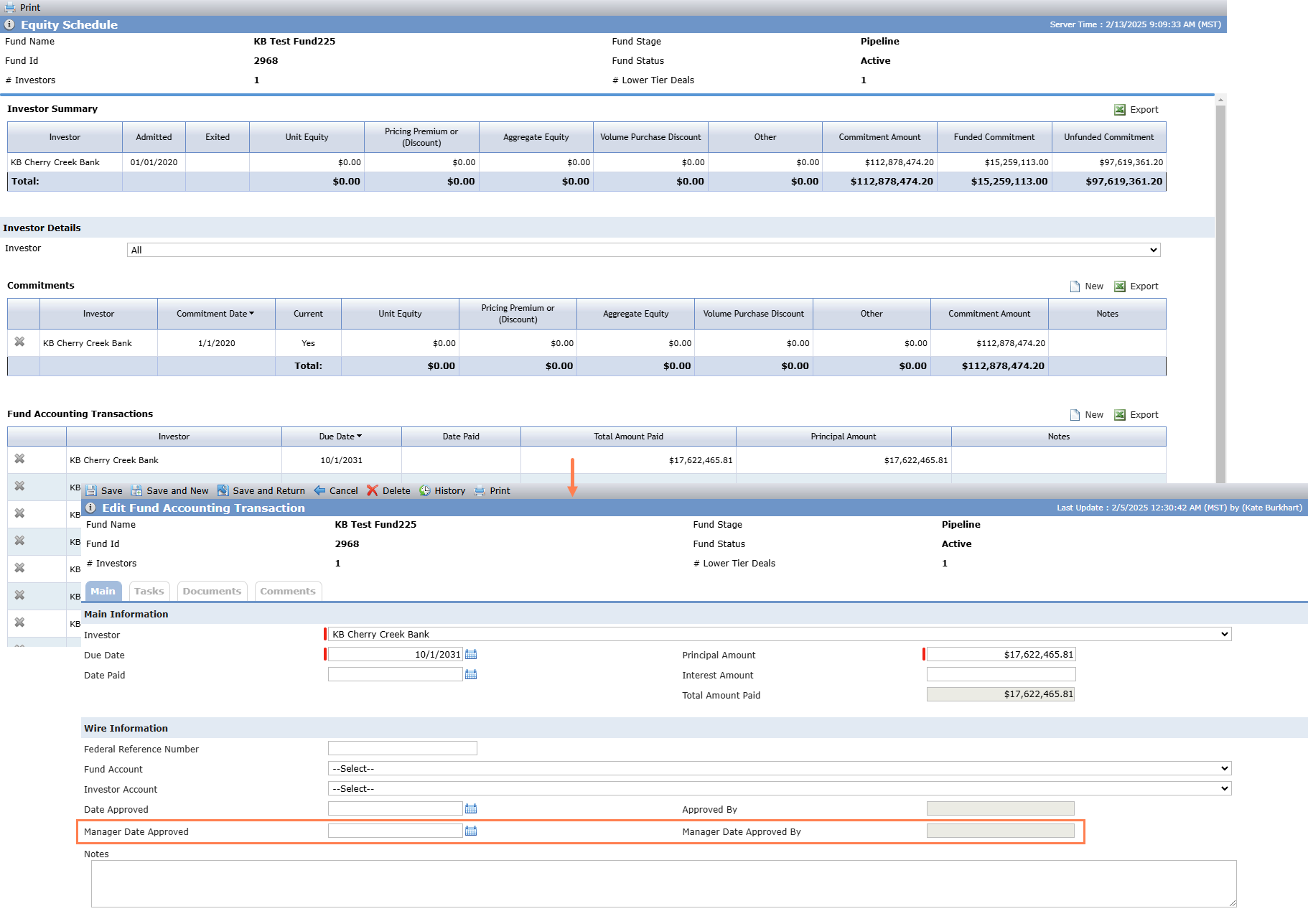
ProLink added the following fields as available columns in the Fund Accounting Transactions data view: Date Approved, Date Approved By, Manager Date Approved, Manager Date Approved By.
Update to Sort Order of Add Risk Elements Popup for Deal Risk Reviews
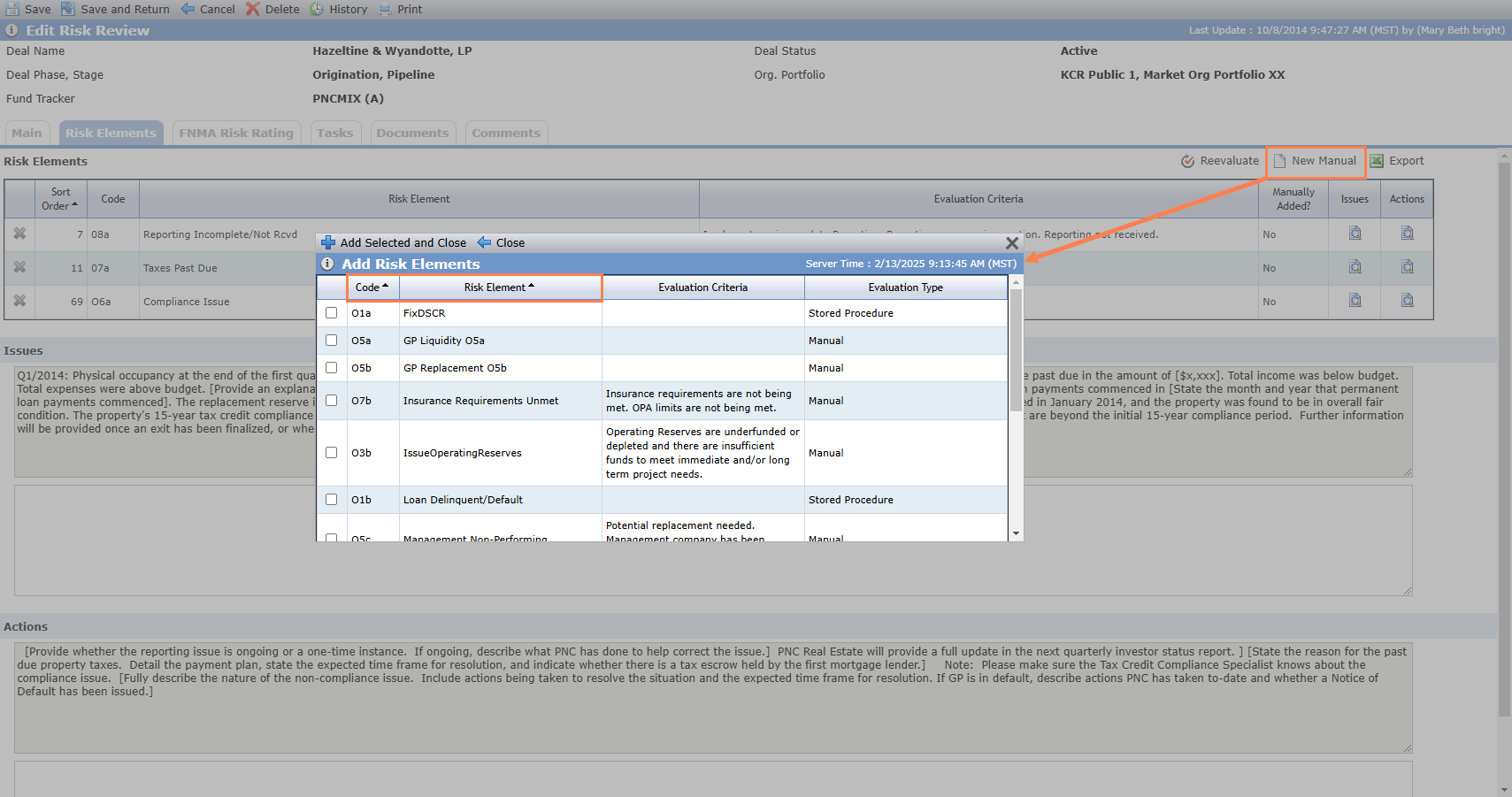
ProLink updated the Add Risk Elements popup so that the grid includes a secondary sort by Code. As a result the grid will be sorted by Risk Element, and within Risk Element by Code, which makes it easier to navigate and find the appropriate risk element code.
Note
You can access this popup on a deal Risk Review record, on the Risk Elements tab, by selecting New Manual.
Tickets Delivered
The release includes the following items.
Ticket Number | Description |
|---|---|
27501 | ProLink fixed the calculation for the value in the Upper Tier Equity column of the Finalized Lower Tier Deals - Fund Load grid on the Fund Details screen so that the Flat Amount is not counted twice. |
N/A | ProLink fixed an issue with the Add Risk Elements popup (deal Risk Review) so that changing the sort order of the Code column correctly organizes the risk elements in the grid. |