Edit an Entity - NMTC Tab
The NMTC (New Markets Tax Credits) tab on the Edit Entity screen appears only for entities that have a primary role of Allocatee.
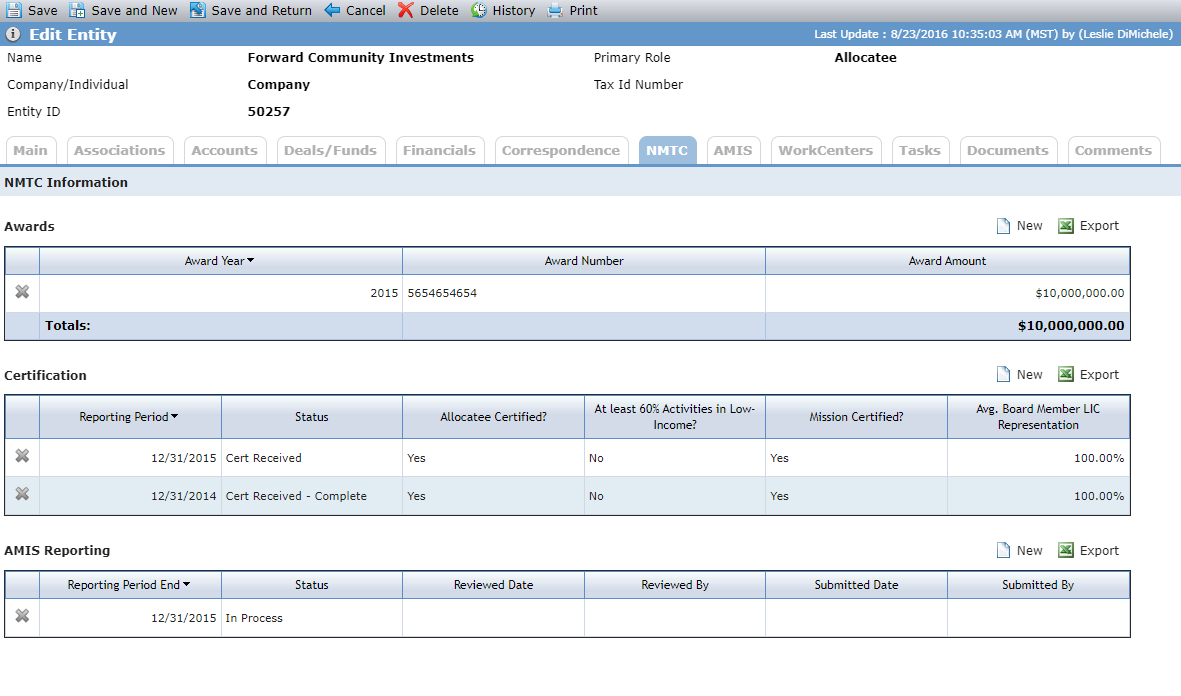
The Awards grid shows the annual tax credit award records for the allocatee.
You can create a new record by clicking New above the grid. Click a row to open the corresponding record.
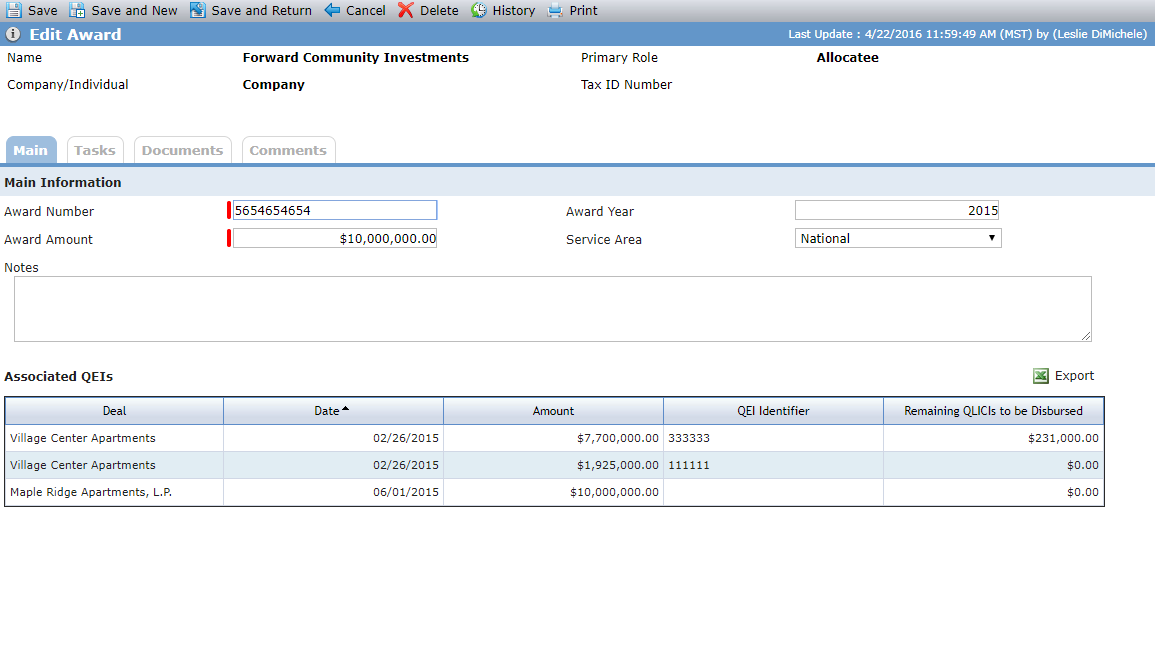
The Associated QEIs grid shows all qualified equity investments (QEIs) where this award has been selected.
The Certifications grid shows the certification records for the allocatee, indicating they are a valid recipient of tax credit awards.
You can create a new record by clicking New above the grid. Click a row to open the corresponding record.
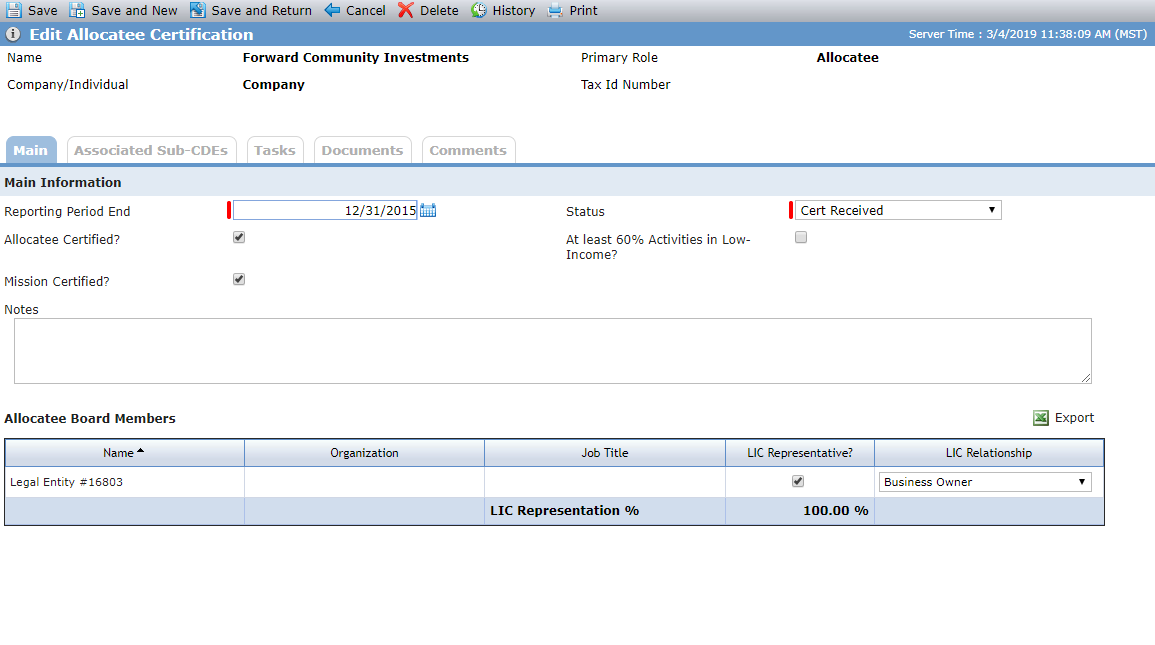
The reporting period for a certification must be unique.
The Allocatee Board Members grid shows the contacts from the allocatee's Associations tab where the Is Board Member checkbox is selected. When you create a new Certification record, the Low Income Community (LIC) Representative and LIC Information for Board Member selections are copied from the prior record.
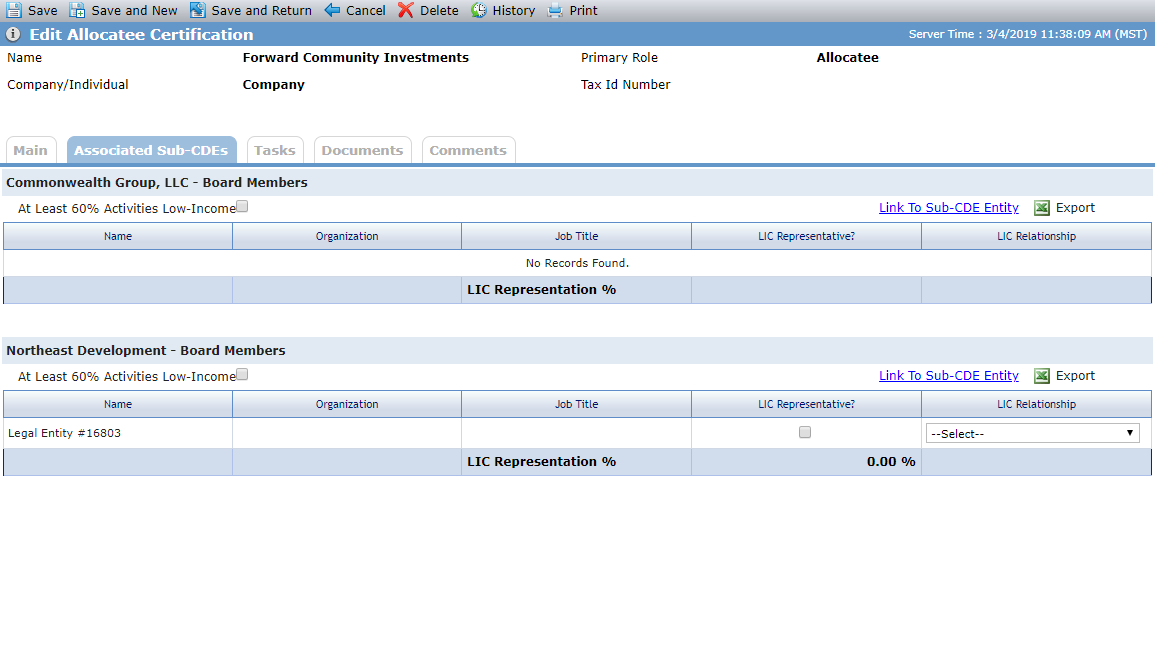
The Associated Sub-CDEs tab shows a grid for every subsidiary community development entity (sub-CDE) that is associated to a QEI, where the allocatee entity is the allocatee on the QEI. You can click the hyperlink above the grid to navigate to the Edit Entity screen for the sub-CDE entity.
The Awards Management Information System (AMIS) is the web-based data collection system that community development financial institutions (CDFIs) and community development entities (CDEs) use to submit their Institution Level Reports (ILRs) and Transaction Level Reports (TLRs) to the fund.
Tip
For more information about the Awards Management Information System (AMIS), see https://amis.cdfifund.gov/AMISHome.
The AMIS Reporting grid on the NMTC tab shows the AMIS TLR reporting records for the allocatee.
You can create a new record by clicking New above the grid. Click a row to open the corresponding record.
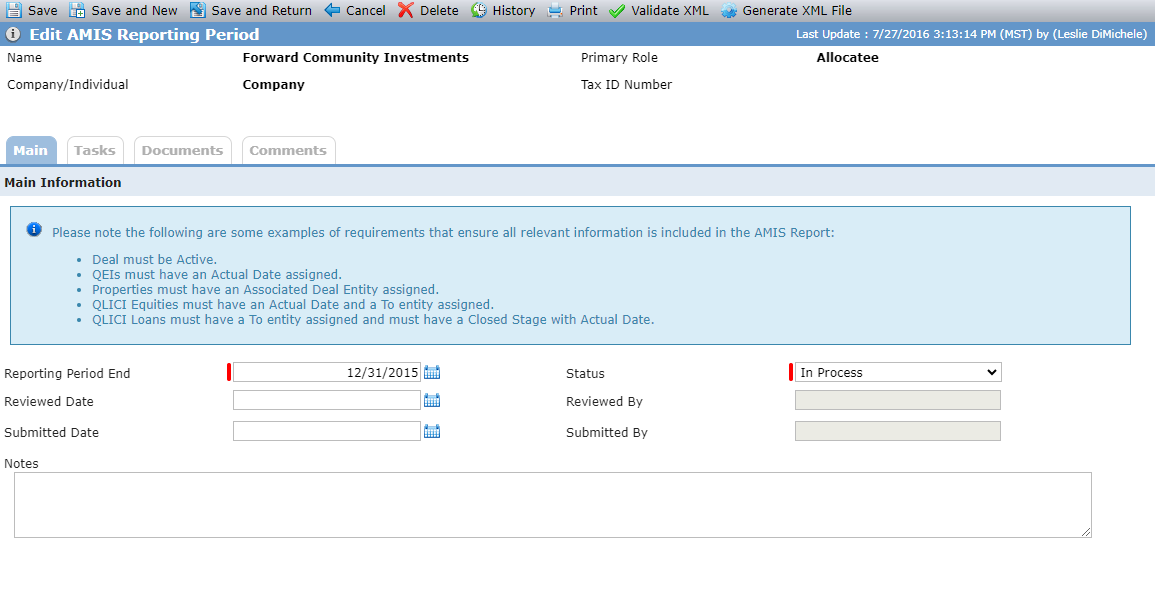
The TLR XML file incorporates data throughout the application that is tied to the reporting allocatee.
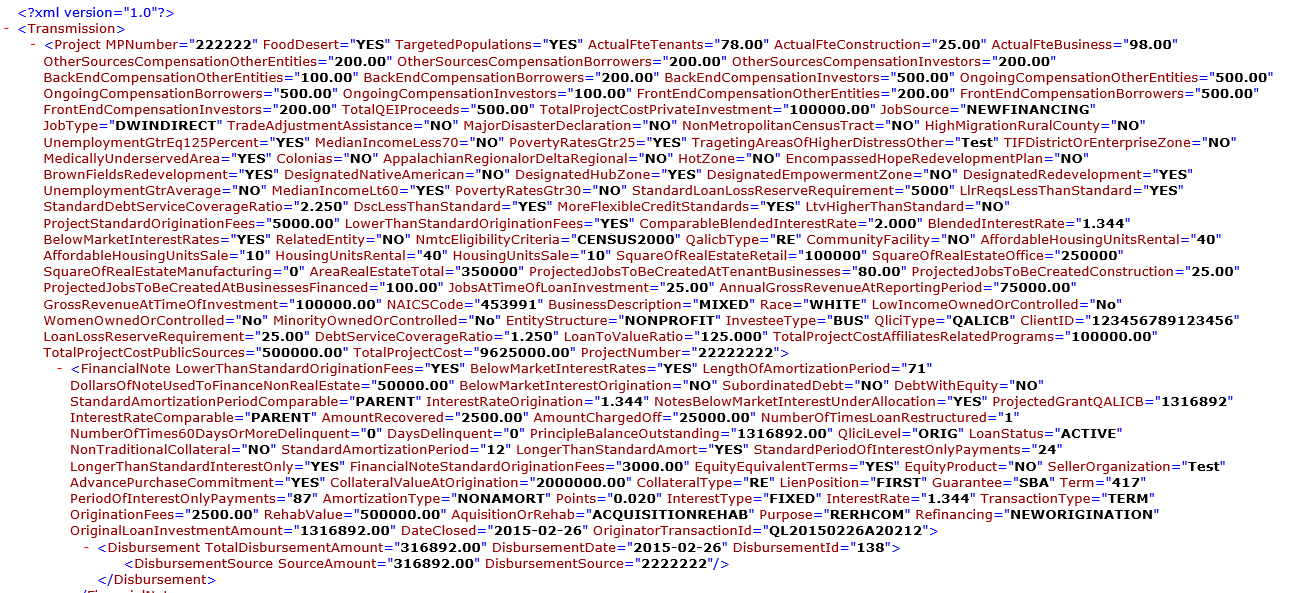
The TLR reports on the business impacted by the awards the allocatee distributed—amounts invested, interest rates received, jobs created, and the overall impact to the communities being served.
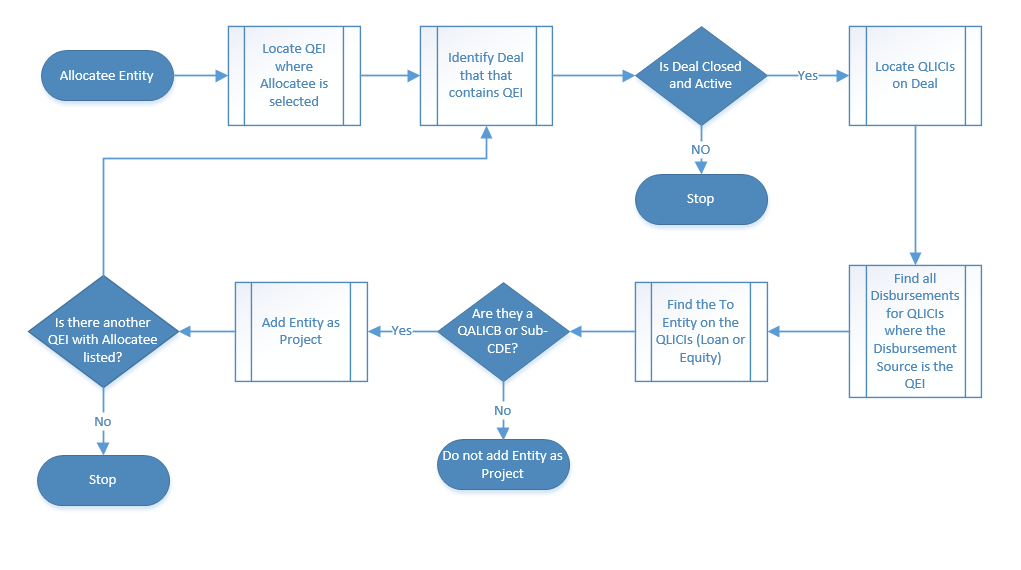
The TLR file that is generated reports out those projects that are associated to the allocatee the report is created for. This process flow displays the logic used in ProLinkAIM to identify those projects.
This section describes the logic used to determine which projects and transactions get reported and where the data is located within the application.
Projects—Any entity that has a primary role of QALICB or Sub-CDE is considered a potential project. There is no primary role of Intermediary Sub-CDE, so any entities that serve in that role need to be added with a primary role of Sub-CDE. The list of potential projects is displayed on the AMIS tab of Deal Details. Only those projects (QALICB or Intermediary Sub-CDE) that receive QLICI funds (loan or equity) are considered projects for TLR reporting and thus require the project-level AMIS data to be populated.
Notes-Investments—Any QLICI loan or equity that was active during the allocatee Reporting Period will be included in the TLR file. The majority of the AMIS specific data is located on the AMIS tab of the Edit Debt Detail screen. Some information is from elsewhere in the application.
Disbursements—Any disbursements that occurred within the allocatee Reporting Period and have a Disbursement Source (QEI) that is tied to the allocatee will be included in the TLR file. The information is located on the Edit Disbursement screen.
Addresses—The address information for the investee and project is located either at the building level (Edit Building screen) or entity level (Edit Entity screen) depending on the project.
When the project is QALICB—The project address information comes from the Edit Building screen. More than one QALICB might be associated to the TLR, so the QALICB's address is not used as the project address. You must select the QALICB as the associated QALICB on the Property screen to associate it to the property that contains the buildings (businesses). The QALICB (entity) address is used for the investee address information.
When the project is Sub-CDE or Intermediary Sub-CDE—The Sub-CDE (entity) address is used for both the project and investee address information.
Navigate to the NMTC tab on the Edit Entity screen.
Click New above the AMIS Reporting grid.
The Edit AMIS Reporting Period screen opens.
Enter the Reporting Period End and select the Status.
Click Save.
Click Validate XML in the top menu bar.
The AMIS XML Validation popup opens, which helps to identify required AMIS data that has not been populated. The validator does not include any validation for AMIS conditionally required fields.
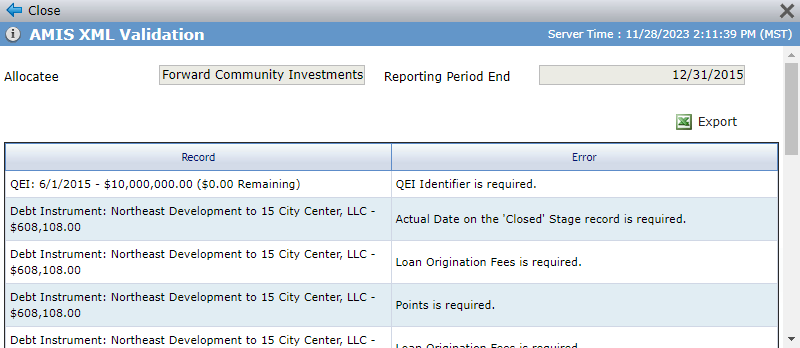
Review and address the XML validation errors.
Table 1. AMIS Validation ErrorsError Type
Description
Project
At least one project must be included in the report. This error does not imply that there are no Project records on the AMIS tab of Deal Details, but does indicate that the projects displaying are not being recognized. The following are required for a project to be recognized:
Deal must have an Actual Close Date.
QEI: From entity must be selected, and To entity must be selected.
QLICI:
From entity must be selected.
To entity must be selected.
Loan Status must be Active; or if Closed, Sold, Charged Off, Refinance, or Restructured, then a Maturity Date must be populated.
At least one disbursement record must exist with the QEI selected as the Source.
Project
At least one QLICI loan or QLICI equity must be reported for each project. This error is generally displayed when the previous error is displayed. By populating the above data from the previous error, this error will also be cleared.
Project
When project errors occur, only the name of the project is provided. If the project exists on multiple deals, you need to review all of them.
Building
When building errors occur, there is no indication as to what deal the building is on. The building name is included in the error, but if multiple deals have buildings with the same name, you need to review all of them.
Debt Instrument
When debt instrument errors occur, only the To and From entities are provided to identify the QLICI that needs to be updated. If multiple QLICIs have the same To and From entities, you need to review all of them.
When ready, click Generate XML File in the top menu bar.
The application generates a TLR XML file for the allocatee entity. The file includes all projects the allocatee is associated to that had activity during the Reporting Period.
After the file is created, you can upload it to the external CDFI AMIS Transaction Level Report Upload.
Tip
Your organization can use the Status, Reviewed Date, and Submitted Date fields to track the progression of the AMIS Reporting record.