Introduction to ProLinkAIM Buildings
Managing building-level detail is essential for most tax credit deals. The data will be used to evaluate the building to ensure that it meets any compliance and reporting requirements.
When you create a deal, the system automatically creates a single Building record. The Building Name defaults to "Building 1," but you can change it if needed.
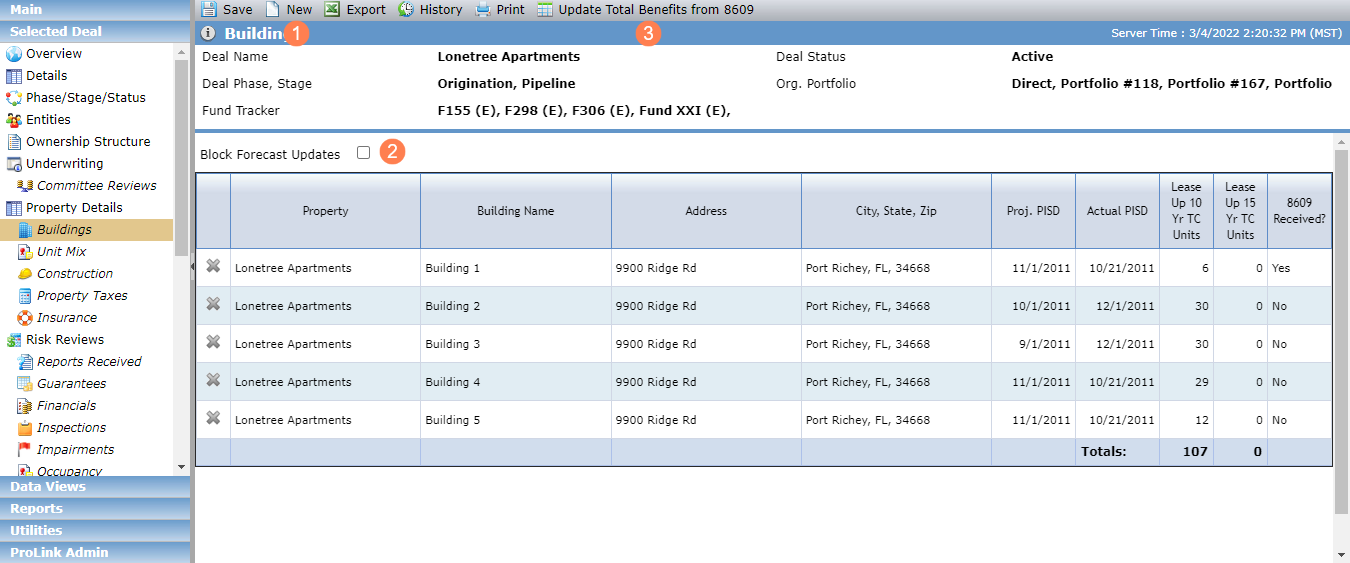
Click New to add another building.
Select the Block Forecast Updates checkbox to have the system block all updates on any buildings with values sent through the SmartDox Financial Forecast template.
Update Benefits from 8609
For LIHTC deals, you can re-calculate benefits after the IRS Tax Form 8609 forms are received. One form is required for each building.
The Update Total Benefits from 8609 button in the top toolbar is enabled when:
An 8609 record exists on one or more buildings on the property, or the 8609 Annual Amount is populated on a LIHTC Total Benefits record.
AND
You have the Benefit Schedule - Modify security privilege.
When you click the button, the system updates the 8609 Annual Benefit Amount field on the Total Benefits records in the Benefits Schedule with the Line 1B amount from the Edit 8609 screen. If multiple 8609s exist, then Line 1B will be summed.
Edit Building
Building level detail is important to track for any deal. Each building may have different physical addresses, milestone dates, and unit detail. Depending on the deal’s tax credit type, this detail may drive or trigger conditions for the deal. For example, LIHTC deals show the LIHTC tab on the Edit Building screen, while NMTC and HTC deals show the Commercial Spaces tab on the Edit Building screen.
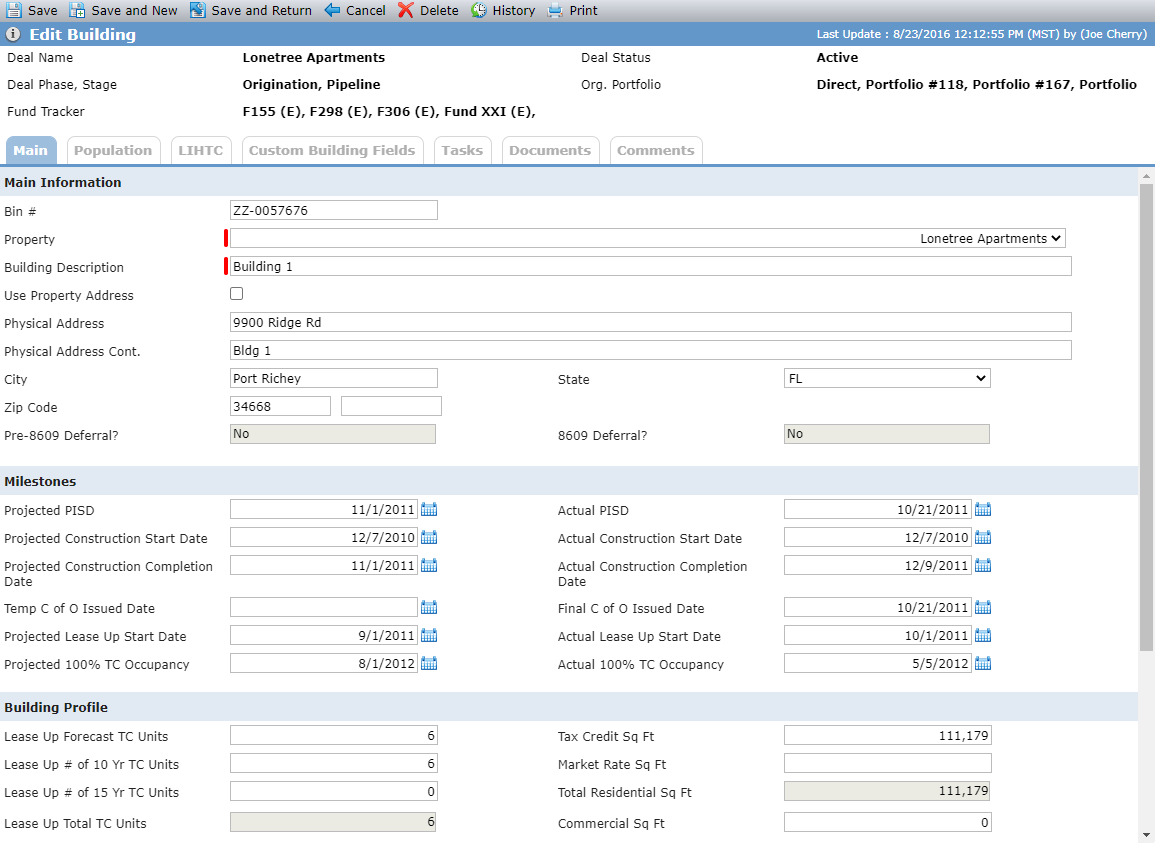
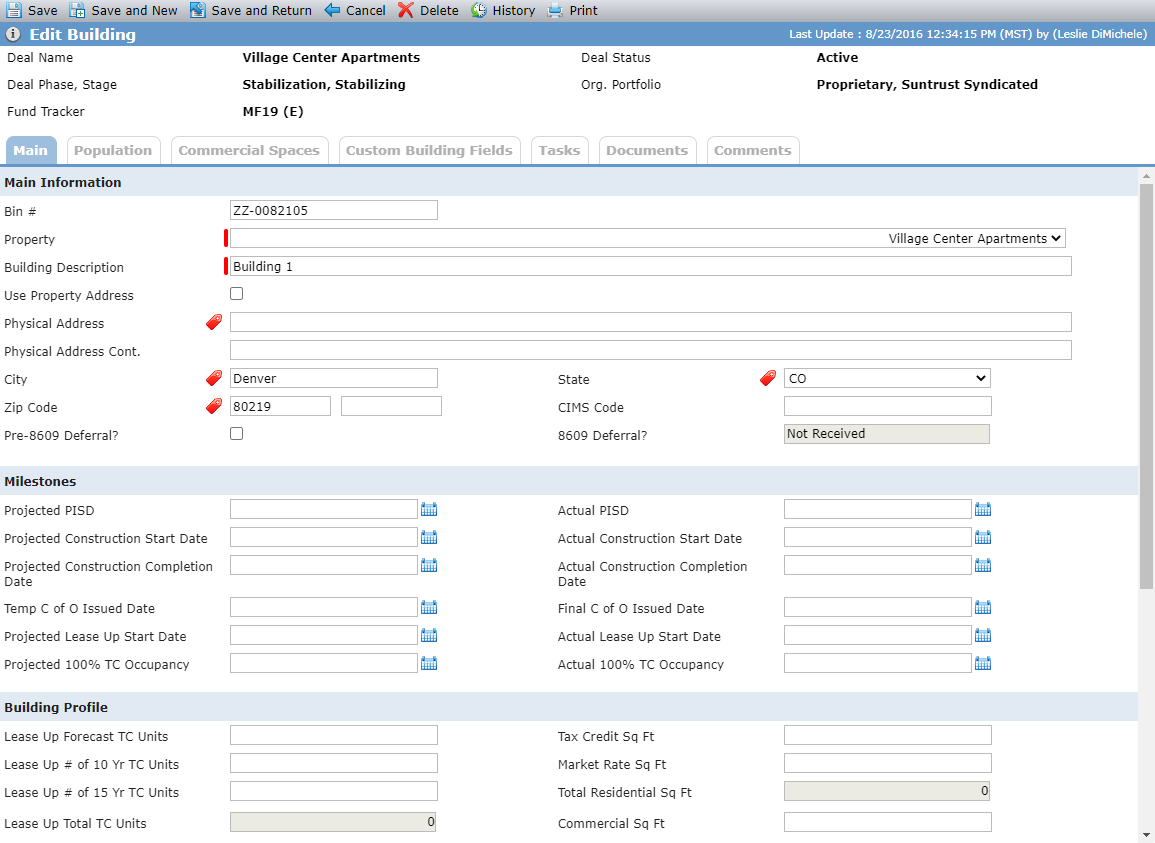
LIHTC Deal; NMTC Deal
Note
ProLinkAIM Buildings functionality supports User Defined Fields (UDFs). If any Building UDFs exist, the Custom Building Fields tab is available.
You cannot delete a building when any of the following conditions exist:
An 8609 record exists for the building
An 8609A record exists for the building
An Insurance record exists for the property the building is associated to
At least one Population Served checkbox is selected (Population Tab)
An associated Compliance event exists (Compliance screen - Event tab, only on NMTC deals)
Field | Description |
|---|---|
Main Information | |
BIN # | Applies to LIHTC deals only |
Use Property Address | When selected, the Physical Address, Physical Address Cont., City, State, and Zip Code will be populated with the corresponding property's information from the Edit Property Details - Main tab. |
Address fields | Required (red) AMIS indicators will be displayed for NMTC deals. |
Pre-8609 Deferral | Applies to LIHTC deals only An editable checkbox to identify whether the building will have an 8609 deferral. After an 8609 exists, then the field is a read-only value based on the previous checkbox value ("Yes" if the checkbox was selected and "No" if the checkbox was cleared). The field will be displayed as an editable checkbox if no 8609 exists on the building. Once an 8609 exists, the field will be a read-only label that will display “Yes” if Line 10a equals “Yes” and “No” if Line 10a equals “No.” |
8609 Deferral | Applies to LIHTC deals only A read-only field that displays "Not Received" until an 8609 exists. After an 8609 exists, the field displays "Yes" if Line 10a equals "Yes" and "No" if Line 10a equals "No." |
CIMS Code | Applies to NMTC and STC-NMTC deals only. |
Milestones | |
Projected PISD | The population of the Projected or Actual PISD will create Benefits records for all tax credit types except NMTC. |
Actual PISD | The population of the Projected or Actual PISD will create Benefits records for all tax credit types except NMTC. The population of the Actual PISD will create Lease Up records, Lease Up Notes, and Occupancy records for all Tax Credit types, although only LIHTC use the data to calculate Benefits.
If the Actual PISD is modified to a date earlier than the existing date, the system will create additional Lease Up records for all buildings for the full year of the new Actual PISD. The system will also create monthly Occupancy records and Lease Up Notes for the earlier date. When Lease Up records are created, values are defaulted based on the values populated in the Lease Up section of the OPA Tab on Deal Details:
When Occupancy records are created, values are defaulted based upon the values populated in the Occupancy Reports section of the OPA tab on Deal Details. On the OPA tab different values can be stored depending upon the stage the deal is in (if the current Phase is prior to Asset Management, or is currently Special Asset, use the information in the Occupancy Reports – Stabilization section, otherwise use the information in the Occupancy Reports – Asset Management section):
For deals where Lease Up or Occupancy information has not been populated on OPA tab, the following values will default:
|
Building Profile—Primarily used for LIHTC deals NoteThe Lease Up TC Unit fields are used to calculate benefits. | |
Lease Up Total TC Units | Sum of Lease Up # of 10 Yr TC Units plus Lease Up # of 15 Yr TC Units. |
Lease Up Total Residential Units | Sum of Lease Up Total Units plus Lease Up # of Market Units plus Lease Up # of Manager Units. |
Building Total Units | Sum of Lease Up # of Residential Units plus Lease Up # of Commercial Units. |
Total Residential Sq Ft | Sum of Tax Credit Sq Ft plus Market Rate Sq Ft. |
Total Sq Ft | Sum of Total Residential Sq Ft plus Commercial Sq Ft. |
Manager Units Last Updated | Displays the date and time of the last update to the # of Manager Units field. |
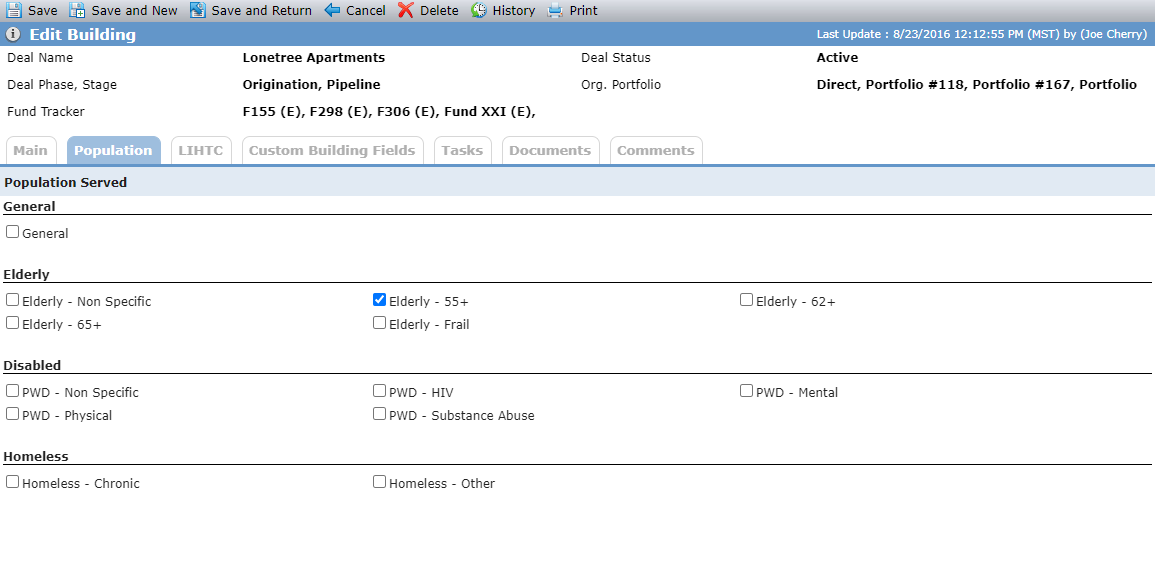
Tracking the population that occupies the building will assist in reporting and compliance issues. You can select one or multiple checkboxes to indicate the type of population that occupies the building.
Note
The checkbox values are controlled by a non-system picklist. Your system administrator can customize the values for your organization.
Important
The LIHTC tab is available on LIHTC deals only.
Tracking the Tax Forms 8609 provides you with certification of the maximum annual amount of credits available to the project. ProLinkAIM then uses that information to calculate the annual benefits available.
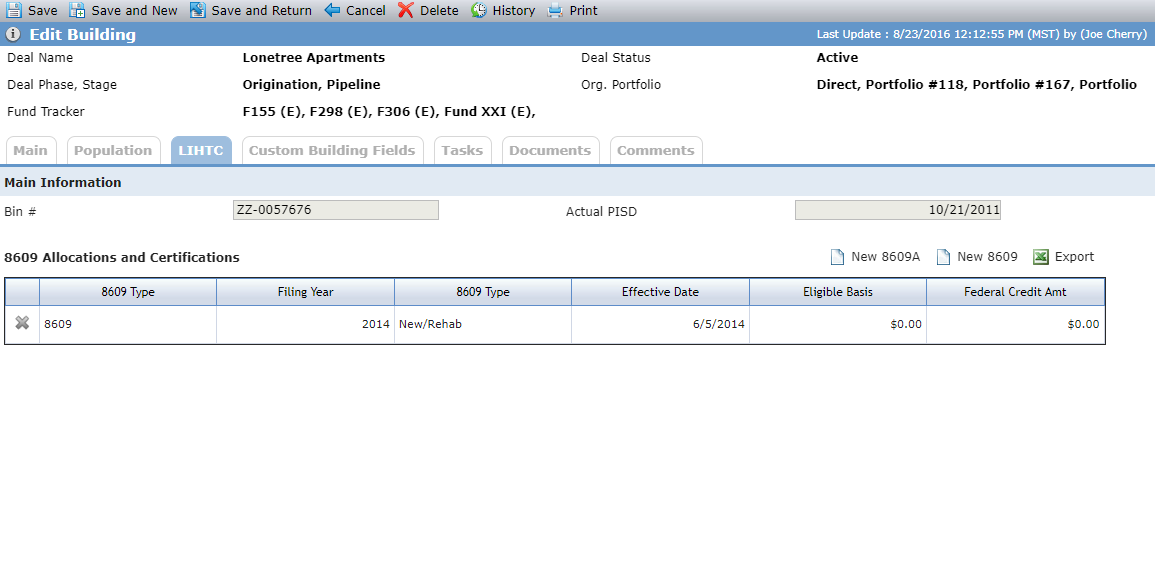
The BIN # and Actual PISD fields are displayed from the Edit Building - Main tab.
For 8609 records, the system displays the Benefit Sub Type(s) associated to the 8609 based on Line 6 selections:
If Line 6a, 6b, 6d, or 6e is checked, "New/Rehab" will display.
If Line 6c is checked, "Acq" will display.
If both conditions are true, both values will display, comma delimited.
For 8609A records, the grid shows values only for Filing Year and Type.
Add or Edit an 8609 Record
Form 8609 is used to certify to the IRS the amount of qualified basis for the BIN #, and the amount of tax credits that may be eligible for that BIN.
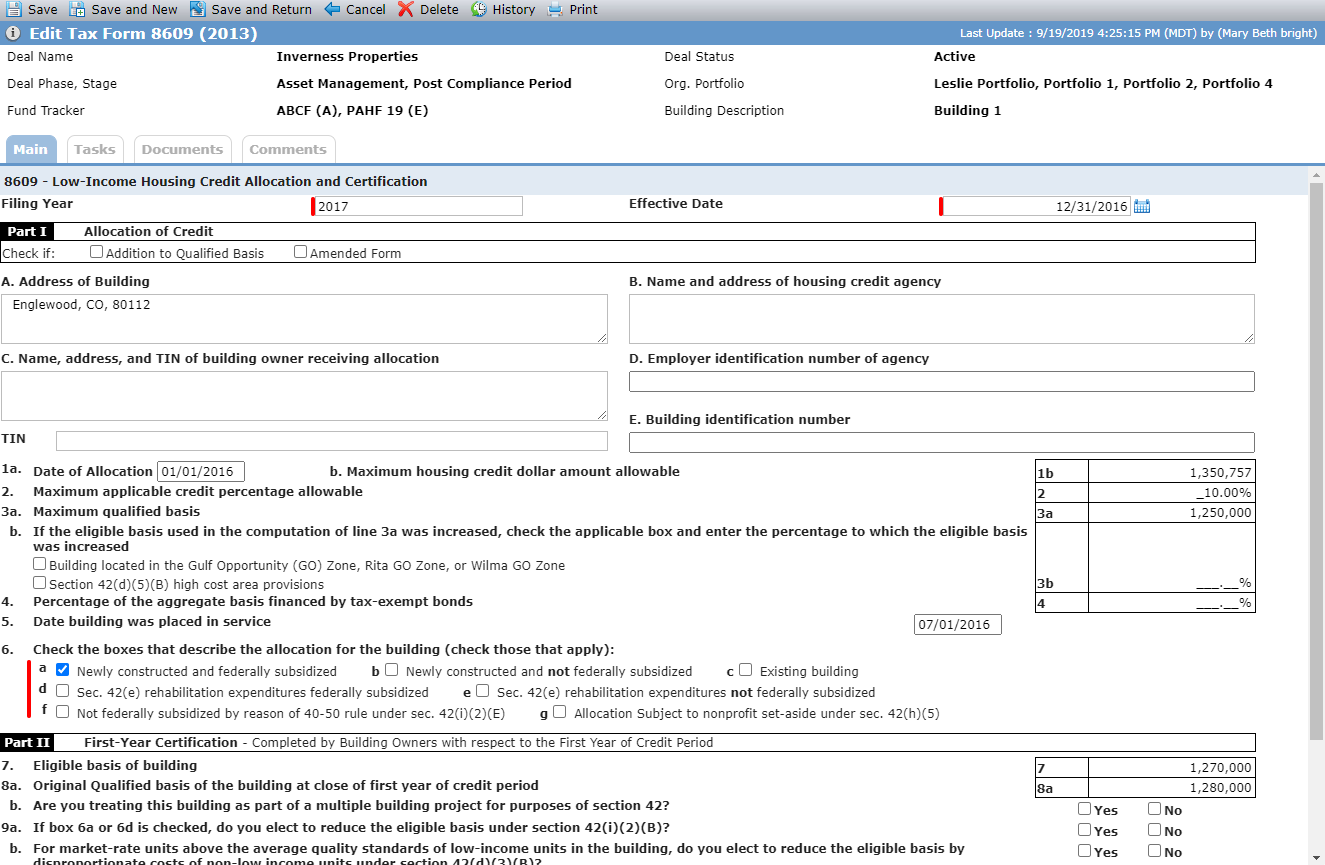
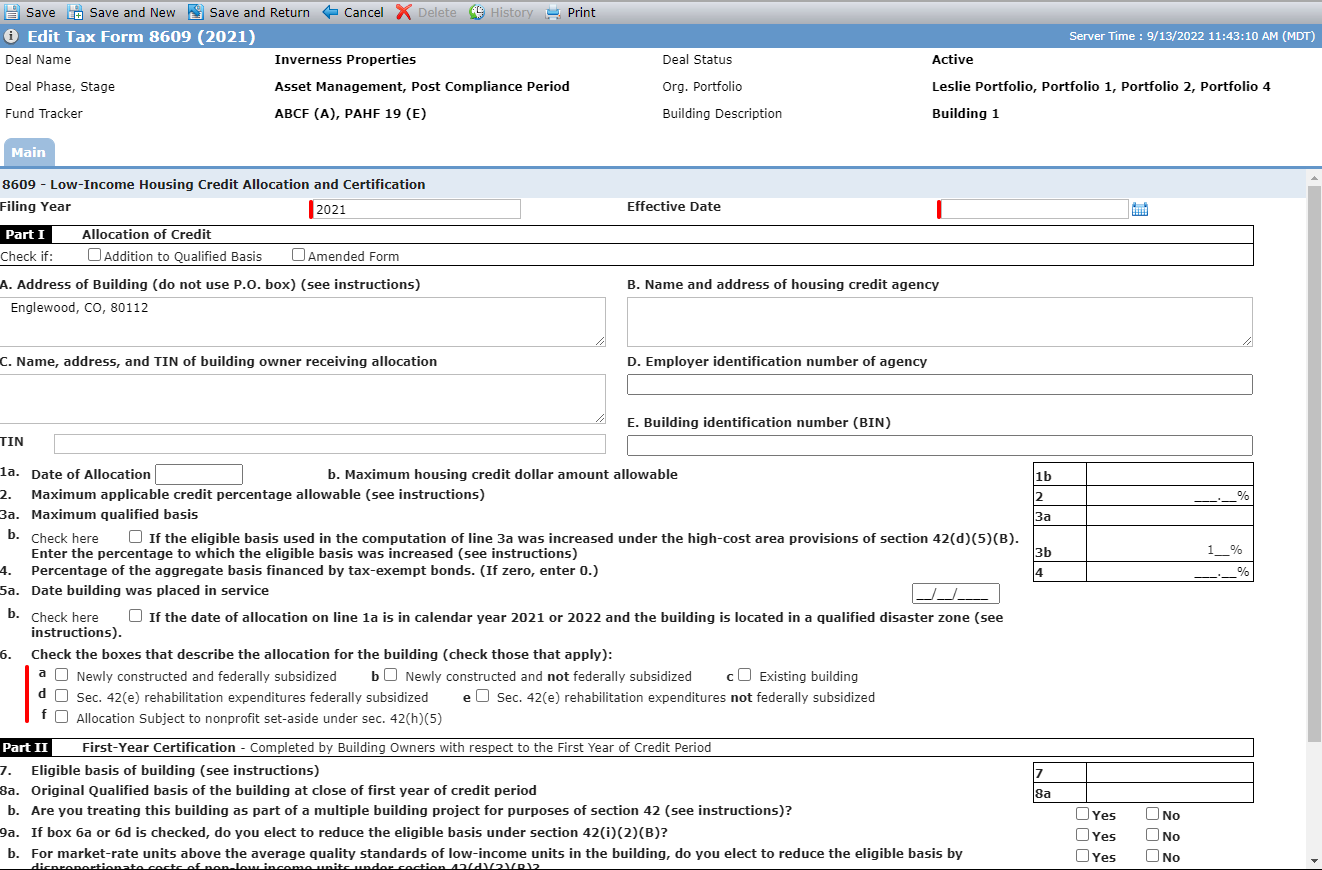
2013 version; 2021 version
For Line 10c only one checkbox can be selected at a time. If a user selects a checkbox and one is already checked, the previously checked box will be cleared.
For Lines 8b, 9a, 9b, 10a, and 10b, either the Yes or No checkbox must be selected.
If either checkbox under line 3b is selected, then box 3b is required.
Line 3b is required if the Building located in the Gulf Opportunity (GO) Zone, Rita GO Zone, or Wilma GO Zone or Section 42(d)(5)(B) high cost area provisions is selected.
If Line 6a, 6b, 6d, or 6e is selected, a Total Benefits record must exist for LIHTC Federal Credits with the "New/Rehab" Sub Type.
If Line 6c is selected, a Total Benefits record must exist for LIHTC Federal Credits with the "Acq" Sub Type.
At least one selection in Line 6 is required.
The Effective Date must be unique for 8609 records for the building where the Line 6 selections map to the same Benefit Sub Type.
Add or Edit an 8609A Record
Form 8609A is prepared each year by the owner to calculate the amount of tax credits that could be claimed for the BIN associated with the 8609.
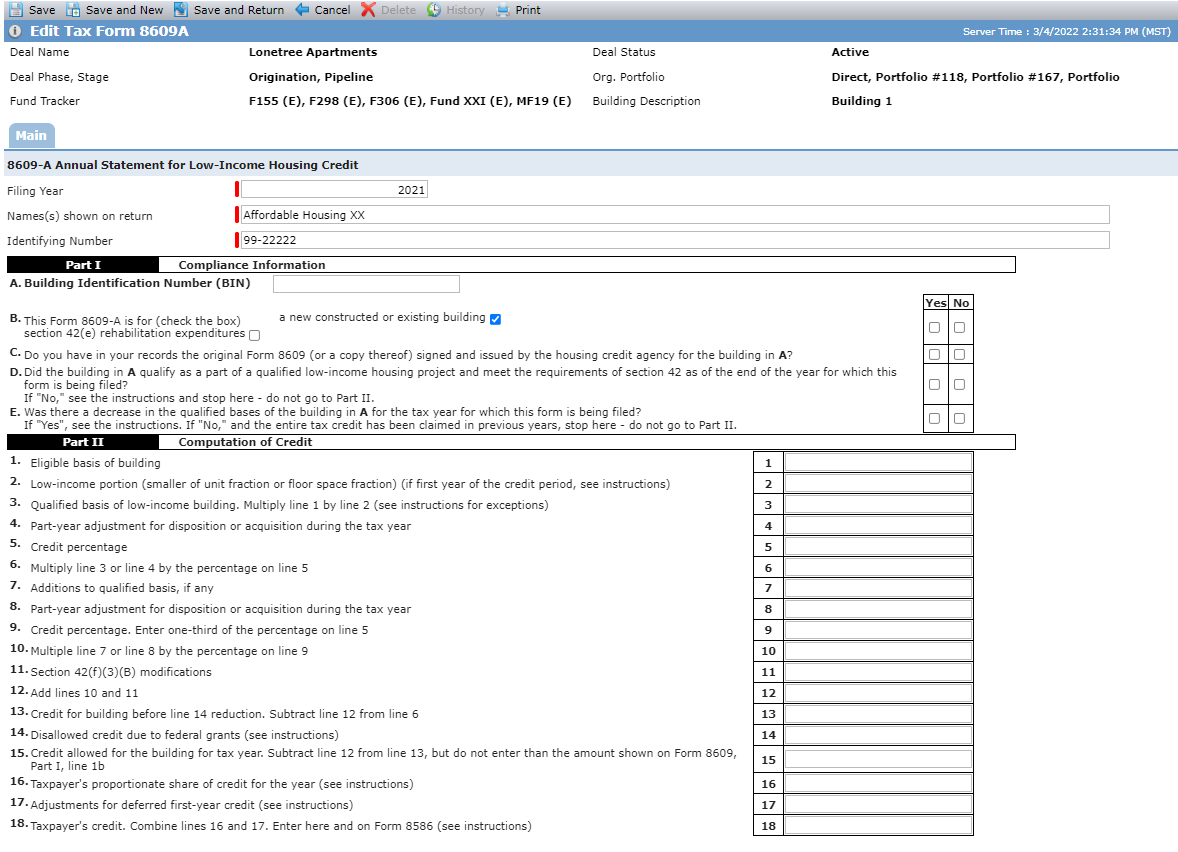
At least one checkbox in Line B must be selected.
Important
The Commercial Spaces tab is available on NMTC and HTC deals only.
The tracking of Commercial Spaces for Historic Tax Credit and New Market Tax Credit deals is essential for accurate reporting. In order to manage Commercial Leases, Occupancy and Revenue, for a deal, the individual spaces within the building must first be created and classified.
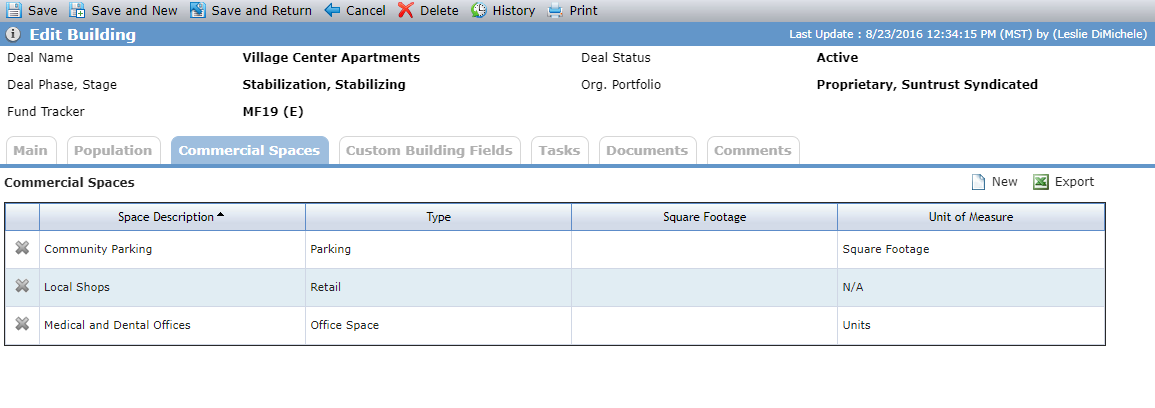
Add or Edit Commercial Space
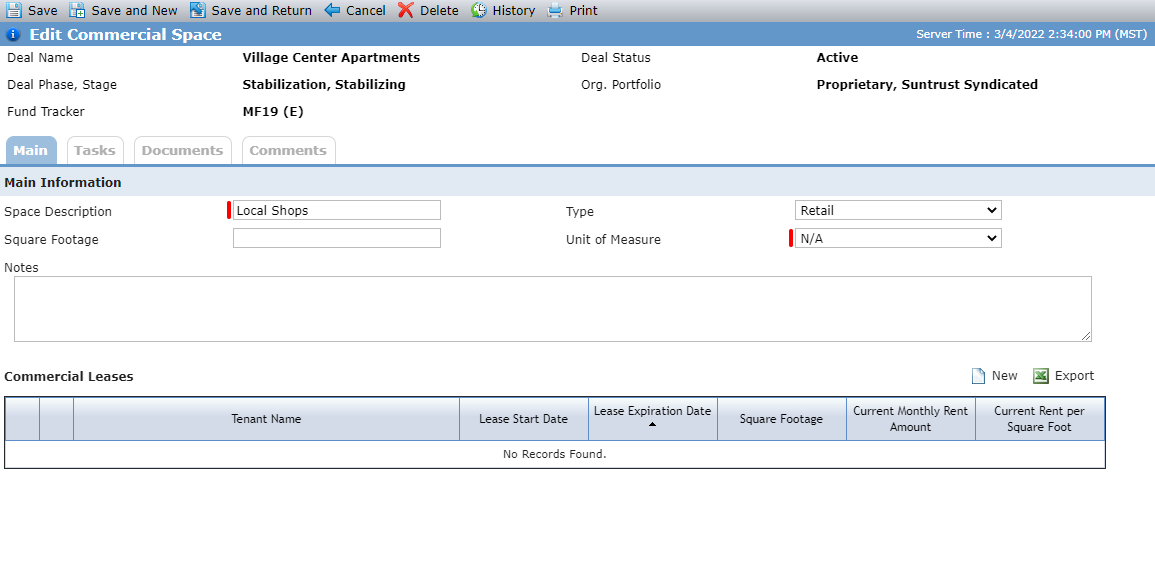
No Occupancy/Revenue grid
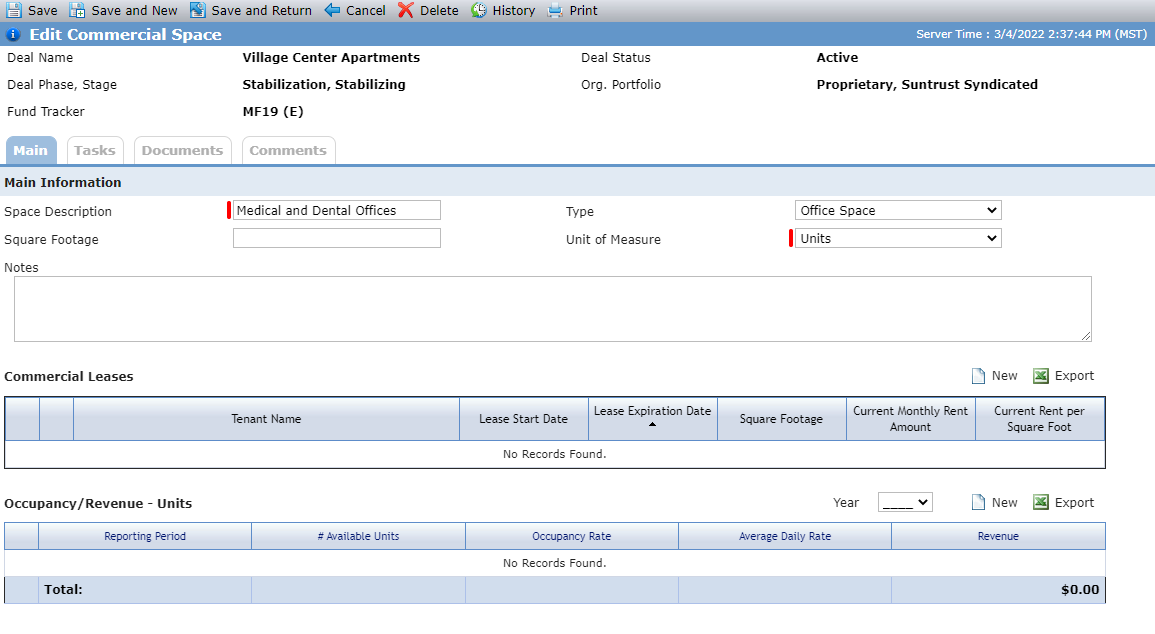
With Occupancy/Revenue grid for Units
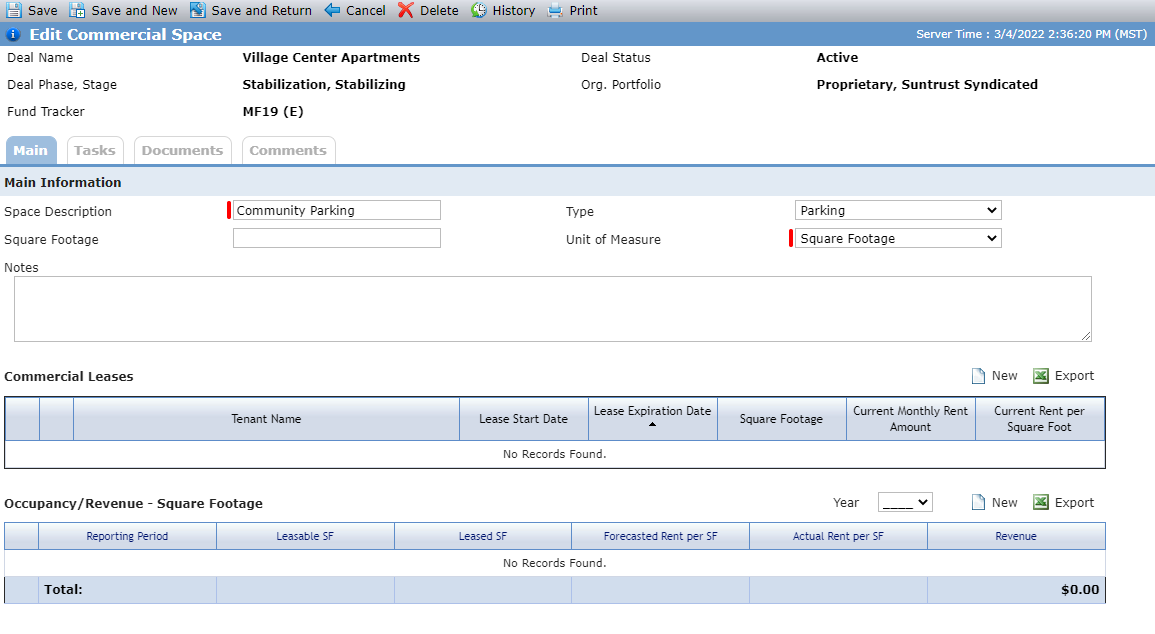
With Occupancy/Revenue grid for Square Footage
Commercial Leases
The Commercial Leases grid, which is available after initial save of the record, tracks the leases associated with the space. You can create multiple lease records for the same spaces.
The leases in the grid are grouped by Active or Expired. All leases where the Lease Expiration Date is prior to the current date will display in the Expired grouping. Any leases that are still in effect will be grouped in the Active grouping.
Add or Edit Commercial Lease
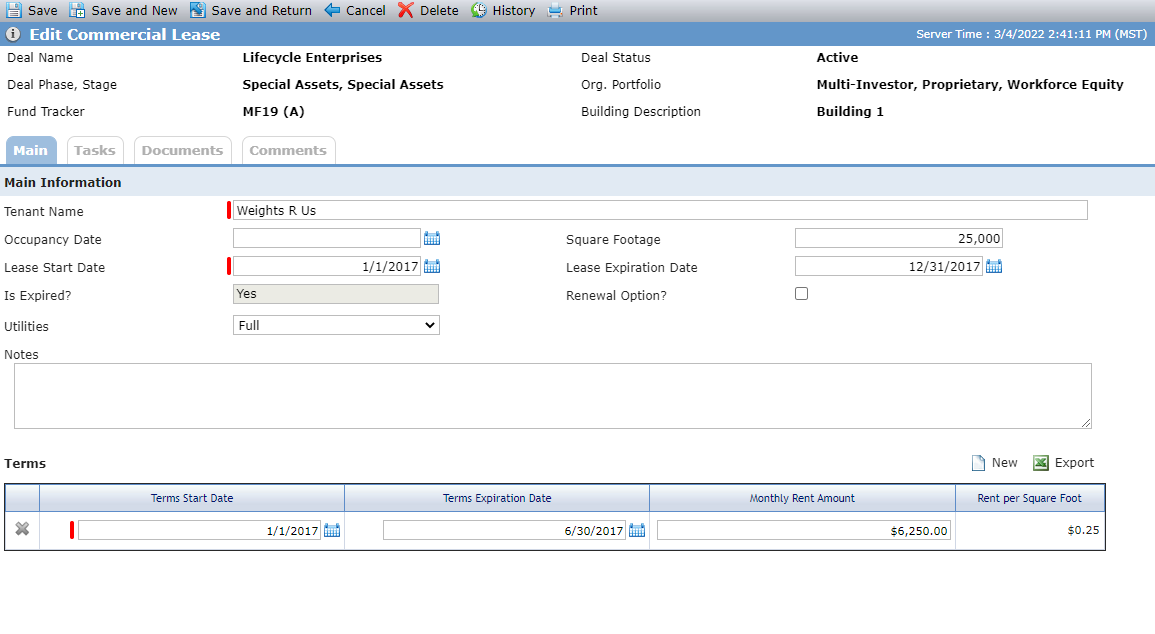
You can create one or more Terms records for a lease.
Field | Description |
|---|---|
Lease Expiration Date | The date cannot be before the date populated in the Lease Start Date. |
Terms Expiration Date | The date cannot be before the date populated in the Terms Start Date. |
Is Expired | "Yes" if the Lease Expiration Date is before the current date, otherwise "No." |
Term Start Date | The date must be equal to or after the date populated in the Lease Start Date. |
Terms Expiration Date | The date must be before or equal to the date populated in the Lease Expiration Date. NoteThe Terms Start and Expiration date range for these two fields cannot overlap the date range of another Terms record. |
Rent per Square Foot | Sum of the Monthly Rent divided by the Square Footage. If either of the fields is blank, the system will not calculate the Rent per Square Foot. |
Occupancy/Revenue
The Occupancy/Revenue grid is available after initial save of the record only if the value selected in the Unit of Measure field (Main Information section) is not "N/A." You cannot change the value populated in the Unit of Measure field after records have been created in the Occupancy/Revenue grid. All existing Occupancy/Revenue record would need to be deleted first.
When the Units of Measure = Units, the Occupancy/Revenue grid shows columns needed for tracking Occupancy for Units. When the Units of Measure = Square Footage, the grid shows columns needed for tracking Occupancy for Square Footage.
You can filter the grid by Year (years for which a record has been created).
The Total Revenue field is the sum of the Revenue values for all months populated for the year.
Add or Edit Commercial Occupancy/Revenue
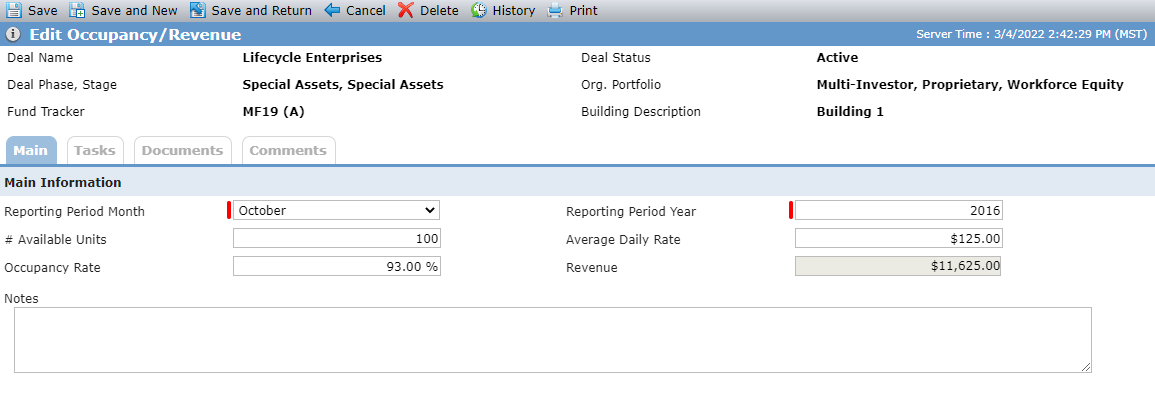
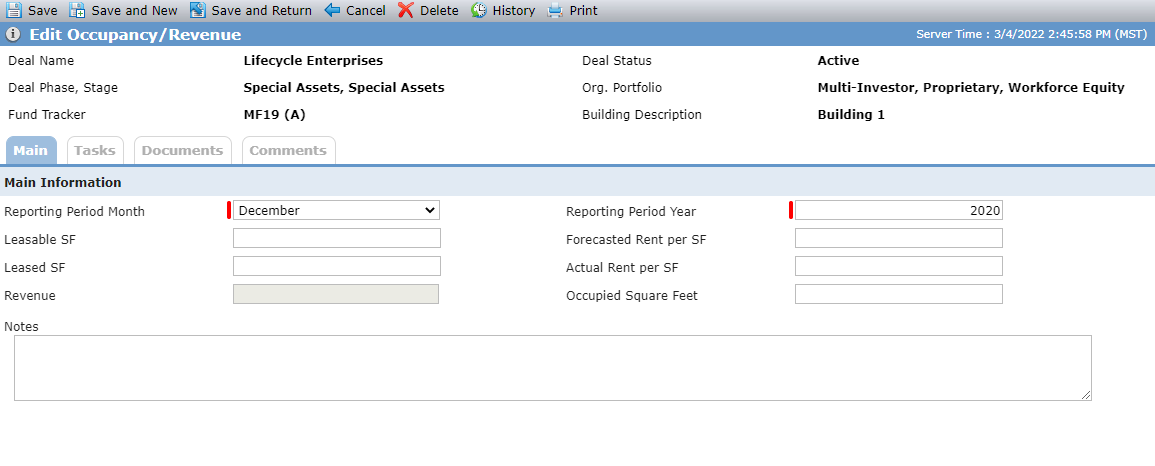
Units; Square Footage
The Reporting Period Month and Reporting Period Year combination must be unique for a Commercial Space record.
Field | Description |
|---|---|
# Available Units | This field displays only when the Unit of Measure is Unit. The # of units that are available for the full month and not based upon an individual night. For example, if a Hotel had 100 rooms and all 100 rooms were available all month and the month had 30 days, the # Available Rooms would be 300. |
Occupancy Rate | This field displays only when the Unit of Measure is Unit. |
Average Daily Rate | This field displays only when the Unit of Measure is Unit. |
Leasable SF | This field displays only when the Unit of Measure is Square Footage. |
Leased SF | This field displays only when the Unit of Measure is Square Footage. |
Forecasted Rent per SF | This field displays only when the Unit of Measure is Square Footage. |
Actual Rent per SF | This field displays only when the Unit of Measure is Square Footage. |
Revenue | for Units = # of Available Units times Occupancy times Average Daily Rate for Square Footage = Lease SF times Actual Rent per SF |
Occupied Square Feet | This field displays only when the Unit of Measure is Square Footage. |