Introduction to ProLinkAIM Occupancy
The Occupancy screen - Occupancy tab lists Occupancy records by year. Occupancy is tracked at the deal level, so the data reflects occupancy for all properties on the deal for the selected year.
You can find the Occupancy screen by selecting the Occupancy option in the left navigation menu of a selected deal. The default sort order is by Reporting Period.
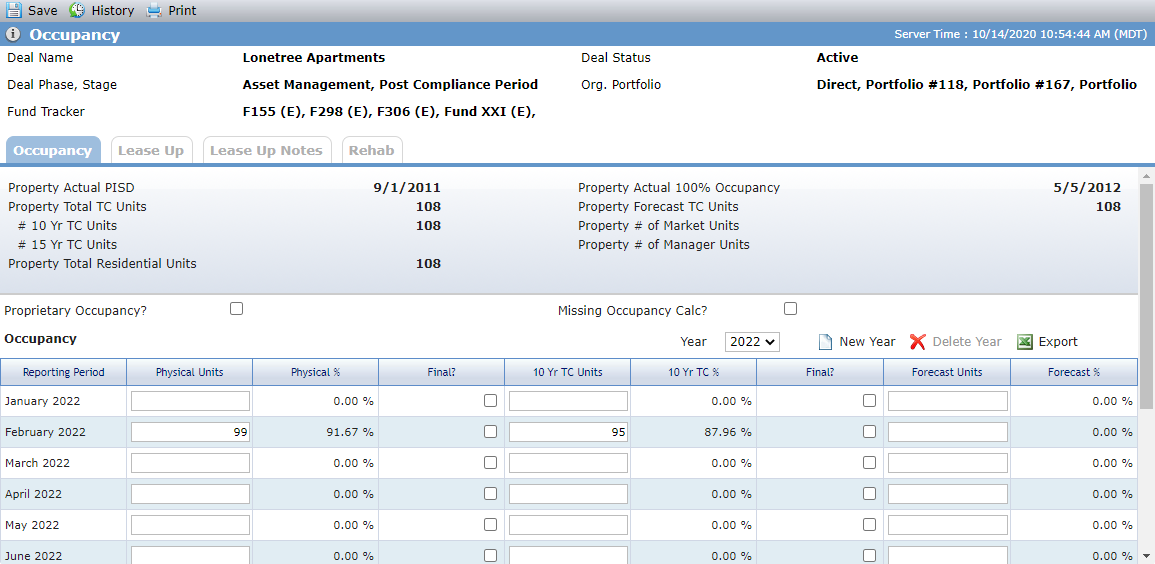
Field | Description |
|---|---|
Property fields at top of screen | Displayed from Edit Property. |
Proprietary Occupancy | Select to indicate there is a proprietary lease. |
Missing Occupancy Calc | Select to indicate that not all occupancy numbers are populated. |
Year | Displays a list of all years where Occupancy records exist. Defaults to the current year. If the current year is not available, then defaults to the first year in the list. |
Reporting Period | The periodicity, as outlined on the OPA. |
Physical Units | The number of total units (market and tax credit units). Average (Physical Units) is the sum of Physical Units divided by (Number of Reporting Periods for year where the Physical Units is not empty). Weighted Average (Physical Units) is the sum of Physical Units divided by 12. |
Physical % | Sum of the Physical Units for the Reporting Period divided by the Total Residential Units. Average (Physical %) is the sum of the Physical % column divided by (Number of Reporting Periods for year where the Physical Units is not empty). Weighted Average (Physical %) is the sum of Physical % divided by 12. |
Final | Select to indicate the physical units populated for the reporting period are final. |
10 Yr TC Units | Sum of the 10 Yr TC Units for the Reporting Period divided by the Property # of 10 Yr TC Units when no Lease Up record exists for the Reporting Year. When Lease Up records exist for any building for a Reporting Period, the values for the 10 Yr and 15 Yr columns (10 Yr TC Units, 10 Yr TC %, Final, 15 Yr TC Units, 15 Yr TC %, Final) will be displayed from the corresponding Lease Up record as read-only and blue font. Average (10 Yr TC Units) is the sum of 10 Yr TC Units divided by (Number of Reporting Periods for year where the 10 Yr TC Units is not empty). Weighted Average (10 Yr TC Units) is the sum 10 Yr TC Units divided by 12. |
10 Yr TC % | Sum of the 10 Yr TC Units for all Buildings for the Reporting Period (Lease Up Tab) divided by the sum of the Lease Up # of 10 year TC Credits from Edit Building when a Lease Up record exists for the Reporting Year. When Lease Up records exist for any building for a Reporting Period, the values for the 10 Yr and 15 Yr columns (10 Yr TC Units, 10 Yr TC %, Final, 15 Yr TC Units, 15 Yr TC %, Final) will be displayed from the corresponding Lease Up record as read-only and blue font. Average (10 Yr TC %) is the sum of 10 Yr TC % divided by (Number of Reporting Periods for year where the 10 Yr TC Units is not empty). Weighted Average (10 Yr TC %) is the sum 10 Yr TC % divided by 12. |
Final | Select to indicate the 10 Yr TC units populated for the reporting period are final. When Lease Up records exist for any building for a Reporting Period, the values for the 10 Yr and 15 Yr columns (10 Yr TC Units, 10 Yr TC %, Final, 15 Yr TC Units, 15 Yr TC %, Final) will be displayed from the corresponding Lease Up record as read-only and blue font. |
15 Yr TC Units | Sum of the 15 Yr TC Units for the Reporting Period divided by the Property # of 15 Yr TC Units when no Lease Up record exists for the Reporting Year. The 15 Yr columns—15 Yr TC Units, 15 Yr TC %, and Final—will be displayed only if one of the following conditions is met:
When Lease Up records exist for any building for a Reporting Period, the values for the 10 Yr and 15 Yr columns (10 Yr TC Units, 10 Yr TC %, Final, 15 Yr TC Units, 15 Yr TC %, Final) will be displayed from the corresponding Lease Up record as read-only and blue font. Average (15 Yr TC Units) is the sum of 15 Yr TC Units divided by (Number of Reporting Periods for year where the 15 Yr TC Units is not empty). Weighted Average (15 Yr TC Units) is the sum 15 Yr TC Units divided by 12. |
15 Yr TC % | Sum of the 15 Yr TC Units for all Buildings for the Reporting Period (Lease Up Tab) divided by the sum of the Lease Up # of 15 year TC Credits from Edit Building when a Lease Up record exists for the Reporting Year. The 15 Yr columns—15 Yr TC Units, 15 Yr TC %, and Final—will be displayed only if one of the following conditions is met:
When Lease Up records exist for any building for a Reporting Period, the values for the 10 Yr and 15 Yr columns (10 Yr TC Units, 10 Yr TC %, Final, 15 Yr TC Units, 15 Yr TC %, Final) will be displayed from the corresponding Lease Up record as read-only and blue font. Average (15 Yr TC Units) is the sum of 15 Yr TC % divided by (Number of Reporting Periods for year where the 15 Yr TC Units is not empty). Weighted Average (15 Yr TC %) is the sum 15 Yr TC % divided by 12. |
Final | Select to indicate the 15 Yr TC units populated for the reporting period are final. The 15 Yr columns—15 Yr TC Units, 15 Yr TC %, and Final—will be displayed only if one of the following conditions is met:
When Lease Up records exist for any building for a Reporting Period, the values for the 10 Yr and 15 Yr columns (10 Yr TC Units, 10 Yr TC %, Final, 15 Yr TC Units, 15 Yr TC %, Final) will be displayed from the corresponding Lease Up record as read-only and blue font. |
Forecast Units | The number of units forecasted to be occupied for the corresponding period. |
Forecast % | Sum of the Forecast Units for the Reporting Period Month divided by the Property Forecast TC Units (Edit Property) |
When any Unit fields are populated in the grid, the system sets the corresponding Occupancy records' Status to In Process.
Add an Occupancy Reporting Year
You can manually add a record:
Navigate to the deal, and then select Occupancy in the left navigation menu.
The Occupancy screen opens.
Click New Year above the Occupancy grid.
The Add New Reporting Year popup opens.
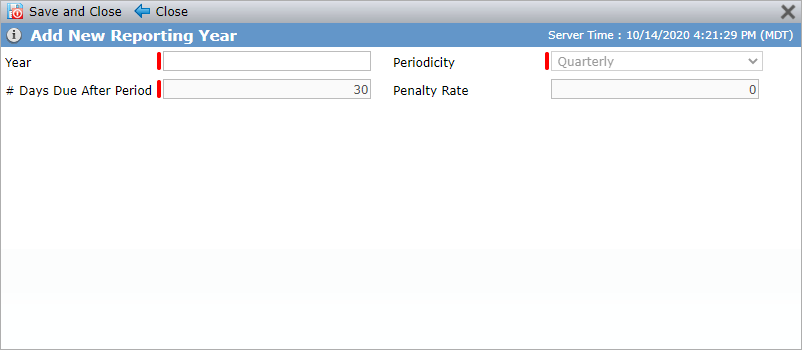
Enter the Year.
Select the frequency in which the occupancy numbers will be received in the Periodicity list.
If Occupancy is required per the OPA tab on Deal Details, the Periodicity will display as read only and default to the value populated on that screen.
Enter the date the reporting period data is due in the # Days Due After Period field.
If Occupancy is required per the OPA tab on Deal Details, the # Days Due After Period will display as read only and default to the value populated on that screen.
Optionally, enter the amount that would be due if the reporting period's occupancy numbers are not received by the due date in the Penalty Rate field.
If Occupancy is required per the OPA tab on Deal Details, the Penalty Rate will display as read only and default to the value populated on that screen.
Click Save and Close.
The occupancy reporting year is added to the system. If it is not the most recent year, you can select it in the Year list to display it on the screen. From the Occupancy grid, click a row to view the Edit Occupancy screen for the reporting period.
In addition, you can create Occupancy records systematically through the New Year Process or through the creation of Lease Up records. When an Occupancy record is created systematically, the following values will be defaulted for the record:
# Days Due After Period displays the last day of the Reporting Period plus the # Days After Period defined on the OPA tab. If no value exists on the OPA tab, the new record will default using the Occupancy Reports (Days After Period) from the Reports tab of Edit Config Settings.
Periodicity defaults to Monthly.
Penalty Rate defaults to the value defined on the OPA tab. If no value exists that the field remains blank.
Status defaults to Not Received.
Delete an Occupancy Reporting Year
You cannot delete when at least one Occupancy record for the selected year has a Status of Received, In Process, Completed, or Waived.
When all Occupancy records have a Status of Not Received, you can click Delete Year above the grid to delete the records for the selected year.