Introduction to Fund CRA in ProLinkAIM
The Fund CRA functionality provides tracking and management of Community Reinvestment Act (CRA) allocations for investors of Syndicated Funds. CRA requires depository institutions to invest in their communities to help meet their credit needs.
You can match potential investors with the lower tier deals your organization is syndicating. Once your organization commits to funding a lower tier deal, finding investors to support the investment is key. This is usually based upon criteria such as the assessment areas of the investors and the physical locations of the lower tier deals. For investor CRA, equity provided by the investors is eligible to be allocated for CRA.
The Fund CRA screen allows you to match potential investors to the lower tier deals owned by the Syndicated Fund (in either a Proposed and Finalized Ownership Schedule). You can search for investors in specific locations based on the location of the deals the fund owns.
The Fund CRA screen displays all lower tier deals owned by the Syndicated Fund (in a proposed or finalized ownership schedule), whether an allocation match exists for an investor and the lower tier deal or not.
Lower tier deals with allocation matches will display first in the grid. Lower tier deals with no allocation match will display alphabetically at the bottom of the grid.
Once an allocation record has been created for an investor/deal, that allocation record is displayed at the top of the grid, alphabetically by Investor and then by Deal. You can delete only the rows where an investor has been associated.
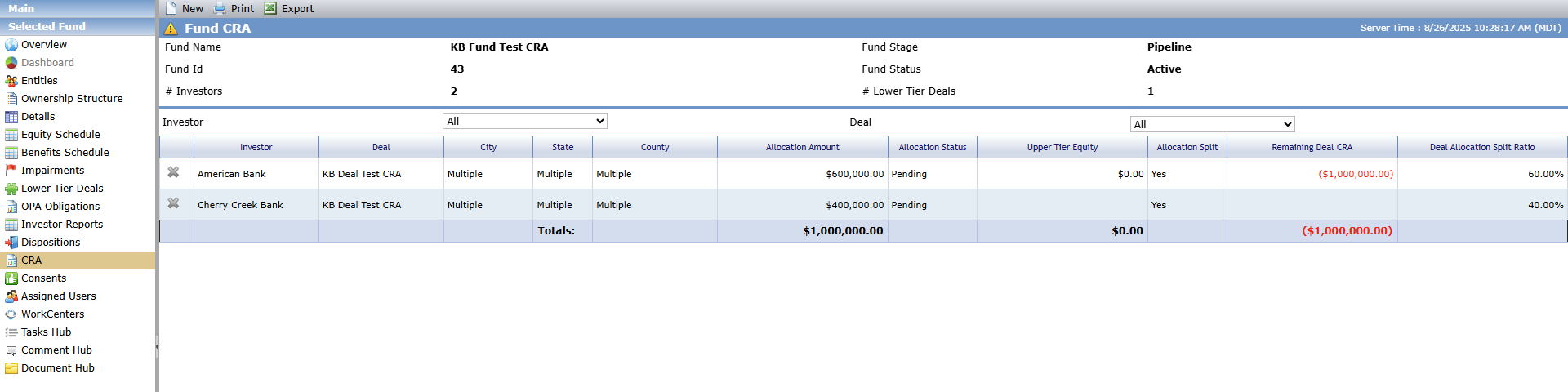
Clicking a row with an allocation match will take you to the Edit CRA Allocation screen.
If an allocation match has been made, the Investor, Allocation Amount, and Remaining CRA Equity columns will be populated. A different row will display for each investor/lower tier deal allocation match.
If the same lower tier deal has allocation matches with two different investors, two separate rows will be displayed.
If the same investor has allocation matches with two different lower tier deals, two separate rows will be displayed.
When a lower tier deal displays in the grid multiple times, the Upper Tier Equity and Remaining Deal CRA values will be displayed for the first deal only. This is so that the amounts are not included multiple times for the Total row.
The screen presents warnings when:
The sum of all the allocation matches with investors (across all lower tier deals for the fund) exceeds the sum of commitment amounts that investors have with the fund.
The sum of all the allocations for the lower tier deal (across investors) exceeds the Upper Tier Equity that the Syndicated Fund has with all their lower tier deals.
You can filter the grid by:
Investor—Defaults to All, but once allocation matches are made, the investors matched in allocation records will be available for selection in the filter. This allows you to view those matches specific to that Investor. When an investor is selected in the filter, the Deal filter will default to All.
Deal—Defaults to All, but you can select an individual lower tier deal from the list. This allows you to see the potential investor matches that were created for that specific deal.
Column | Definition |
|---|---|
Allocation Amount | The CRA amount allocated to the deal from the investor. |
Upper Tier Equity | The total equity the fund had committed to the deal. |
Allocation Split | An indicator that the lower tier deal has allocations from multiple investors on the fund. |
Remaining Deal CRA | The amount of equity that has not been allocated yet. |
Deal Allocation Split Ratio | The percentage value calculated per owner/investor. |
Find an Investor/Deal Allocation Match
The Find Investor Matches popup is used to create and track allocation records for a fund. The popup lists a row for each investor in the system combined with every lower tier deal associated to the fund (either in a proposed or finalized ownership schedule combination). Only the first 100 results are displayed. You can filter the results if more than 100 exist.
The Find Investor Matches popup provides information like Upper Tier Equity and Remaining Deal CRA so that you can see the remaining CRA allocation amount and what Upper Tier Equity the fund has. This information helps determine if the investor is a good match.
The Remaining Deal CRA is the Upper Tier Equity amount minus the sum of all allocations made for the deal.
The Upper Tier Equity is the sum of lower tier equity (Adjusted Capital Amount plus Warehouse Capital Charges) plus Load Amount (Total Lower Tier Equity divided by [100 minus Total Load Percentage] times Load Percentage).
To find an allocation match:
Navigate to the selected fund, and then click the CRA menu option.
The Fund CRA screen opens.
Click New in the top toolbar.
The Find Investor Matches popup opens.
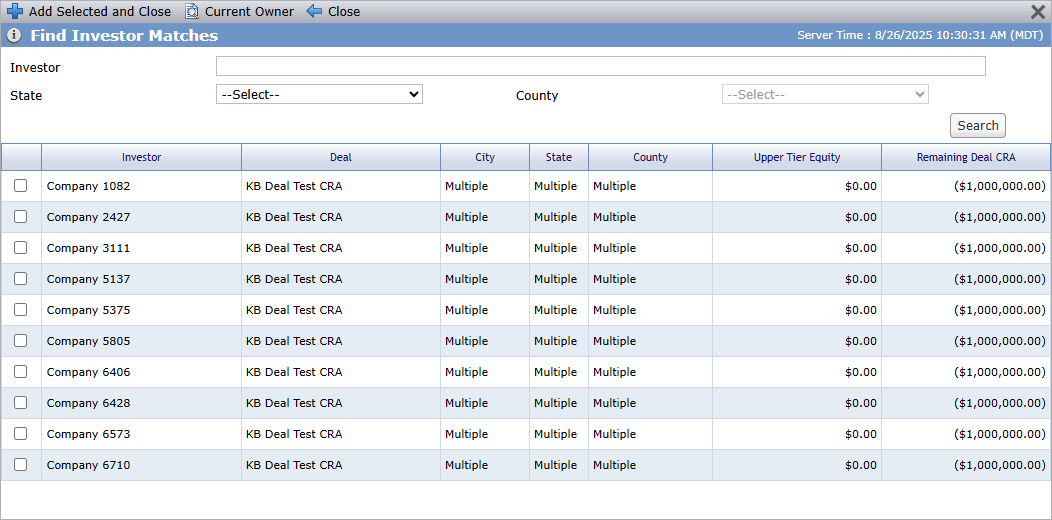
Optionally, you can click Current Owner to display the deal-investor relationships for the investors that are part of any ownership schedule for the fund.
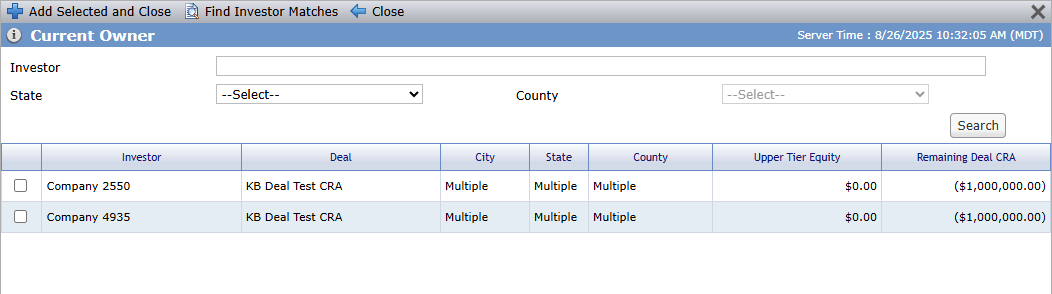
If needed, select filters to narrow the results, and click Search. You can search for matches based on the following specific criteria:
Investor—Entities with a primary role of investor where the text matches the name of the entity.
State—Lower tier deals with at least one property in the state that was selected.
County—Lower tier deals with at least one property in the county that was selected. You must select a state first.
Select the applicable match. You can select only one row at a time.
Click Add Selected and Close.
The system creates an allocation record for the investor/deal combination.
Edit the CRA Allocation
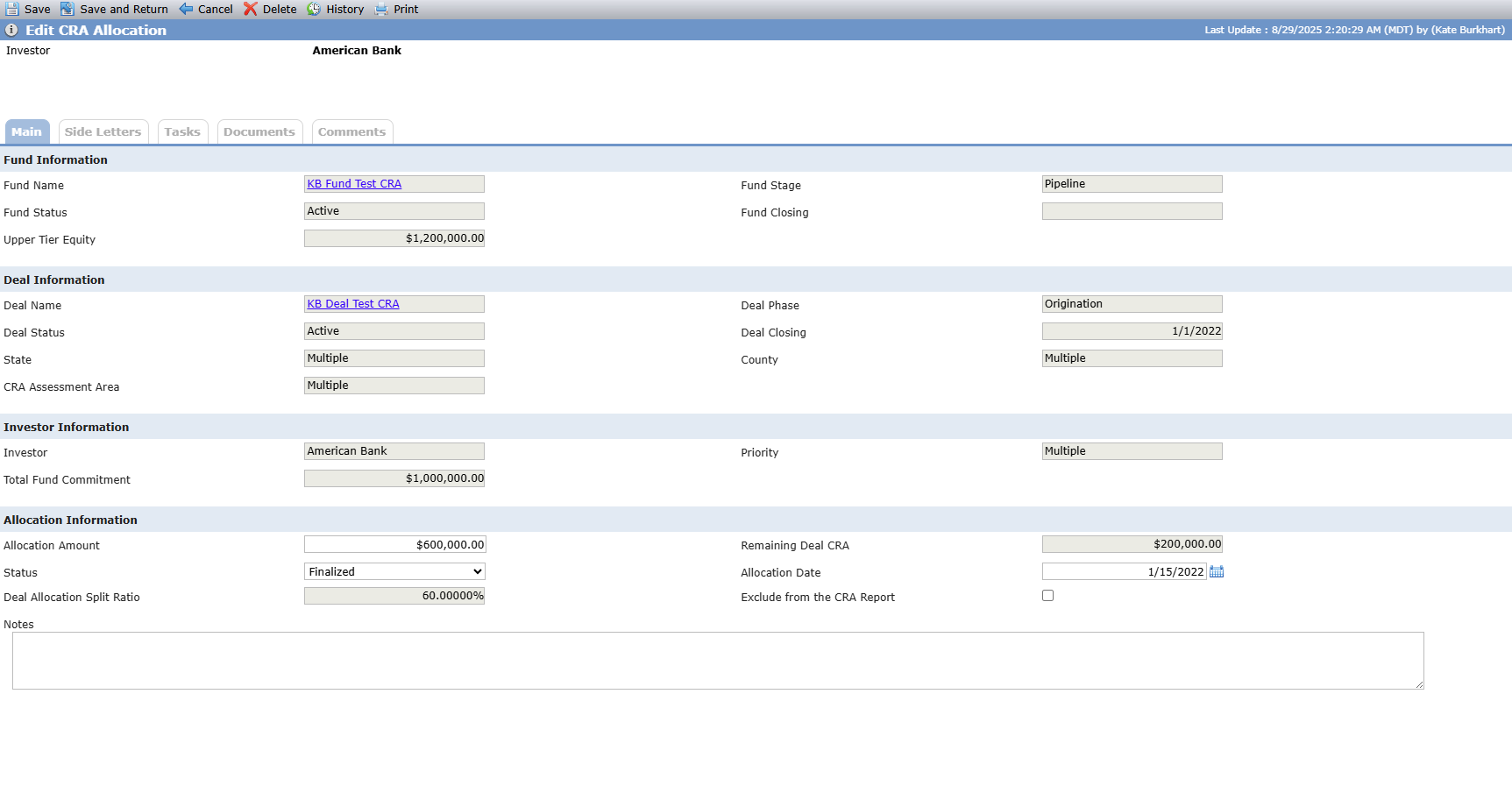
You can assign an allocation amount through the Edit CRA Allocation screen.
Section | Description |
|---|---|
Fund Information | This section is populated only when the lower tier deal has a Syndicated Fund as an owner in either a proposed or finalized ownership schedule. The values are displayed from the Syndicated Fund record. You can click the hyperlink of the Fund Name to navigate to the Fund Overview screen. |
Deal Information | The values are displayed from the lower tier deal record. You can click the hyperlink of the Deal Name to navigate to the Deal Overview screen. |
Investor Information | The Total Fund Commitment is the sum of Equity Commitment that the investor has made to the fund. The Priority is displayed from Edit CRA Investor Assessment Area for the assessment area. |
Allocation Information | The Allocation Amount can be any amount, even if it exceeds the Total Fund Commitment that the investor made to the fund, or the Upper Tier Equity that the fund made to the lower tier deal. The system displays a warning If an allocation amount is populated that causes the sum of all the allocations for all investors on the fund (across all lower tier deals for the fund) to exceed the sum of the Commitment amounts for all investors on fund. This warning is fund specific for all investors and will be displayed on all Allocation records for all investors with this Syndicated Fund. The system displays a warning if an allocation amount is populated that causes the sum of all the allocations for the lower tier deal (across investors) to exceed the Upper Tier Equity that the Syndicated Fund has with all its lower tier deals. This warning is not deal specific and will be displayed on all allocations for the fund. The Status on an Allocation record cannot be set to Finalized until the investor is an owner in a finalized ownership schedule for the Syndicated Fund. The Remaining Deal CRA is the Upper Tier Equity for the fund/deal minus the sum of all Allocation Amounts across investors for the fund/deal. The Deal Allocation Split Ratio is a system-calculated field that equals (Allocation Amount / Investor Total Fund Commitment) * 100. Both the Allocation Amount and the Total Fund Commitment are located on the Edit CRA Allocation screen for the selected fund. The Total Fund Commitment is the sum of capital commitments made by the investor to the fund. To exclude the allocation from the Investment Allocation Report 5.0, select Exclude from the CRA Report. |
Create and Track Side Letters
You can create and track side letters that need to be sent. The Side Letter tab displays all side letters created for the allocation.
To create a new side letter:
Navigate to the selected fund, and then click the CRA menu option.
The Fund CRA screen opens.
Click the row of the allocation.
The Edit CRA Allocation screen opens.
Click the Side Letters tab.
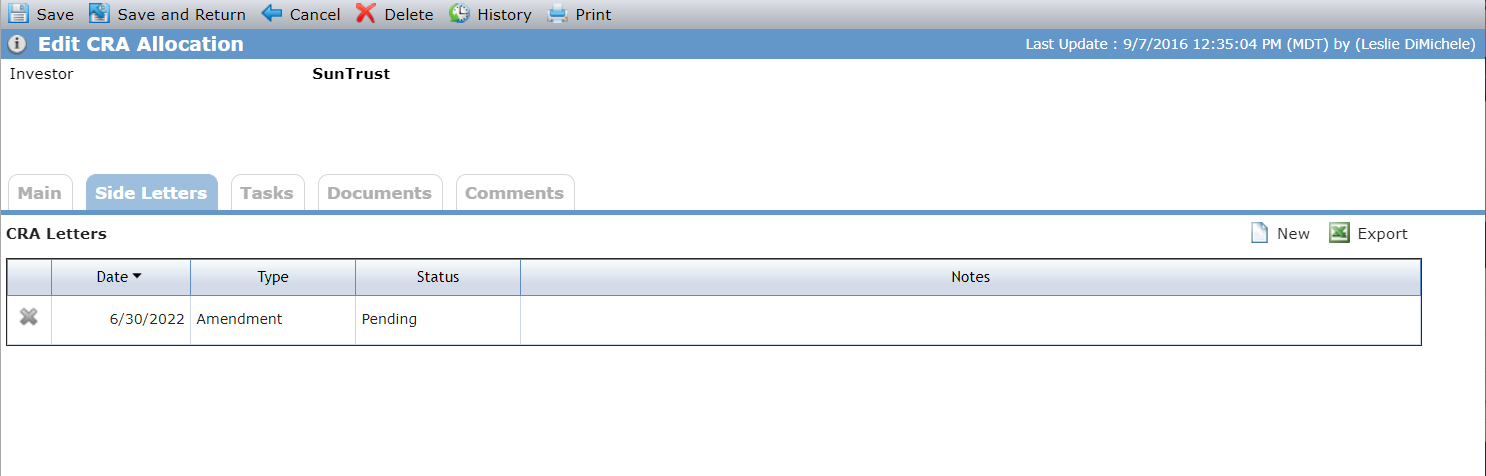
Click New above the CRA Letters grid.
The Edit Side Letter screen opens.
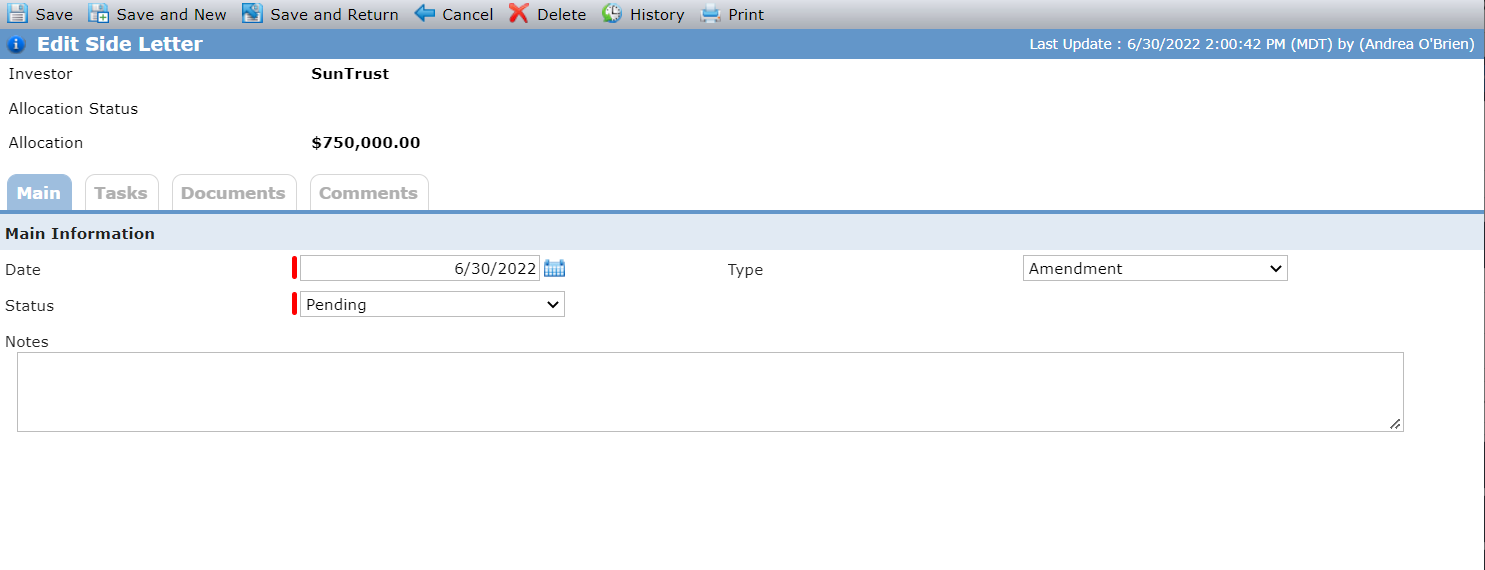
Enter or select the Date of the letter.
Select the Status of the letter.
Click Save.