System Search
Use System Search, located above the menu bar, to locate deals, properties, funds, entities, and organizational portfolios that match the specified criteria quickly.

Enter search criteria into the search entry field and press the Enter key on the keyboard.
Based on the search criteria, the application searches based on the following:
Deals—Return all values that match based on the Deal Name or Deal Number.
Properties—Returns all values that match based on Property Name.
Funds—Returns all values that match based on Fund Name.
Entities—Returns all values that match based on the Name.
Organizational Portfolios—Returns all values that match the Organizational Portfolio's name.
You can use an asterisk as a wildcard character:
*ABC finds anything that ends with ABC.
ABC* finds anything that starts with ABC.
ABC finds anything that contains ABC.
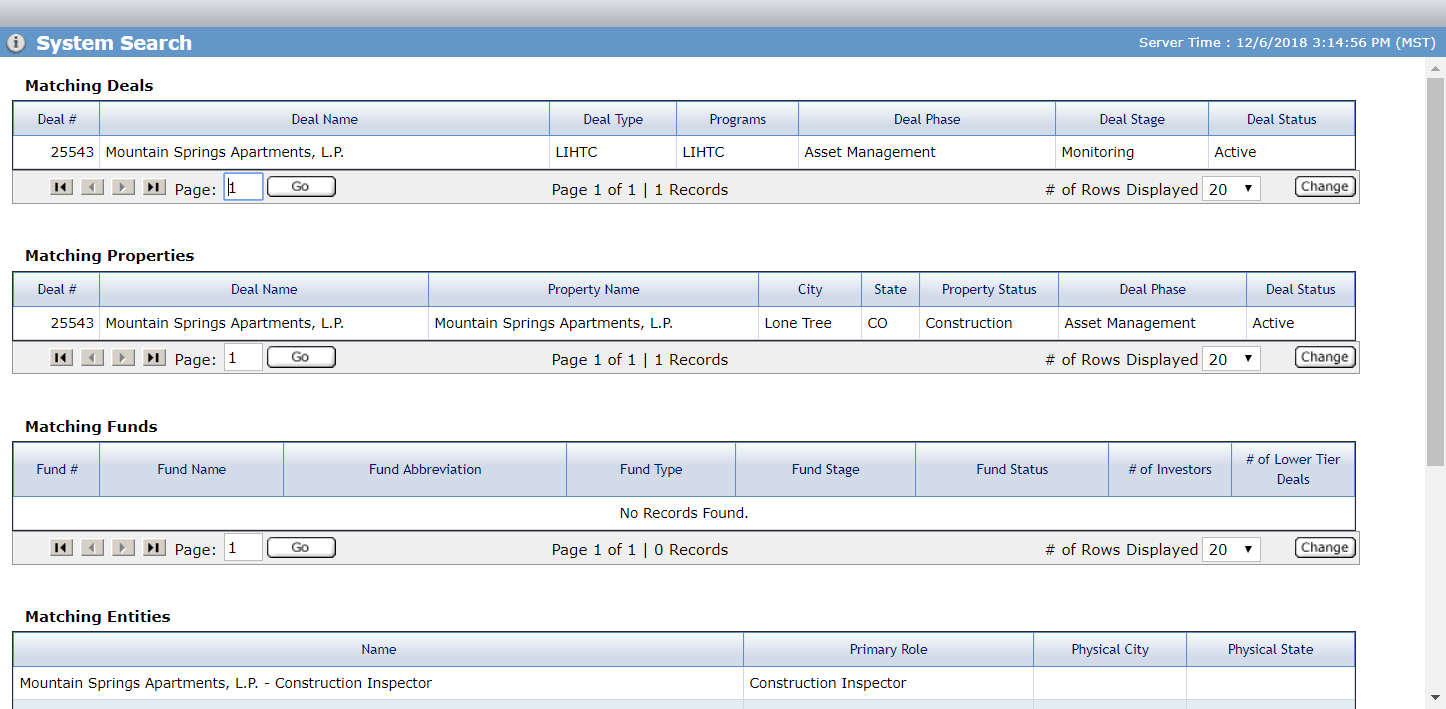
All results that match the search criteria are displayed on the screen under the appropriate section. Each section reflects the number of records found. Selecting a record from any of the sections redirects to the record's Edit screen.
Only Data View screens have Quick Search capabilities, but System Search is available throughout the ProLink application.