Bulk Financial Import Utility
Important
The toolbar buttons for the utility are enabled only if you have the BulkFinancialImport_Modify security privilege.
The Bulk Financial Import utility allows you to import financial data for multiple deals at the same time.
The import process locates the corresponding record in ProLinkAIM and updates the Income Statement and Balance Sheet with the values found in the import file. The import file's Category Name and Line-Item Name combination must match the system exactly. If a value already exists for the record, the import process will overwrite it with the value in the file.
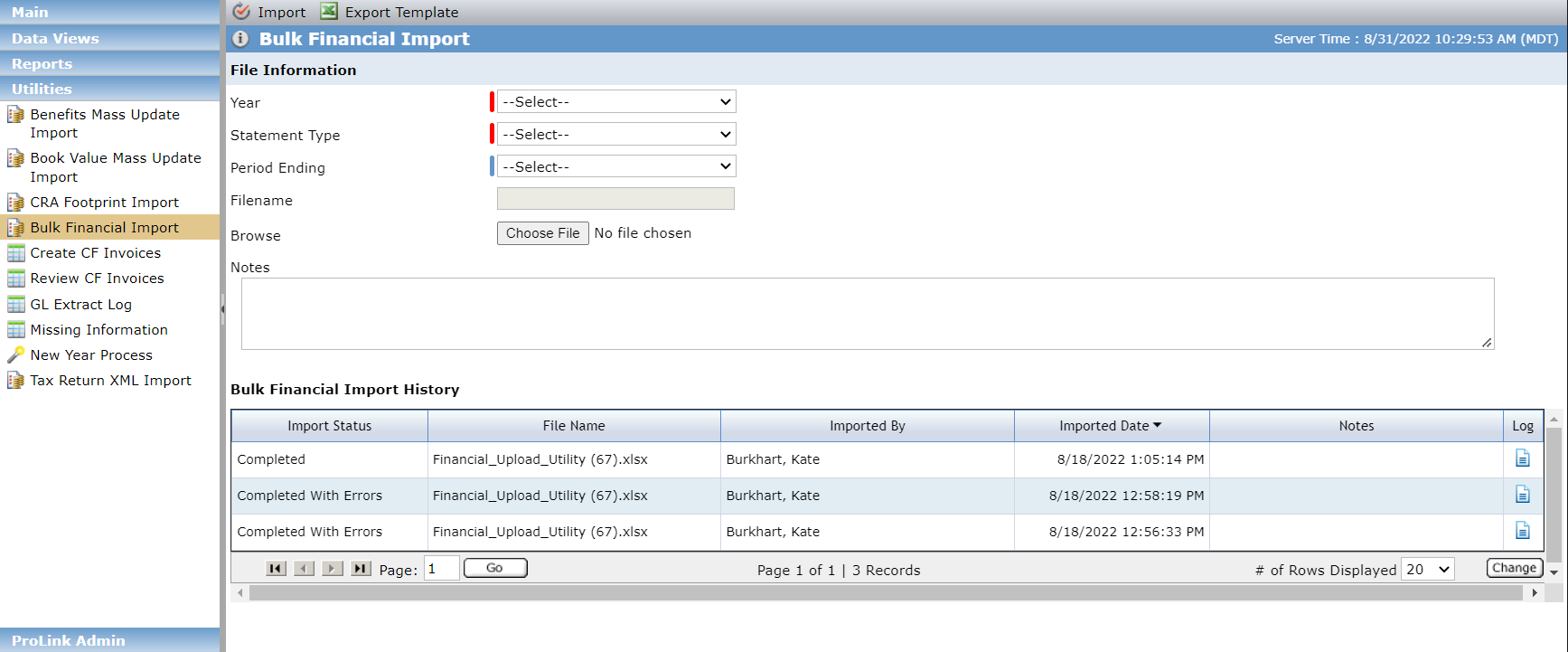
The Bulk Financial Import History grid shows a list of the imported files. The Import Status will be one of the following:
Processing
Completed
Completed with Errors—Processing is complete, but one or more records in the file could not be updated. You can download a log file to review any errors that occurred during the import process.
The first step is to export a Financials template for a specific deal, deals within a specific fund, or deals within an organizational portfolio. Then enter the data for the applicable line items for the selected deal(s).
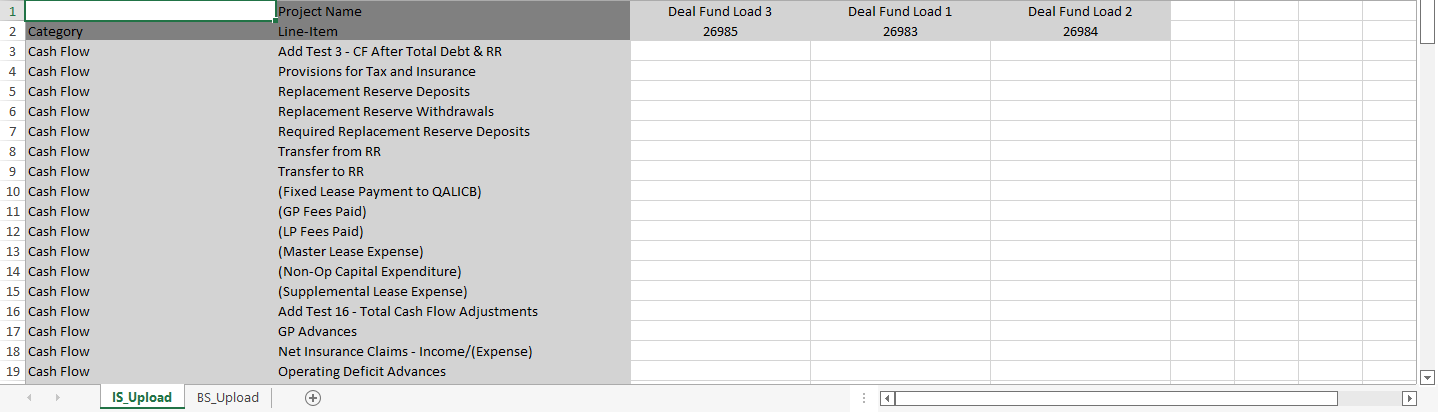
Note that you can modify the template or create your own to use as the master template for all imports going forward. For example, you can remove the line items you are not using or rearrange the line items to match the layout in ProLinkAIM. You must ensure your template matches the layout of ProLink's template, with the Category name (column A, starting in row 3), Line-Item name (column B, starting in row 3), and deal name and number (starting in column C, rows 1 and 2, respectively), so that the process can match the template data to the appropriate ProLinkAIM record(s).
Navigate to the Utilities panel, and then select the Bulk Financial Import menu option.
The Bulk Financial Import screen opens.
Click Export Template in the top toolbar.
The Export Template popup opens.
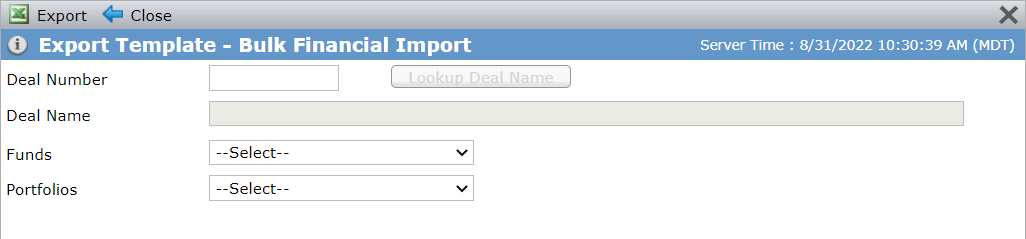
Enter a specific Deal Number, and then click Lookup Deal Name. If you select a deal, the template contains a column for the deal.
OR
Select the Fund. If you select a fund, the template contains a column for each deal associated with the fund.
OR
Select the Organizational Portfolio. If you select an organizational portfolio, the template contains a column for each deal associated with the portfolio.
Click Export.
The system generates the template. Depending on your browser settings, the template is automatically downloaded or you are given the opportunity to save the file.
The Microsoft Excel template includes two tabs, one that imports data to the Income Statement and one that imports data to the Balance Sheet. The tabs are populated with all Category/Line Item combinations, except for metrics, summed line items, and custom line items.
After you have a populated Financials template, you can import the file to update the ProLinkAIM Financials record(s).
The import process locates the corresponding record in ProLinkAIM and updates the Income Statement and Balance Sheet with the values found in the import file. The import file's Category Name and Line-Item Name combination must match the system exactly. If a value already exists for the record, the import process will overwrite it with the value in the file.
Navigate to the Utilities panel, and then select the Bulk Financial Import menu option.
The Bulk Financial Import screen opens.
Select the Year of the Financials record(s). You can select the current year, plus or minus two years.
Select the Statement Type of the Financials record(s).
If you selected the Periodic Statement Type, then you must select the Period Ending month.
Click Choose File, and select the populated Financials template.
Optionally, enter a note about the import that is kept with the import history record.
Click Import.
The system begins processing. Refresh the page to check the import history grid for the status change to completed.
Tip
You will need to manually update the status of the Financials record(s) after the import. The import process will not systematically update it. For more information about Financials records, see Financials.
The system creates a log file every time the import process is run. If no errors occurred, the log file includes information about when the process began and ended.
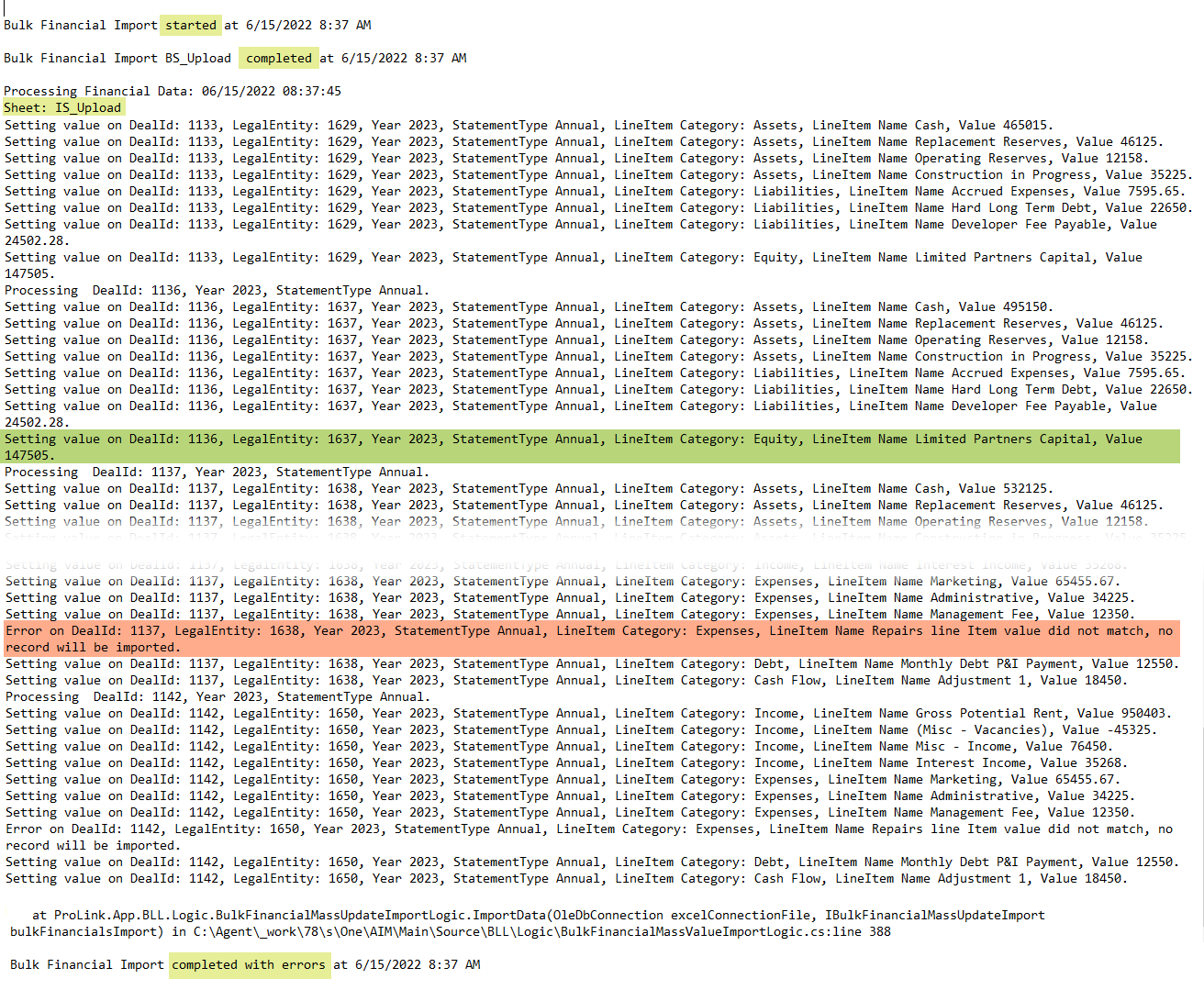
The log file includes an error when:
It does not find the IS_Upload tab in the template.
It does not find the BS_Upload tab in the template.
It does not find a matching deal (same ID).
It does not find a Financials record for the deal with the selected Statement Type and applicable periodicity.
It finds more than one Financials record for the deal with the selected Statement Type and applicable periodicity.
Note
If the import process finds more than one record for a deal with the selected Statement Type and applicable periodicity, an error is logged. More than one matching record could exist because of the reporting entity. If multiple reporting entities exist, but only one Financials record has been created, the process imports to that record (see the screenshot example). In the unlikely scenario the deal has multiple reporting entities, where multiple Financials records exist for the selected Statement Type and applicable periodicity, then the import process does not import the data because it does not know which record/reporting entity to upload to.
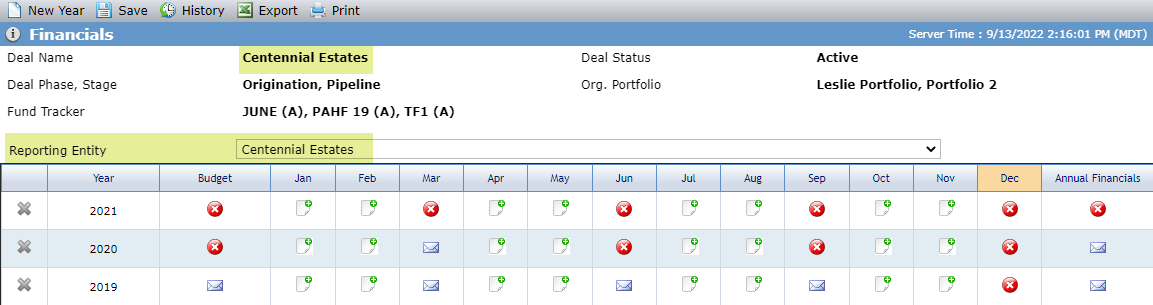

Example of multiple reporting entities; Financials records associated to one reporting entity
If the Category/Line-Item combination are not found in ProLinkAIM.
The import file's Category Name and Line-Item Name combination must match the system exactly.