Manage Fund Details
Fund Details (Main tab) provides basic information about the fund along with the Fund Guarantees and CRA Information. Some of the information displayed is the information that was populated when the fund was originally created.
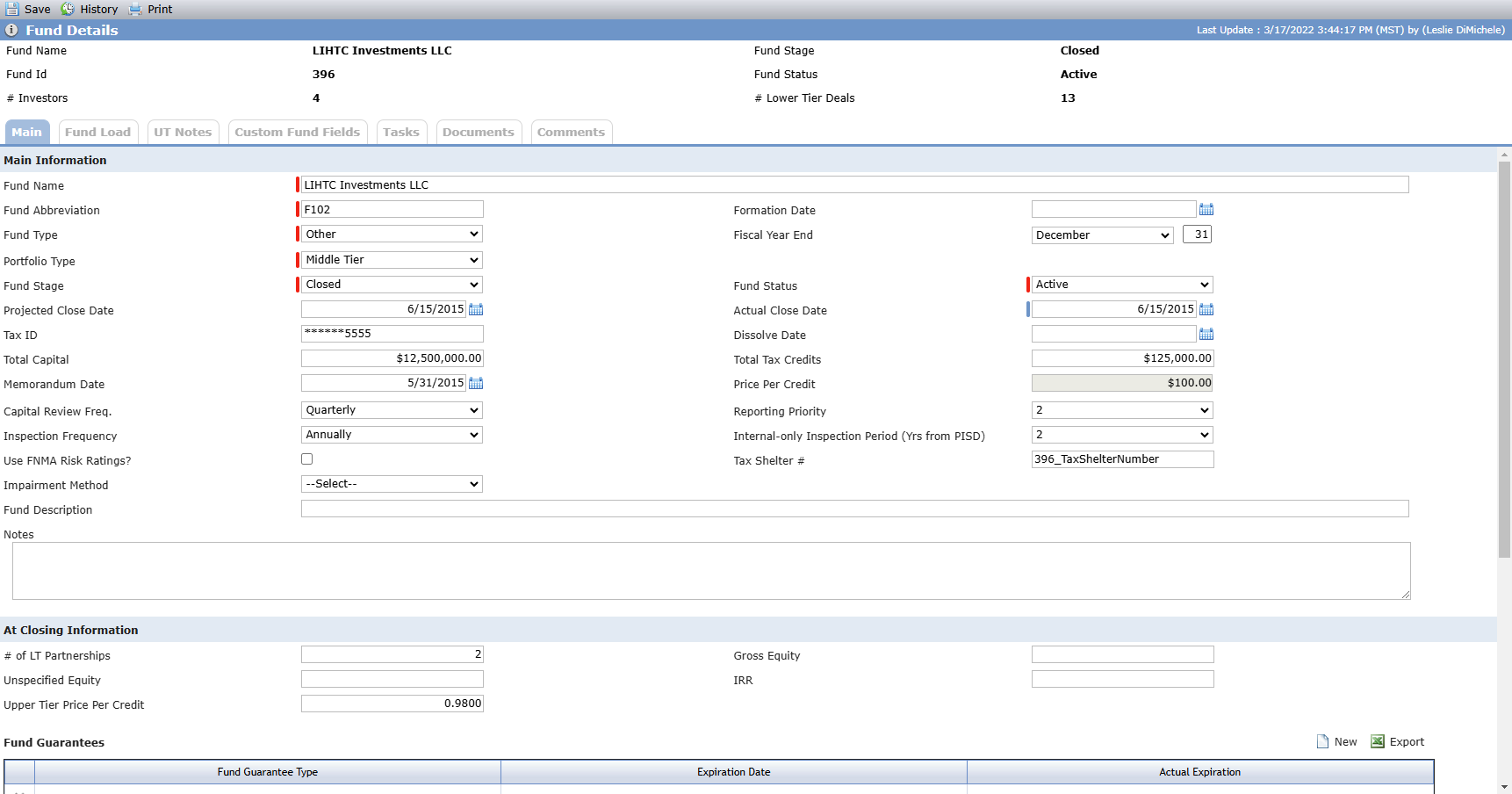
When the fund is created, the system creates a Fund Entity with the Primary Role of Syndicated Fund, Company or Individual of Company, Entity Status of Pending, and Entity Name that is the same as the Fund Name. This Syndicated Fund entity is the entity that will be linked to the lower tier deals.
Field | Description |
|---|---|
Header Section | |
Fund Name | Displays the fund name from Fund Details - Main tab |
Fund ID | Displays the fund ID |
# Investors | Displays the number of investors from the Ownership Structure screen |
Fund Stage | Displays the current stage from the Fund Stages screen |
Fund Status | Displays the current status from the Fund Stages screen |
# Lower Tier Deals | Displays the number of finalized admission and finalized exit Lower Tier Deals from the Lower Tier Deals screen |
Main Information (only fields requiring explanation are listed here) | |
Fund Abbreviation | An abbreviated name assigned to the fund. This field is displayed on all lower tier deals owned by the fund and can be used in deal-level data views and reports. |
Fiscal Year End Month | Defaults to December |
Fiscal Year End Day | The Fiscal Year End day is between 1 and the number of days in the selected month. If the month is February, then the field will allow up to 28. Defaults to 31 |
Portfolio Type | The type of portfolio the fund belongs to. The value of Middle Tier is used as logic for a number of standard reports. |
Fund Stage | The current stage of the fund. If the Fund Stage is Closed, the Actual Close Date is required. To set the Fund Stage to Closed, the fund must have an Ownership Schedule with a status of Finalized on the Ownership Structure. |
Tax ID | Defaults to the value in the Tax ID field of Edit Entity - Main tab, if populated |
Price Per Credit | Calculated field: Divide total Capital by Total Tax Credits. If either divisor or dividend is left blank or zero, the system shows "N/A." |
Use FNMA Risk Ratings | Indicates whether the fund requires Fannie Mae risk rating for the owned lower tier deals. If selected, then an additional tab is displayed on the lower tier risk reviews. |
Impairment Method | The value selected dictates the manner in which impairments (amortization) will be calculated for the fund. Defaults to "No Selection." See Impairments for more information. Your user role must have the following security privileges to change this value: Fund - Fund - Modify, Administrative - System Administrator - Modify. |
Fund Guarantee Section

You can add and edit guarantees on a fund. To add a new guarantee:
Navigate to the fund, and then select Details in the left navigation menu.
Click New above the Fund Guarantees grid.
The Edit Fund Guarantee screen opens.
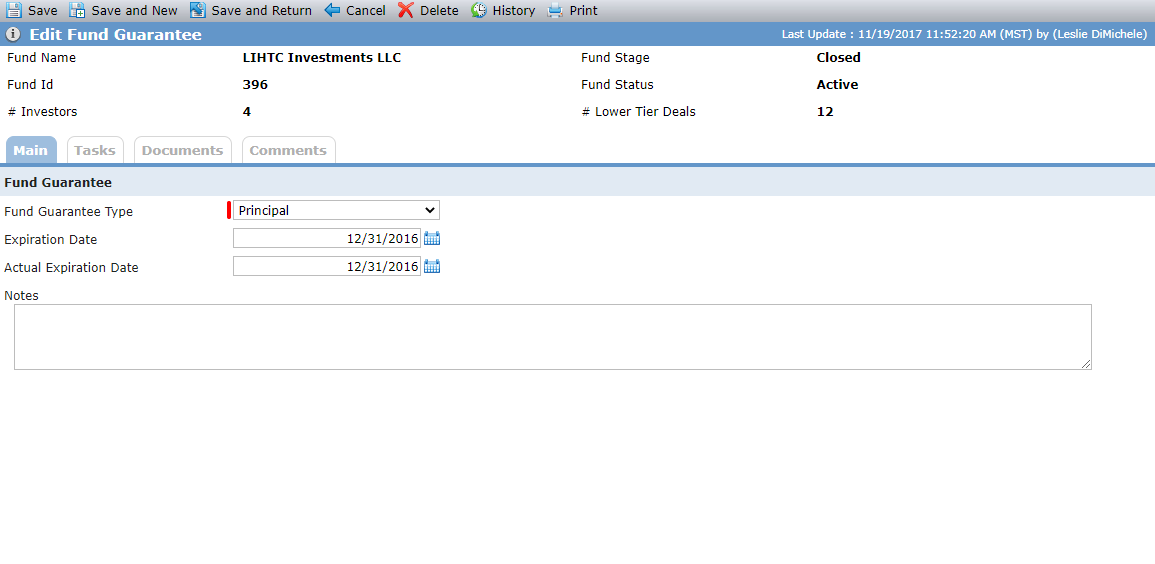
Select the Fund Guarantee Type.
As needed, enter the Expiration Date and the Actual Expiration.
Click Save.
To edit an existing guarantee, for example, to enter the expiration date or actual expiration, select a record in the grid to open the Edit Fund Guarantee screen. Make your changes and then save the record.
You can delete a Fund Guarantee record in one of two ways. Click  in the first column of the given Fund Guarantee record of the Fund Guarantees grid. Or, click Delete in the top toolbar on the Edit Fund Guarantee screen. Then confirm the deletion when prompted.
Other IDs Section
The Other IDs section allows you to track other IDs for the fund. The IDs might be for an external system that is also involved with the fund and has assigned a separate ID; for example, an accounting system assigned ID.
Click New above the Other IDs grid to add another row to the grid.

Link to Reporting Deal Section
This section allows you to link the fund to a lower tier deal whose Capital Contributions mirror the Fund Accounting Transactions of the fund, for the purposes of reporting and impairment.
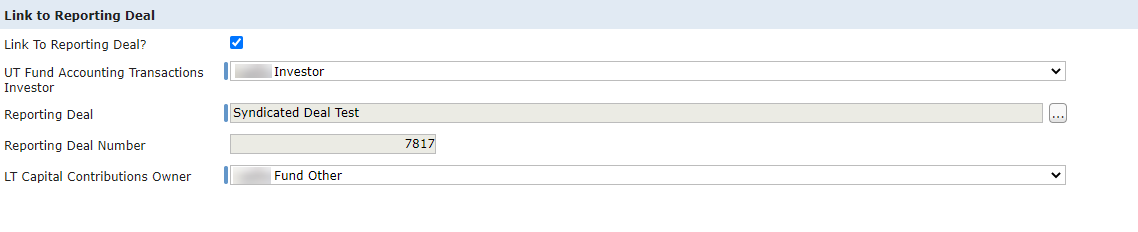
Select the Link to Reporting Deal checkbox if the fund should be linked to a lower tier deal.
Select which Fund Accounting Transactions should be copied to the lower tier deal's Capital Contributions in the UT Fund Accounting Transactions Investor list. You can select from the Owner entities on the fund with Bank Investment selected (Edit Entity). All Fund Accounting Transactions where the selected entity is an Investor will be copied.
Click
 to open the Deal Selection popup. Search for and select the deal to which to link the fund. The deal must have a Syndicated Fund as an Owner on the deal to be selected.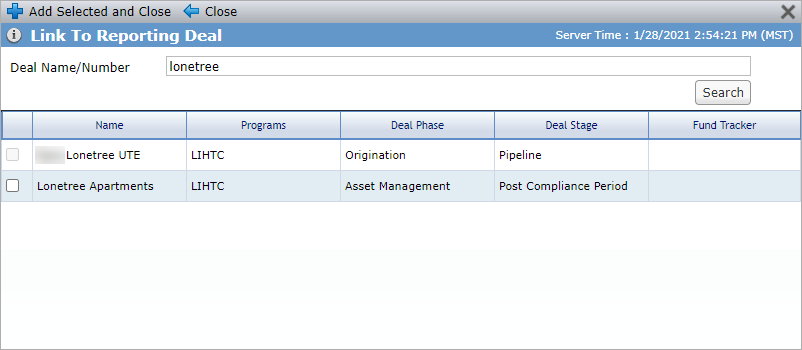
Warning
Any existing Capital Contributions and Wire Transfers on the lower tier deal will be deleted. Going forward, the fund and deal will be linked and in sync, and you will be able to create, edit, and delete Capital Contributions from the fund only.
If you later unlink a lower tier deal from a fund, the Capital Contributions created through the link will not be affected.
Select which entity should be set as the owner of the Capital Contributions copied to the lower tier deal. You can select from the Owner entities on the deal with Bank Investment selected (Edit Entity).
Federal Tax Rate Information Section
This section allows the tracking of an application-level federal tax rate and an individual-level federal tax rate, if the rate for the fund is different. The tax rate is used to help calculate the loss that can be taken on a fund.
The Federal Tax Rate field displays the most recent Federal Tax Rate from the Edit Federal Tax Rate screen (ProLink Admin menu).
Click New above the Fund Federal Tax Rates grid to add another row to the grid.
