Edit Screens
The Edit screen opens after selecting a row on a List screen. This screen contains all the editable details of the specific record. Within the Edit screen, you can add, modify, and delete data, depending on your user access level. Some screens contain read-only fields that have been populated from other screens within the ProLink application or from the database. In some instances, there are additional tabs associated with an Edit screen for editing data.
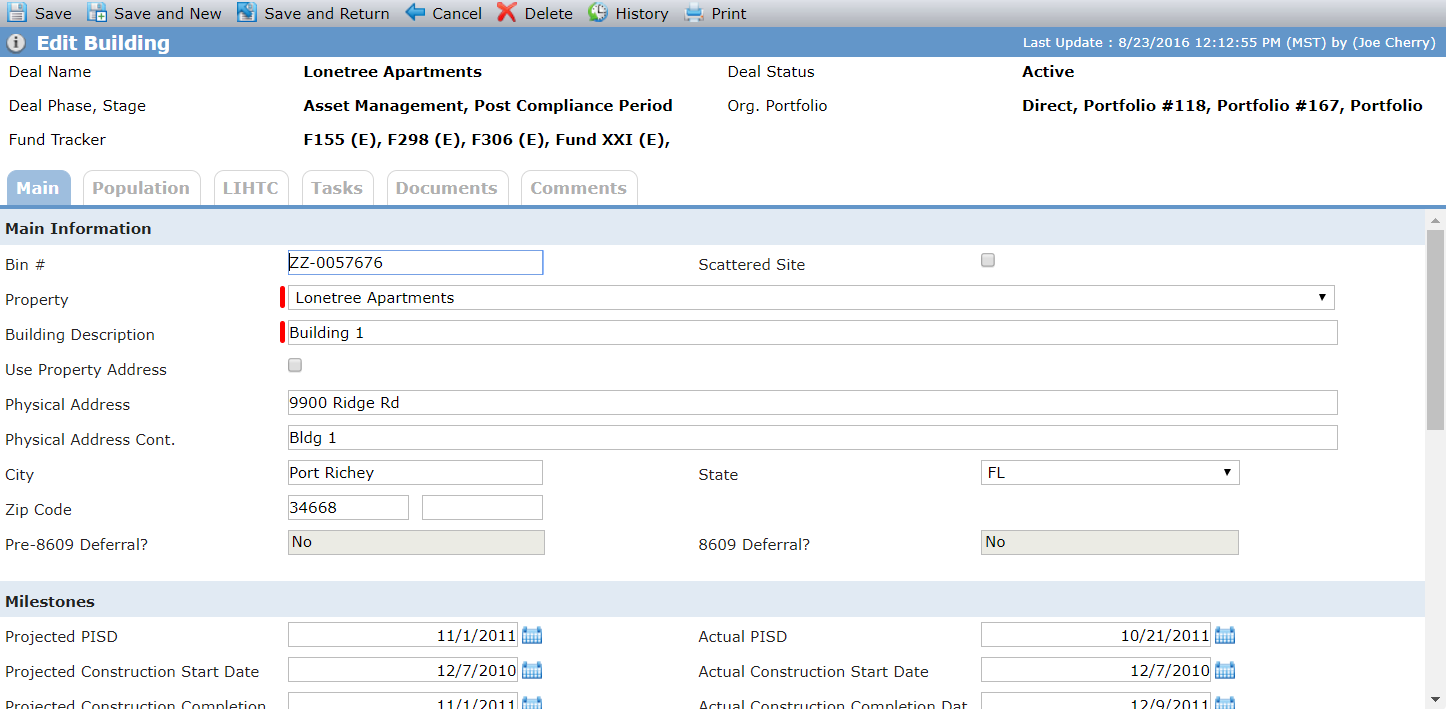
Examples of Edit screens include Edit Building, Deal Details, and Edit Periodic Financials.
All Edit screens display consistent menu options. In some circumstances, additional options are available based on the screen functionality:
Save—Saves the information that was entered on the screen and remains on the screen.
Save and New—Saves the information entered on the screen and opens the Edit screen for a new record.
Save and Return—Saves the information entered on the screen and redirects you back to the last visited screen.
Cancel—Any changes made to a screen are not saved and you are redirected back to the last visited screen.
Delete—Deletes the record or data after you confirm the deletion.
History—Opens a screen that allows you to view any changes made to a specific record.
Print—Opens a printer-friendly version of the current screen (and current tabs, if any) without the page header, navigation menu, or tabs.