Cash Flow Invoice Utilities
Important
You can add and modify cash flow records through the Cash Flow Invoice utilities if you have the Cash Flow Invoices - Modify security privilege. You'll also need the Utilities - Panel - View privilege.
ProLinkAIM includes the following utilities to help you manage cash flow invoices across the portfolio:
Create CF Invoices—Mass create invoices for deals across the portfolio.
Review CF Invoices—Mass update the approval and sent dates for existing invoices.
You can see specific invoices for a deal on the Invoices tab of the Edit Annual Cash Flow Distribution screen, which is part of the Cash Flow functionality at the deal level. For more information, see Cash Flow.
Tip
You can use CF Invoices with Workflow to systematically send invoices to the appropriate deal entities.
See Manage Workflows for more information.
The Create Cash Flow Invoices utility provides the ability to mass create invoices for deals across the portfolio. You can search for deals based on specific criteria, and then select the deals for which to create invoices.
You can create invoices only when there is a balance due for a fee with a Payable To that is a Bank Affiliate entity.
Note
The Bank Affiliate indication is set on the Edit Entity screen.
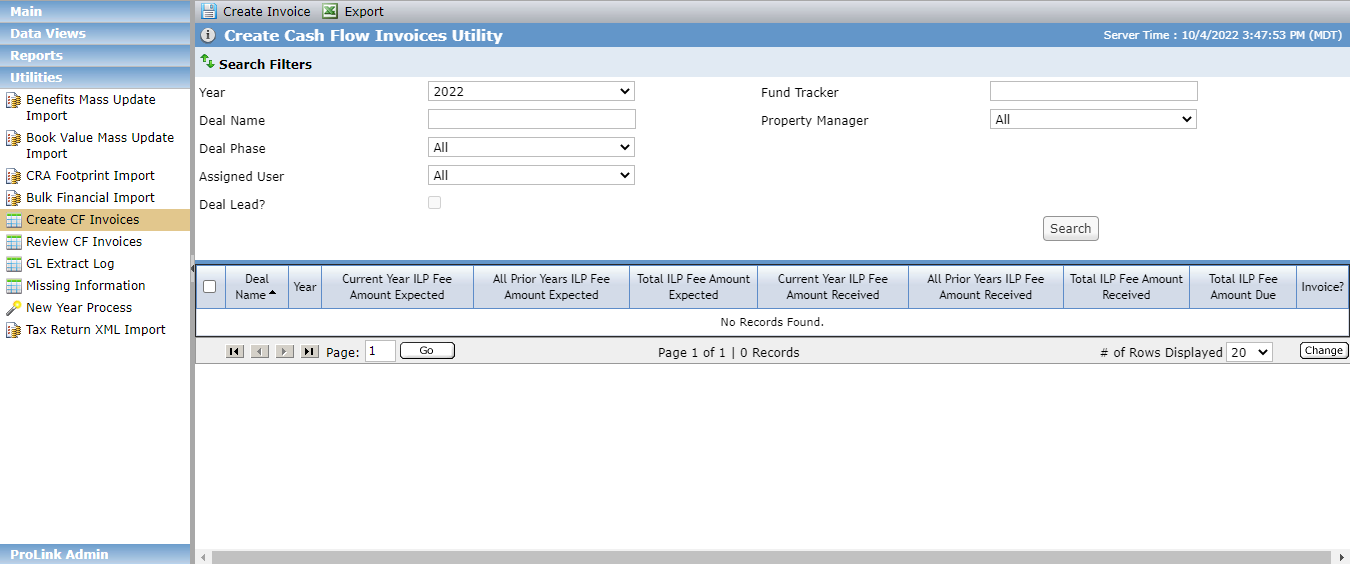
Navigate to the Utilities panel, and then select the Create CF Invoices menu option.
The Create Cash Flow Invoices Utility screen opens.
Complete a search to find the deals for which to create invoices:
Select the Year. The Year defaults to the current year, but you can select a previous year where an Annual Cash Flow Distribution record exists.
Optionally, filter the results by the Fund Tracker.
Optionally, filter the results by the Deal Name.
Optionally, filter the results by the Property Manager.
Select the Deal Phase. The default is "All."
Select the Assigned User. The default is "All."
You can select whether the user should be the Deal Lead for the deals returned.
Click Search.
Closed but active deals that meet the search criteria are listed in the grid. A deal is closed when a date is populated in the Effective Date column when the Admission Stage is equal to Actual Closing in the Status History grid of Deal Details.
The grid lists deals with Annual Cash Flow Distribution records where the year of the distribution record matches the selected year in the utility.
Select the checkbox at the beginning of the row for the deal(s) to create invoices.
You can select the checkbox in the header row of the grid to select all deals on the current page of the grid. If the grid spans multiple pages, you will need to visit each page to make selections.
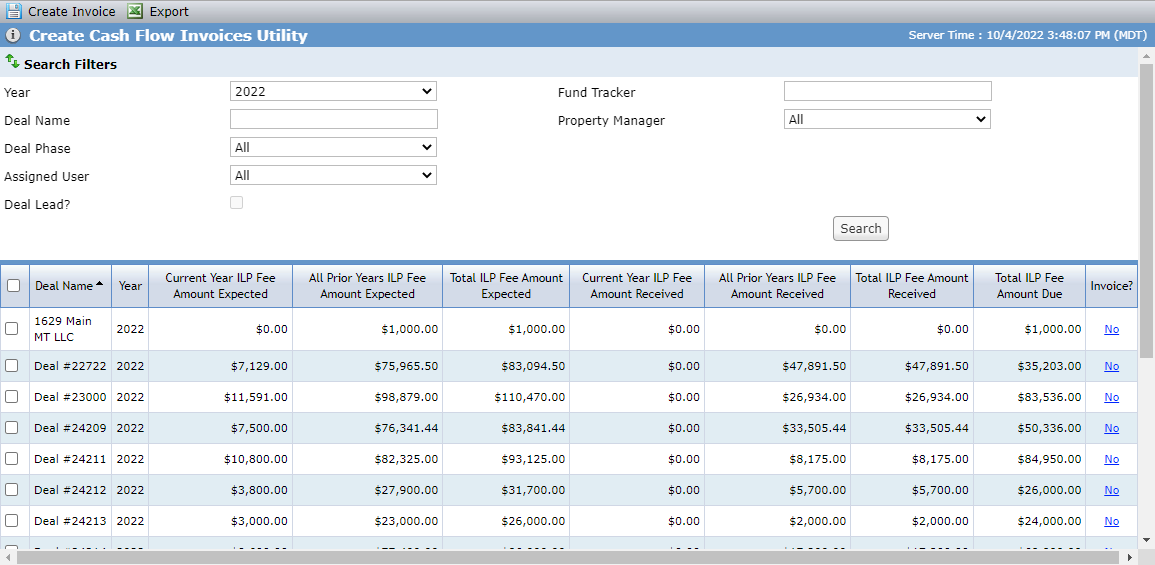
Click Create Invoice in the top toolbar. Then click OK to confirm.
The system creates invoice records for each Annual Cash Flow Distribution for the selected deals. The system creates a record for each Bank Affiliate entity that is displayed as a "Payable To" on a Fee Distribution record that has a Fee Amount Due not equal to zero for the year selected or any previous years.
If the same Payable To has multiple Fee Distributions, they are summed and included within the same Invoice record.
Column | Description |
|---|---|
Deal Name | The name of the deal. |
Year | The year selected in the search criteria. |
Current Year ILP Fee Amount Expected | Displays the ILP Fee Amount Expected from the Annual Cash Flow Distribution record for the year. |
All Prior Years ILP Fee Amount Expected | Displays the sum of the ILP Fee Amount Expected from the Annual Cash Flow Distribution record for all years prior to the year selected. |
Total ILP Fee Amount Expected | Displays the sum of (Current Year ILP Fee Amount Expected) + (All Prior Years ILP Fee Amount Expected). |
Current Year ILP Fee Amount Received | Displays the ILP Fee Amount Received from the Annual Cash Flow Distribution for the year. |
All Prior Years ILP Fee Amount Received | Displays the sum of ILP Fee Amount Received from the annual Cash Flow Distribution record for all years prior to the year selected. |
Total ILP Fee Amount Received | Displays the sum of (Current Year ILP Fee Amount Received) + (All Prior Years ILP Fee Amount Received). |
Total ILP Fee Amount due | Displays the difference between the Total ILP Fee Amount Expected and the Total ILP Fee Amount Received. The grid lists deals that meet the search criteria that have a Total ILP Fee Amount Due not equal to zero. |
Invoice | Displays "Yes" and the total number of Invoice records that exist in parenthesis if there is at least one Cash Flow Distribution Invoice record on the given Annual Cash Flow Distribution record. Displays "No" if no Cash Flow Distribution Invoice records exist on the given Annual Cash Flow Distribution record. Click the hyperlink to navigate to the Invoices tab on the Edit Annual Cash Flow Distribution screen for the corresponding record. |
The Review Cash Flow Invoices utility provides the ability to mass update the Approved Date, Sent Date, or both for existing invoices. You can also view an invoice for a deal, or view many or all selected invoices.
Tip
Your system administrator can create a workflow to notify the appropriate users when cash flow invoices are created and ready for approval.
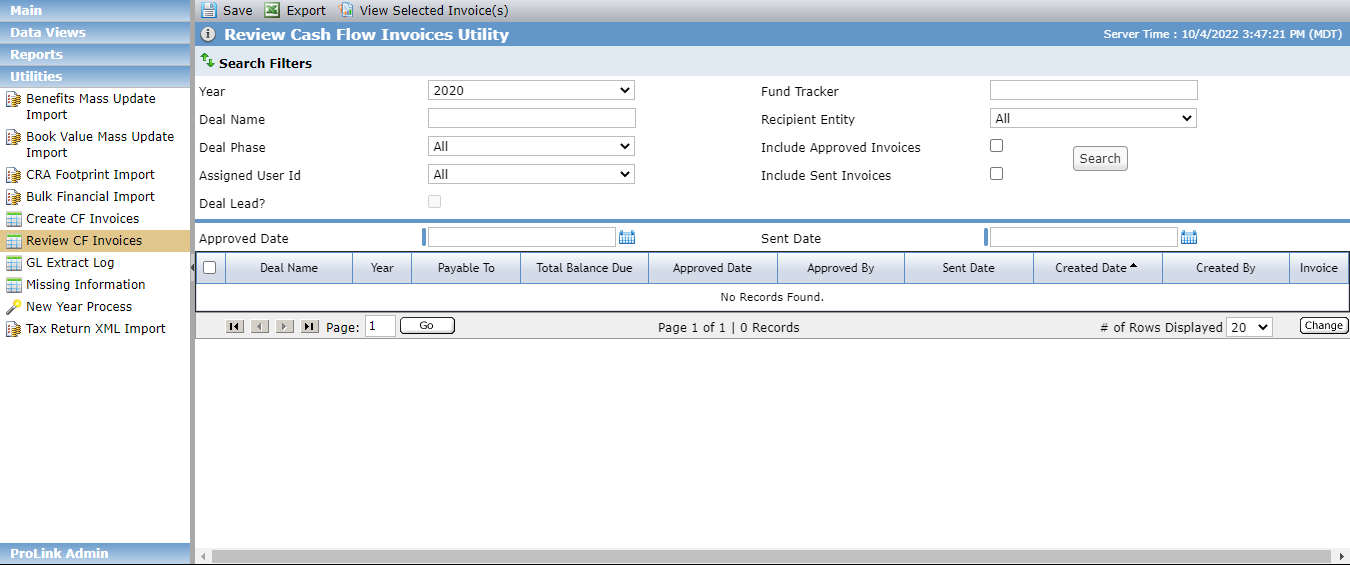
Navigate to the Utilities panel, and then select the Review CF Invoices menu option.
The Review Cash Flow Invoices Utility screen opens.
Complete a search to find the invoices to view.
Select the Year. The Year defaults to the most recent year with Annual Cash Flow Distribution records, but you can select a previous year where an Annual Cash Flow Distribution record with a Cash Flow Invoice exists.
Optionally, filter the results by the Fund Tracker.
Optionally, filter the results by the Deal Name.
Select the Recipient Entity. The default is "All."
Select the Deal Phase. The default is "All."
Select Include Approved Invoices checkbox to include Invoice records with an Approved Date.
Select the Assigned User ID. The default is "All."
You can select whether the user should be the Deal Lead for the deals returned.
Select Include Sent Invoices to include Invoice records with a Sent Date.
Click Search.
Select the checkbox at the beginning of the row for the invoice(s) to work on.
Note
You can view one or many invoices. See Cash Flow Invoice Report for more information.
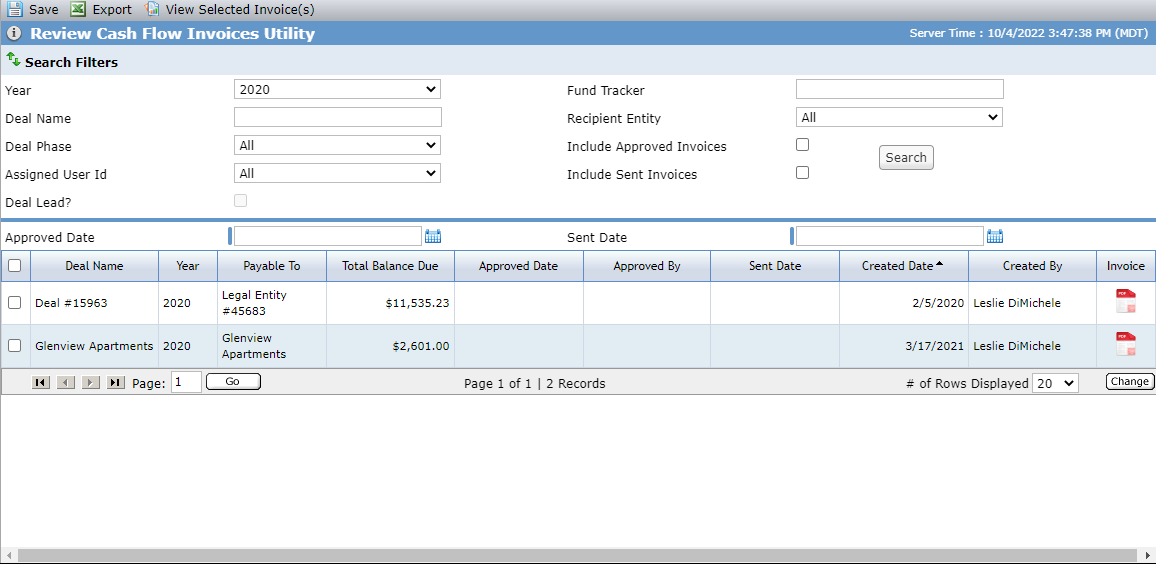
Enter the Approved Date to indicate approval of the invoice(s).
When you enter and save an Approved Date, the system snapshots the following values by year for the Invoice Report: any active entities with the Deal Role of Accountant - Tax, General Partner, or Property Manager, and the primary contact for those roles; the billing date, name of the property; and for each year and fee type, the year and fee type, amount due, payment received balance due, payable to entity, and payable to entity address.
The system also snapshots the following fields for the Invoice record: ILP Fee Amount Expected, ILP Fee Amount Received, and ILP Fee Amount Due.
Enter the Sent Date to indicate distribution of the invoice(s).
Click Save.
Then click OK to confirm updating the dates on the selected invoices. The system populates the Approved Date, Sent Date, or both for the selected Cash Flow invoices. If the Approved Date or Sent Date was previously populated on the record, the system overwrites the date with the new value.
Column | Description |
|---|---|
Deal Name | The name of the deal. |
Year | The year selected in the search criteria. |
Payable To | Displays the value from the Edit Cash Flow Distribution Invoice. |
Total Balance Due | Displays the value from the Edit Cash Flow Distribution Invoice. |
Approved Date | Displays the value from the Edit Cash Flow Distribution Invoice. |
Approved By | Displays the value from the Edit Cash Flow Distribution Invoice. |
Sent Date | Displays the value from the Edit Cash Flow Distribution Invoice. |
Created Date | Displays the value from the Edit Cash Flow Distribution Invoice. |
Created By | Displays the value from the Edit Cash Flow Distribution Invoice. |
Every Cash Flow Distribution Invoice has an associated Invoice Report. Three copies of the invoice will be available for each deal, one each for General Partner, Property Manager, and Accountant, if they are set up as entities on the deal. Each invoice contains, by year, the amount due for the property, the payments that have been received, and the total balance due.
There are two versions of the report. Please contact ProLink Support if you have questions about which version your organization uses.
The system administrator can define the following payment specifications for the Invoice Report in Config Settings:
ReportInvoice Phone
ReportInvoiceAttn (Attention To)
ReportInvoiceCSZ (CityStateZip)
ReportInvoiceAddress
Version 2 of the report also uses the following settings:
ElectronicPaymentAcctNumber
ElectronicPaymentABANumber
ElectronicPaymentCityStateZip
ElectronicPaymentAddress
ElectronicPaymentAddressName
You can access the report through the Review Cash Flow Invoice utility or the Edit Cash Flow Distribution Invoice screen. You cannot access the report through the Reports panel.
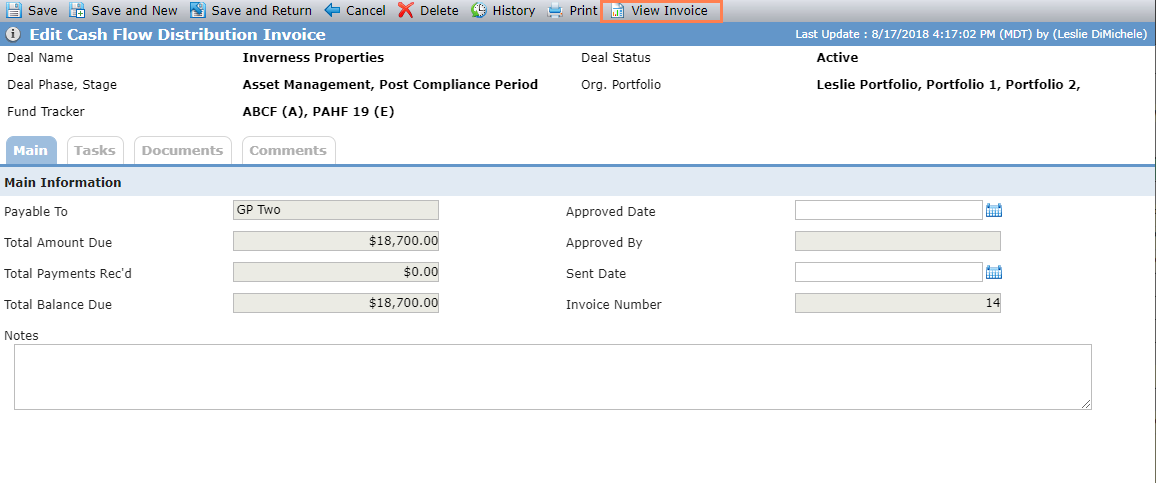
From the Edit Cash Flow Distribution Invoice screen, click View Invoice in the top toolbar to view the report for the specific deal.
For more information about Cash Flow at the deal level, see Cash Flow.
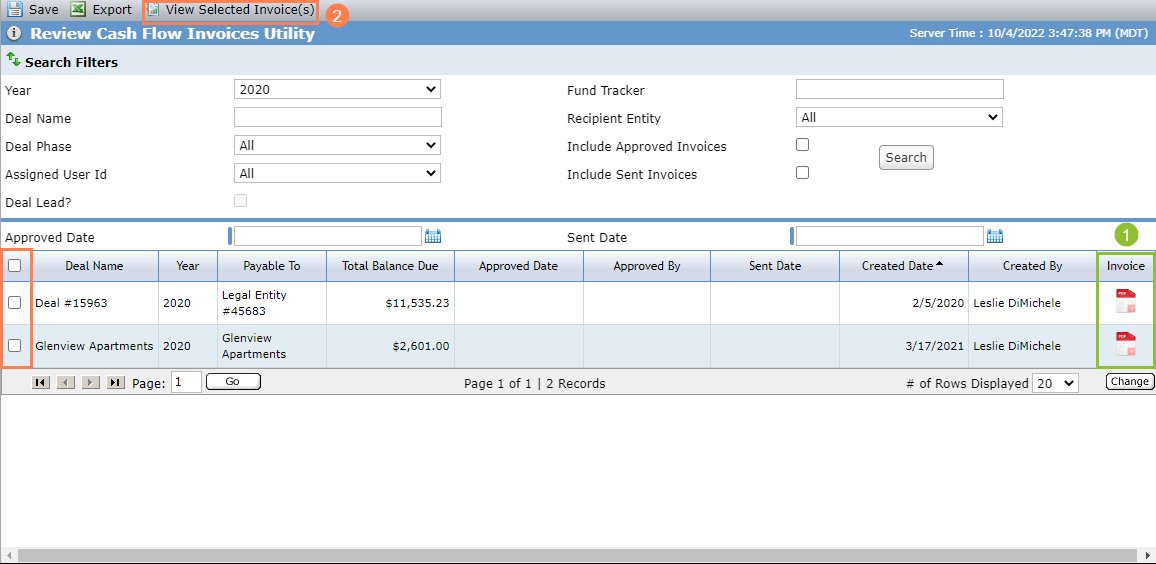
From the Review Cash Flow Invoice utility, you can:
Click
 to view the report for a specific deal.
OR
Select multiple deals in the grid, and then click View Selected Invoice(s) in the top toolbar to view the report for multiple deals in one report.
Tip
The report viewer opens in a new window. You might need to allow pop-ups in your browser to load the report viewer.
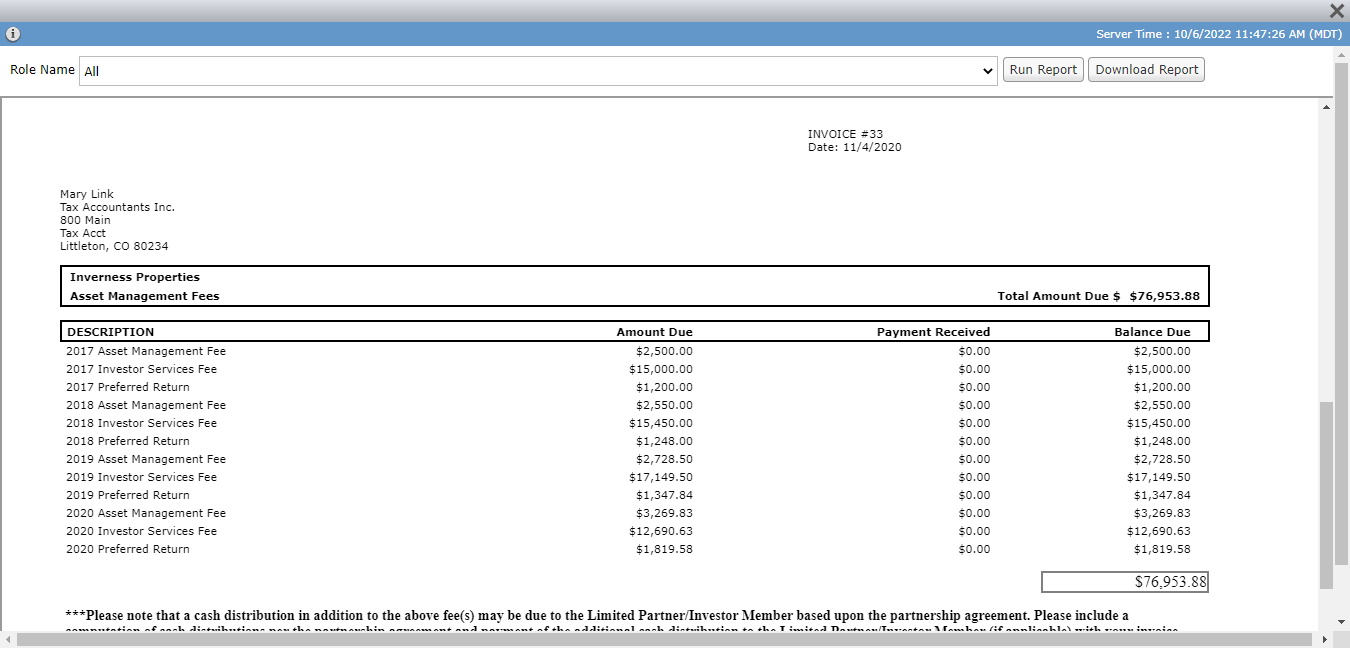
The default Role Name selection in the report viewer is "All," which means the report will show one page for each active entity in the role of General Partner, Property Manager, and Accountant - Tax. You can filter to a specific role, if needed. Then click Run Report.
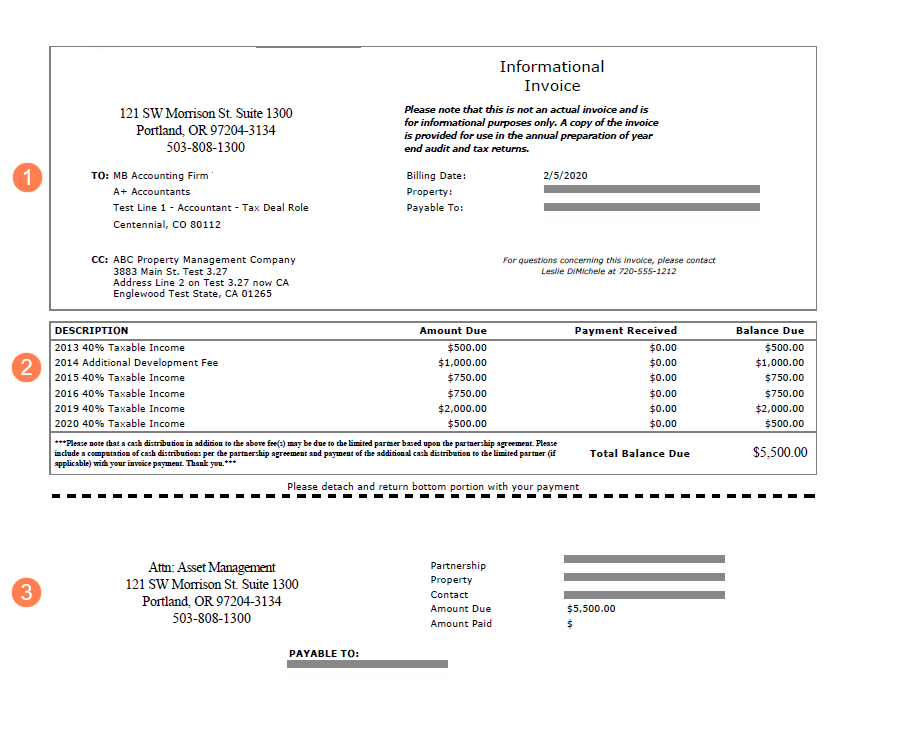
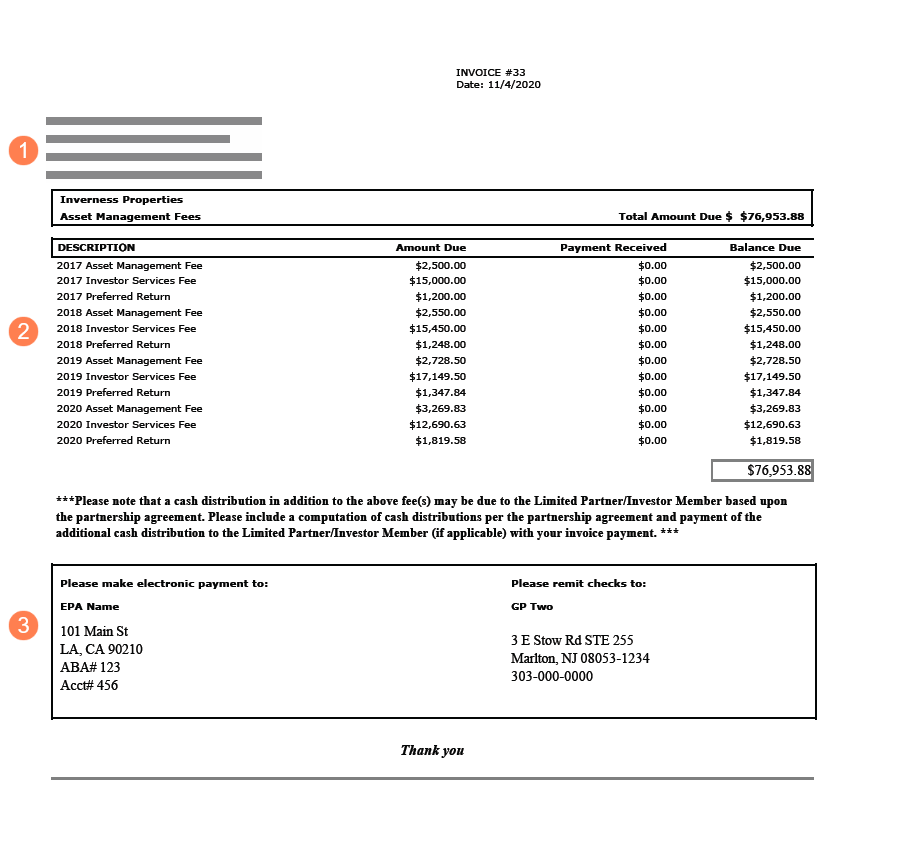
Version 1; Version 2
The invoice has three sections:
Address and contact information
Line items for outstanding cash distributions and totals
Return with payment section
Field | Version 1 Description | Version 2 Description |
|---|---|---|
{Return Address} | Config Settings
| N/A |
TO | Displays the name of the primary contact for the active Accountant, General Partner, or Property Manager. | |
{To Entity Name} | Displays the name of the entity for which the report is being created. | |
{To Address} | Displays the address from Edit Entity for the entity for which the report is being created. | |
CC | Displays the name and address of the active entity that has a deal role of Property Manager. | N/A |
Invoice # | N/A | Displays the Invoice Number from Edit Cash Flow Distribution Invoice. |
Billing Date | Displays the date the Invoice record was created from Edit Cash Flow Distribution Invoice. | N/A |
Date | N/A | Displays the date the Invoice record was created from Edit Cash Flow Distribution Invoice. |
Property | Displays the name of the property from Edit Property. If there are multiple properties on the deal, the report displays the first one. | |
Payable To | Displays the "Payable To" value from the Edit Cash Flow Distribution Invoice. | N/A |
Questions Contact | Displays the name and phone number of the Deal Lead assigned to the deal (from Edit User for the assigned user). | N/A |
Description | Displays the Fee Type - Invoice/OPA Fee Description from Edit Fee Distributions Priority. | |
Amount Due | Displays the Total Amount Due from Edit Cash Flow Distribution Invoice. | |
Payment Received | Displays the Total Payments Rec'd from Edit Cash Flow Distribution Invoice. | |
Balance Due | Displays the Total Balance Due from Edit Cash Flow Distribution Invoice. | |
Total Balance Due | Displays the sum of the Balance Due for all displayed fees. | |
{Electronic Payment To} | N/A | Config Settings:
|
{Remit Checks To} | Config Settings
| Displays the "Payable To" value from the Edit Cash Flow Distribution Invoice. Config Settings:
|
Payable To | Displays the "Payable To" value from the Edit Cash Flow Distribution Invoice. | N/A |
Partnership | Displays the name of the deal from Deal Details. | N/A |
Property | Displays the name of the property from Edit Property. If there are multiple properties on the deal, the report displays the first one. | N/A |
Contact | Displays the name of the Deal Lead assigned to the deal (from Edit User for the assigned user). | N/A |
Amount Due | Displays the Total Balance Due. | N/A |
Amount Paid | Displays "$". | N/A |