Introduction to ProLinkAIM Organizational Portfolios
In ProLinkAIM, organizational portfolios are a way of grouping deals. For example, you might create a portfolio that includes all deals in your western region. An organizational portfolio can also include syndicated funds and other organizational portfolios.
Tip
Organizational Portfolios can be helpful when you need to get data from multiple deals (using the Organizational Portfolio schema in SmartDox).
You can search and view organizational portfolios from both reports and data views.
Navigate to the Main Menu, and then select the Organizational Portfolios option in the left navigation panel.
The Organizational Portfolios screen opens. This screen provides a data view of the
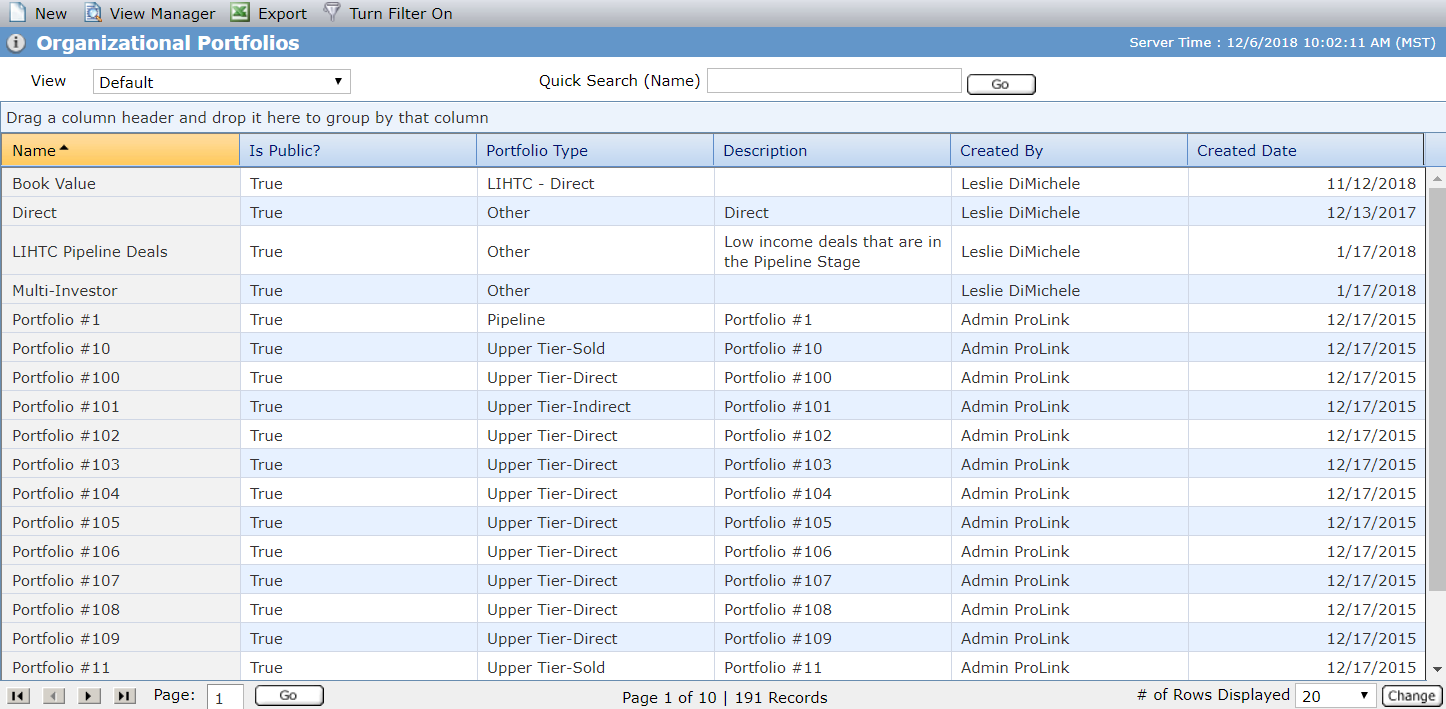
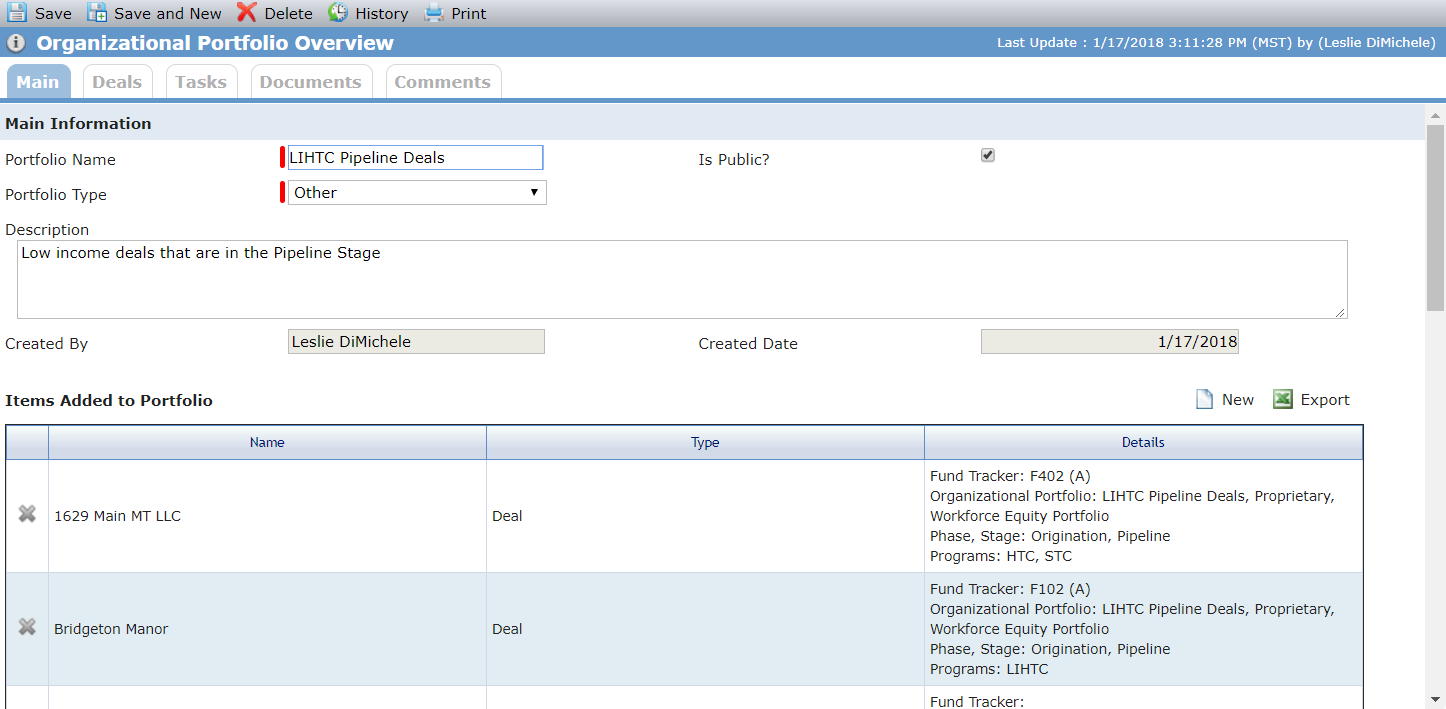
To view the details of an organizational portfolio, click the row of the Organizational Portfolio record.
The Organizational Portfolio Overview screen opens.
Important
A privilege controls whether you can make an organizational portfolio available to all users as well as delete public portfolios.
Navigate to the Main Menu, and then click Add New Portfolio.
The Organizational Portfolio Overview screen opens.
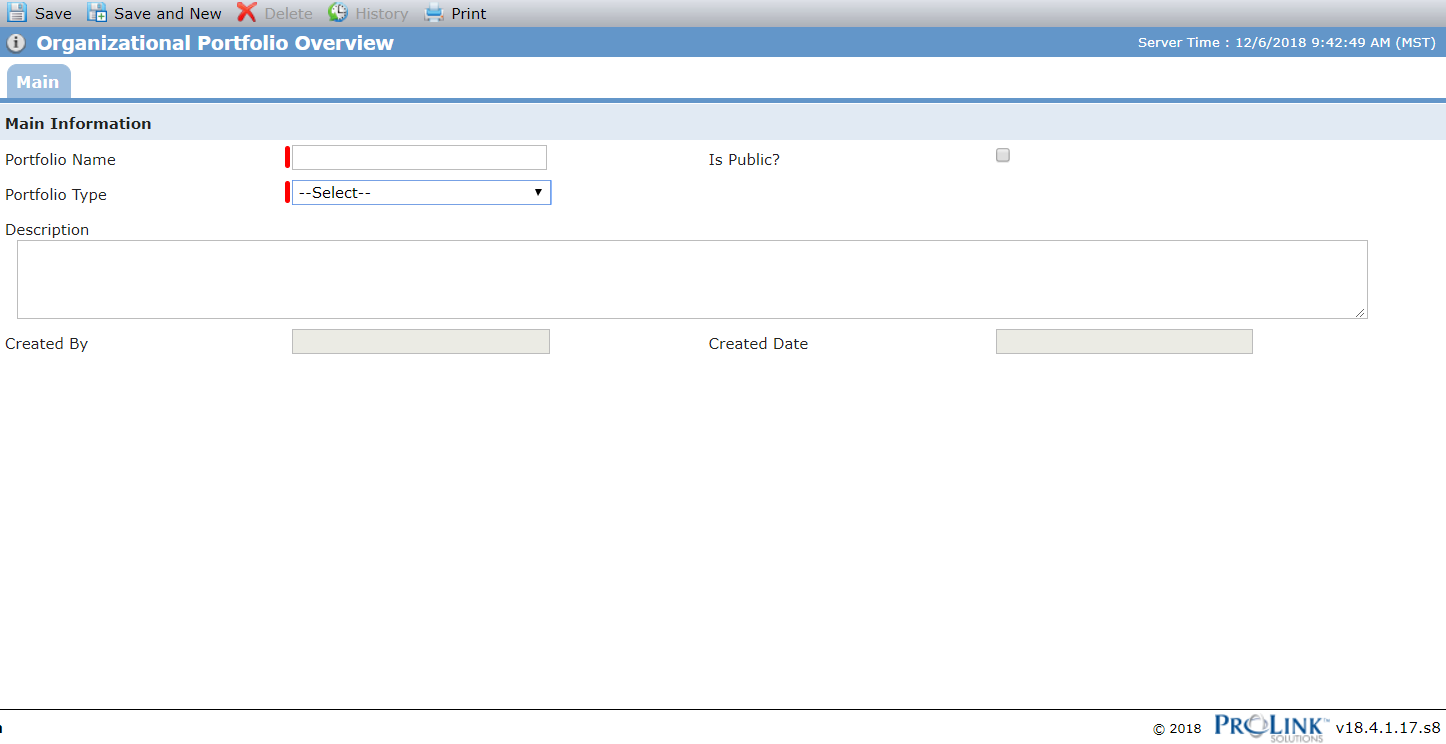
Enter the Portfolio Name.
Select the Portfolio Type.
If you have the proper permissions, you can select the Is Public checkbox to make the organizational portfolio available to all users.
Optionally, add a Description.
Click Save.
The Items Added to Portfolio grid appears.
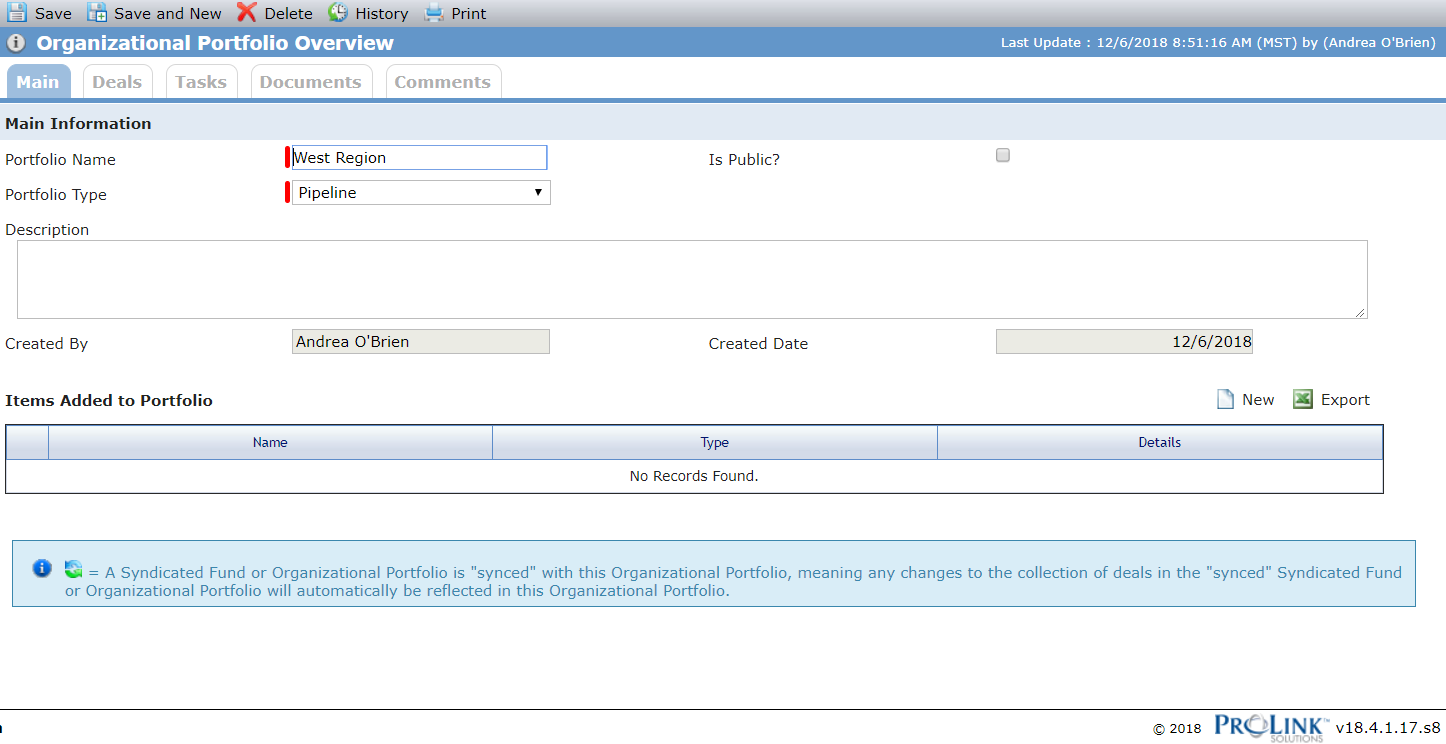
Click New above the Items Added to Portfolio grid.
The Add to Organizational Portfolio popup opens.
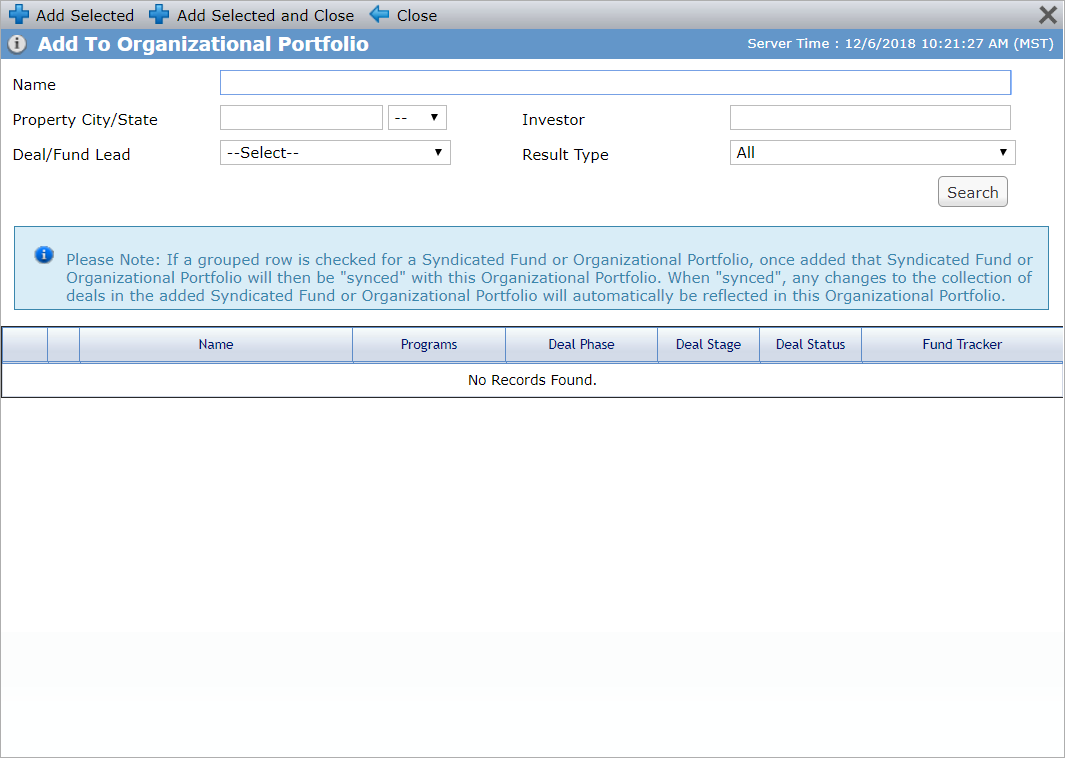
Enter criteria, such as name or location, to help look up deals.
Click Search.
Select the checkbox of the deals, funds, or portfolios to include in this organizational portfolio.
Note
Adding a fund or organizational portfolio to this organizational portfolio syncs it with this organizational portfolio. As a result, any changes to the collection of deals in the synced (associated) fund or organizational portfolio will automatically cascade to this organizational portfolio.
For example, if you add a fund to this organizational portfolio, and then later add two deals to the fund, this organizational portfolio will also include the two deals.
However, if you remove a deal from this organizational portfolio directly (Deals tab)—one that belongs to a synced (associated) fund or organizational portfolio—then the sync/association will be broken. Any changes to the collection of deals in the fund or organizational portfolio will not automatically cascade to this organizational portfolio.
Click Add Selected and Close.
Click Save.