Set up Assessment Areas for CRA (CRA Admin)
Important
For an overview of bank Community Reinvestment Act (CRA) allocations in ProLinkAIM, see Intro to Bank CRA.
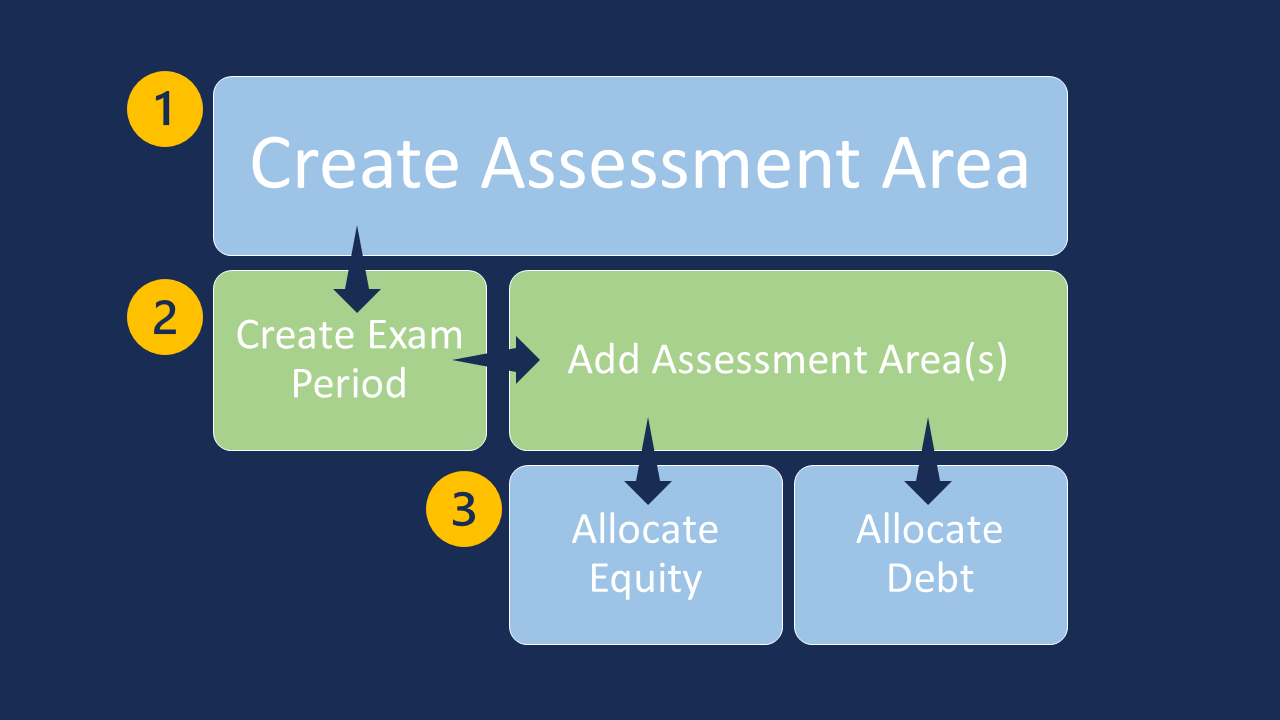
Create the assessment area in CRA Admin.
Create the Exam Period in Bank CRA, and then add the assessment area(s).
Allocate equity/allocate debt to an Exam Period Assessment Area.
CRA Admin allows you to create your assessment areas for Community Reinvestment Act (CRA) allocations. After assessment areas are created, you can associate them to specific exam periods as needed.
Create an Assessment Area
Navigate to ProLink Admin in the left navigation panel, and then click CRA Admin.
The Bank CRA Assessment Areas screen opens.
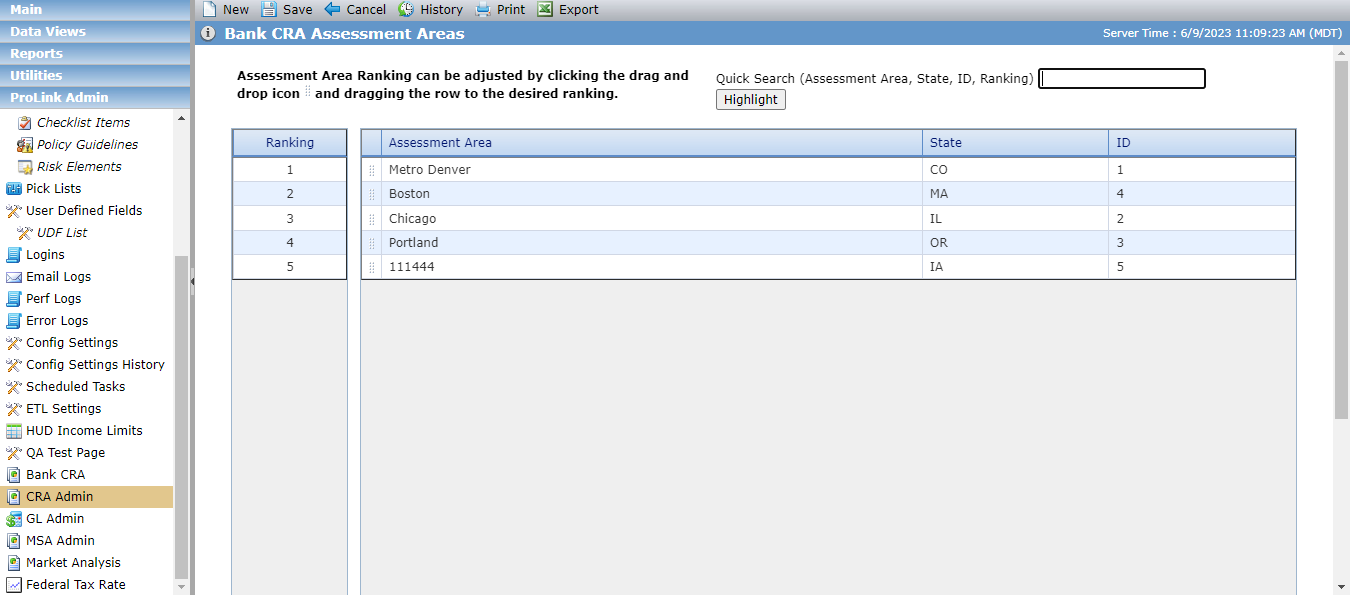
Click New in the top toolbar.
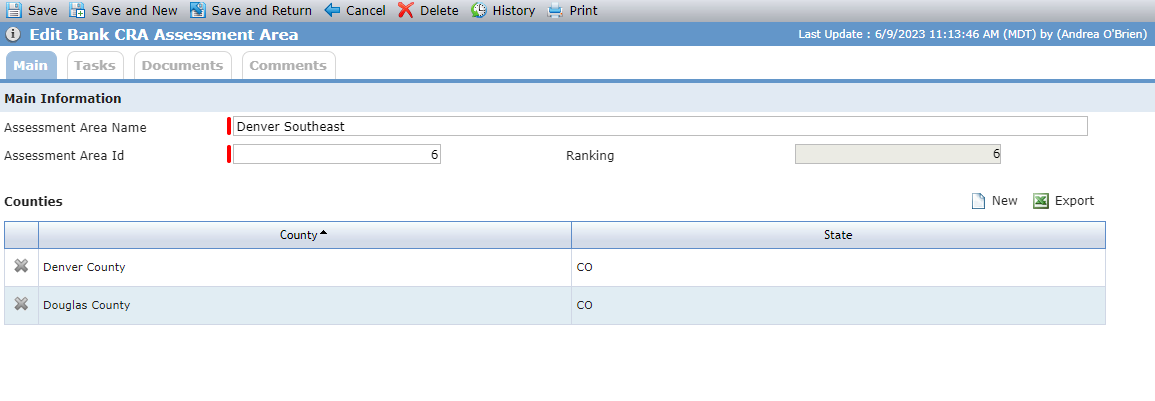
The Edit Bank CRA Assessment Area screen opens.
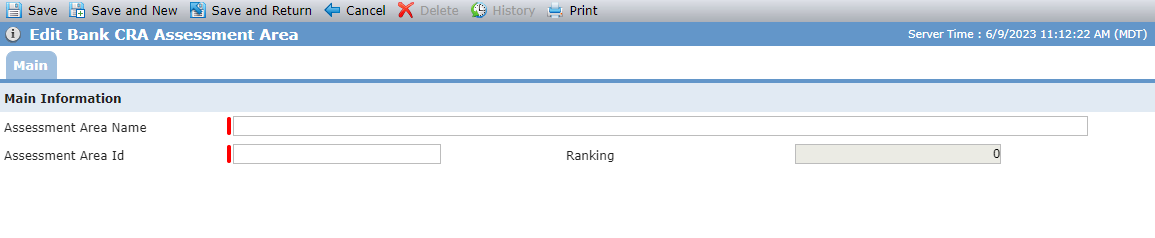
Enter the Assessment Area Name.
Enter the Assessment Area ID. The ID is a unique number based on the location of the area.
Click Save.
Click New above the Counties grid.
The Add Counties popup opens.
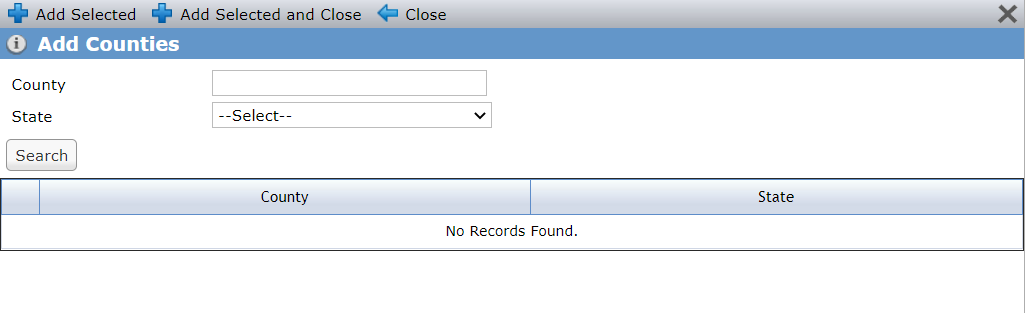
Find and add the counties in the assessment area.
Search by County and State.
The counties returned are based on the PL_County picklist for the selected state. The system administrator can manage the County picklist.
Select the County(ies) appropriate for the assessment area.
Click Add Selected and Close.
The county(ies) are added to the Counties grid.
Note
When you return to the Bank CRA Assessment Areas screen, the system adds the new assessment area as the last row in the grid (lowest ranking). You can change the ranking as needed.
Change the Assessment Area Ranking
The ranking is the priority of the assessment area; that is, which area should be allocated to first. You can easily rank the assessment areas on the Bank CRA Assessment Areas screen. Click  to drag and drop a row to the desired ranking area indicated in the left-most column. Be sure to click Save to keep any ranking changes.
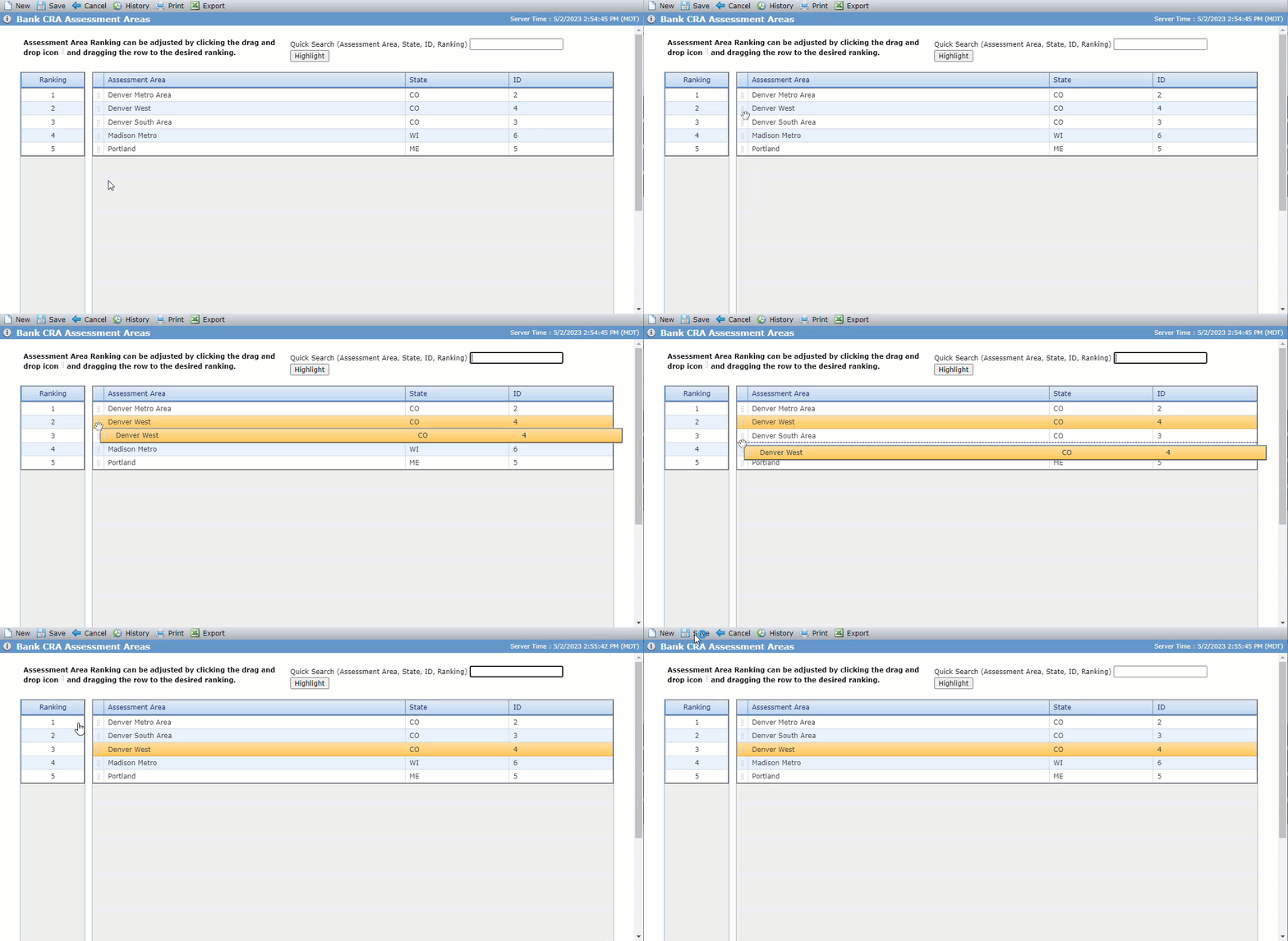
If you delete an assessment area (from the Edit Bank CRA Assessment Area screen), the system adjusts the rankings automatically.
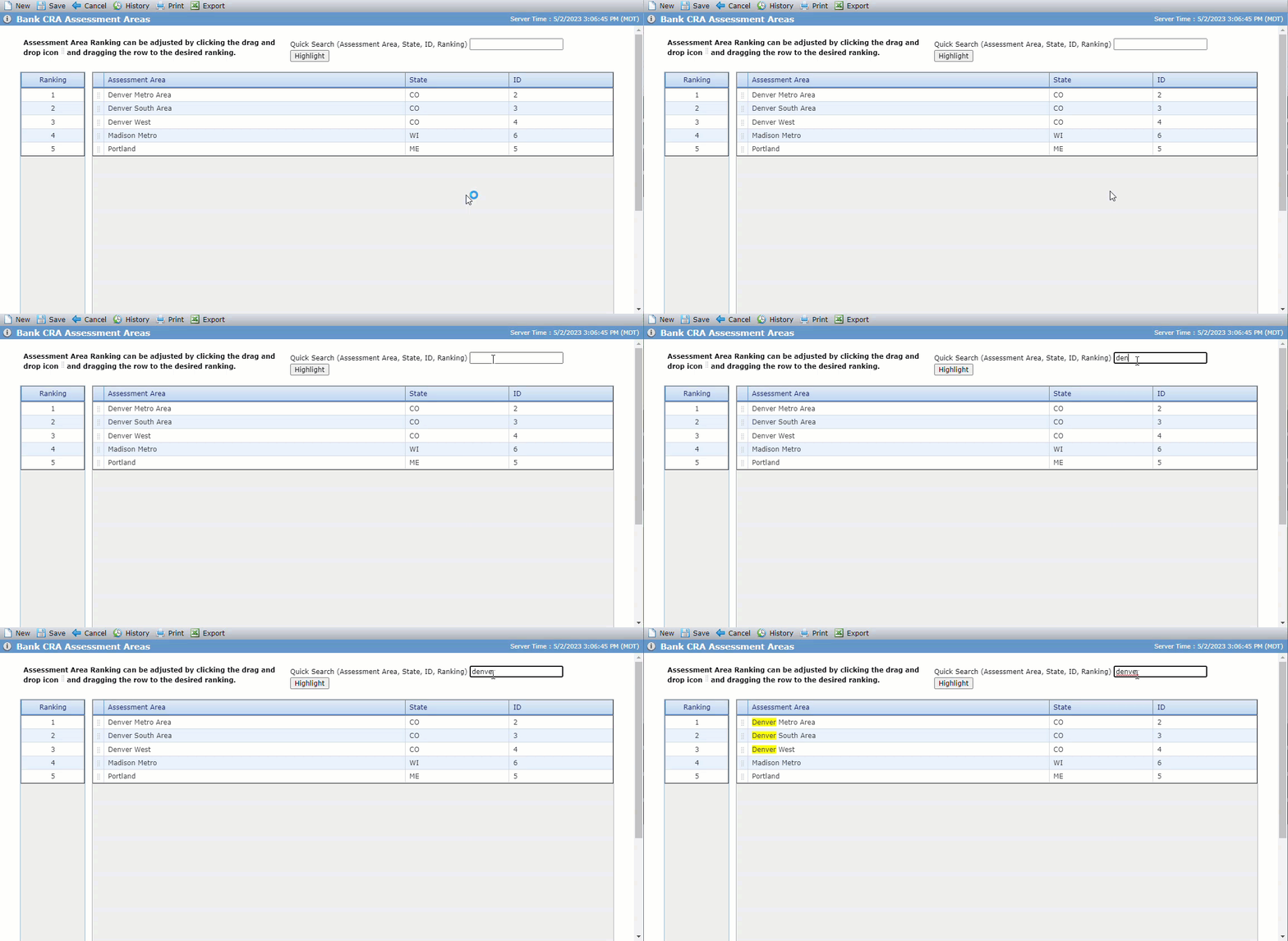
Search the Bank CRA Assessment Areas Screen
You can search the screen by assessment area, state, ID, and current ranking by entering search text in the Quick Search text box and clicking Highlight or pressing Enter. The matching text in the grid is highlighted on the screen.