Edit an Entity - Correspondence Tab
The Correspondence tab on the Edit Entity screen allows you to track the contact you make with an entity. The screen includes the Correspondence Log grid and the Fund Contact Assignments grid.
Correspondence Log
The Correspondence Log allows you to enter and view the contact events with the entity. The columns displayed are different depending on whether the entity is an individual or company.
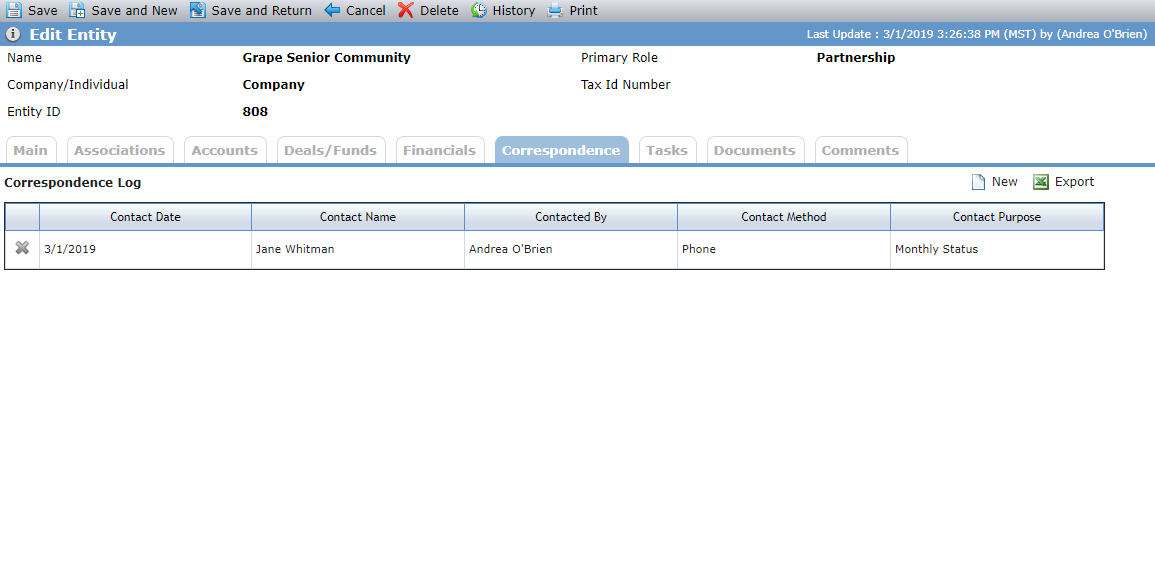
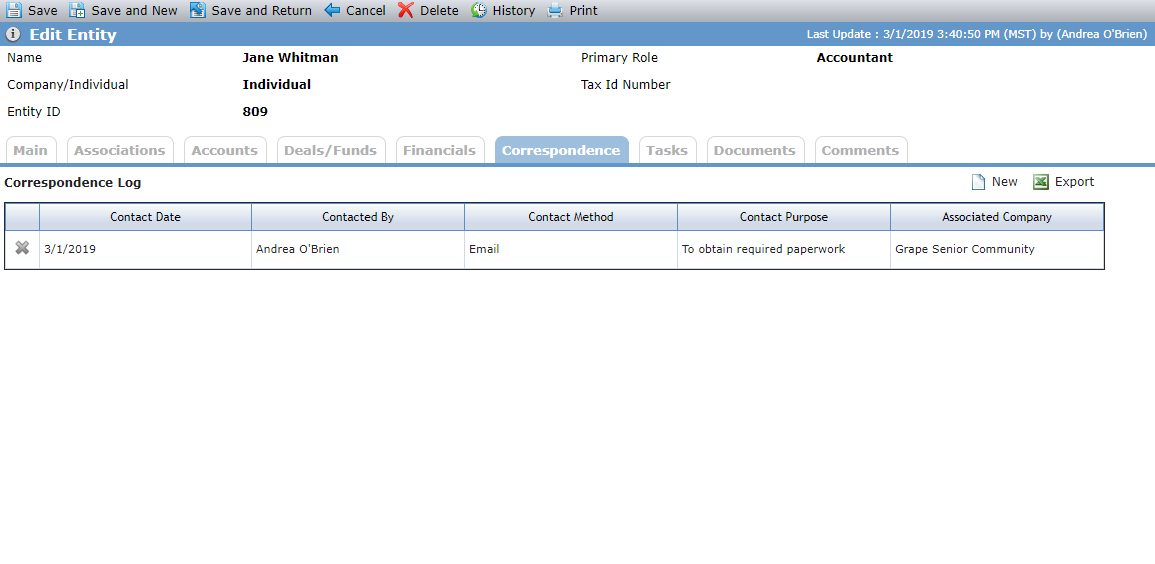
Entity is a Company; Entity is an Individual
Click New above the grid to create a new Correspondence Log record, or click into a row to open the details of an existing record. The Edit Correspondence Log screen opens.
Entity Type | Example | Details |
|---|---|---|
Entity Contact | 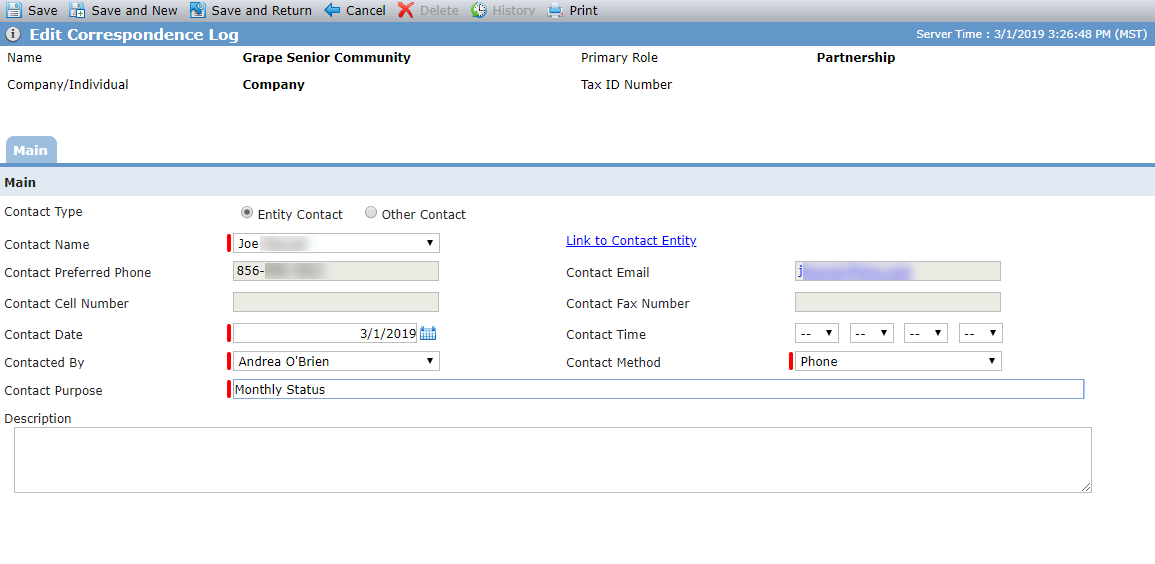 | When the entity is a company, you can select an existing contact for the company as the correspondence contact. |
Other Contact | 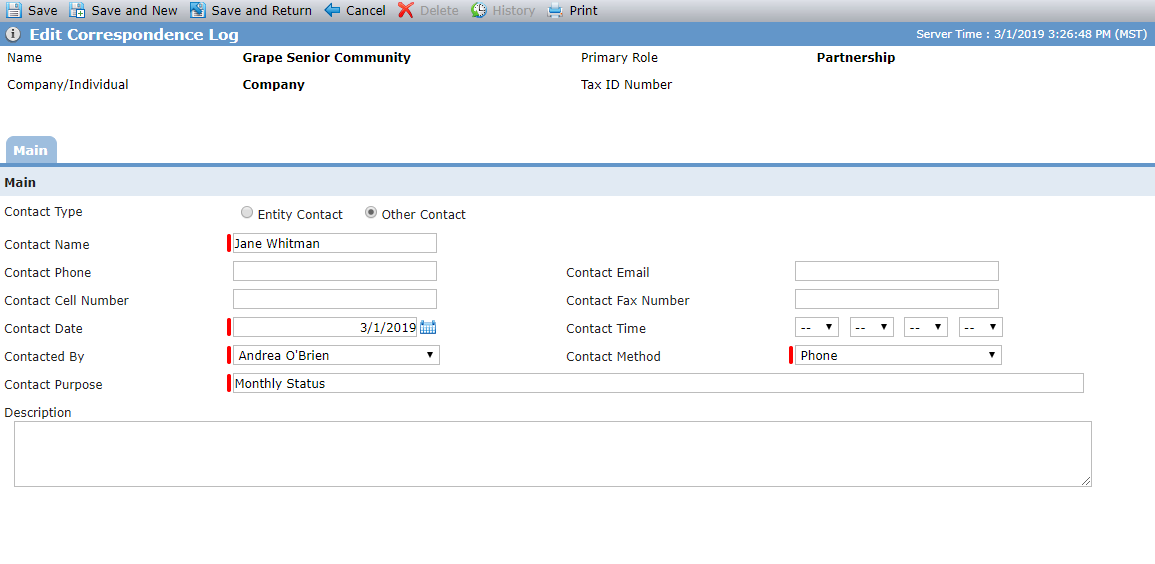 | When the entity is a company, you can add any individual as the correspondence contact. |
Individual Contact | 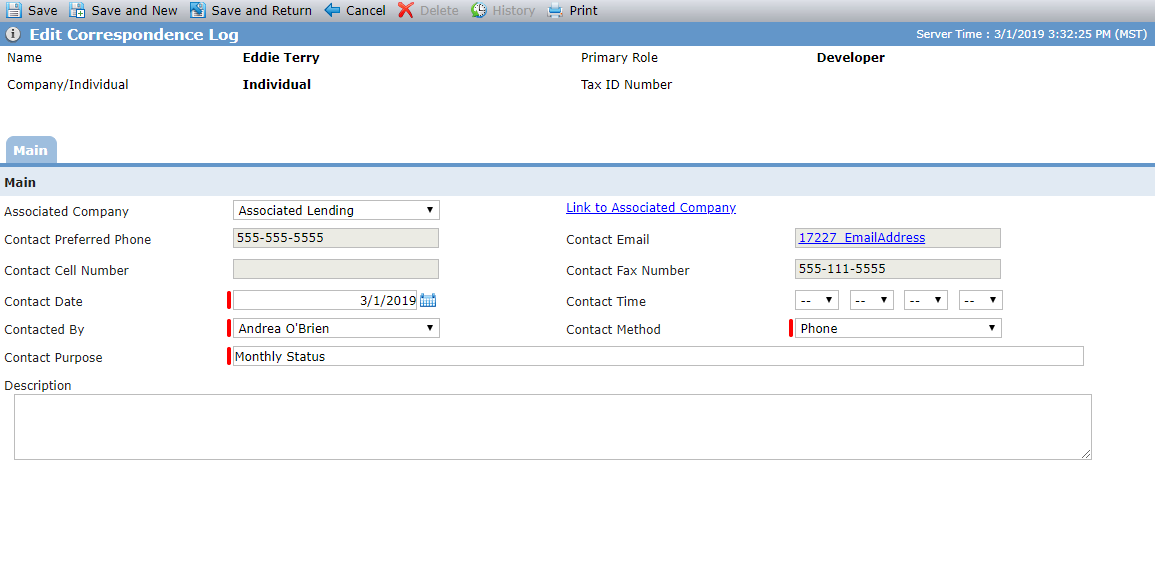 | When the entity is an individual, you can select any associated company that the individual is associated to. |
Fund Contact Assignments
The Fund Contact Assignments grid is available when the entity's primary role is Investor. You can assign investor contacts to specific fund correspondence types so that you can quickly see a comprehensive correspondence list for each fund or investor.
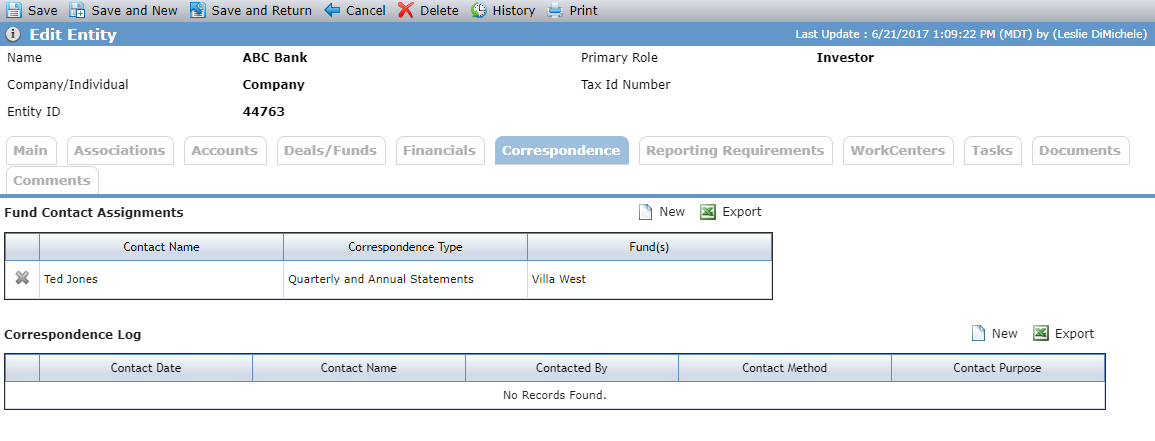
Click New above the grid to create a new Fund Contact Assignment record, or click into a row to open the details of an existing record. The Edit Fund Contact Assignments screen opens.
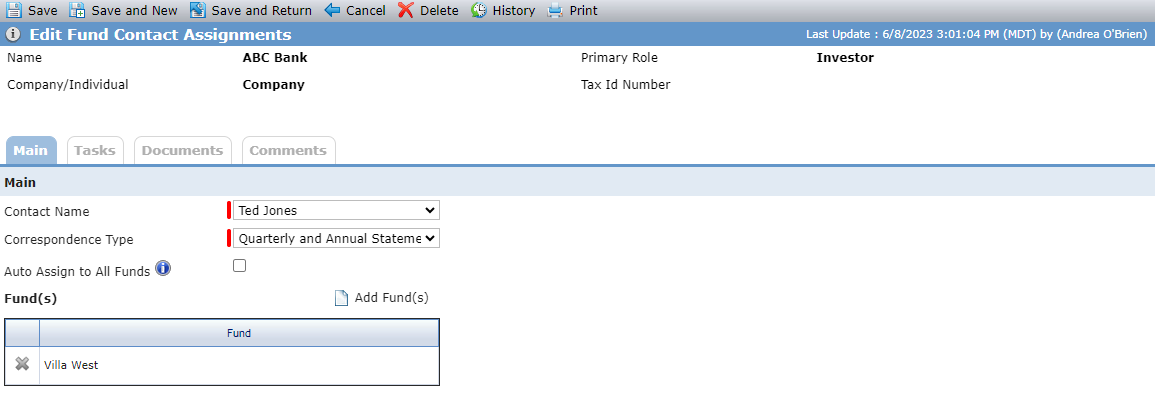
If you remove the parent investor entity from a fund, then the system deletes the fund from any assignments for that entity.
If you change the primary role for the parent investor entity, then the system deletes all fund contact assignments.
To delete a contact association on the entity, you will first need to delete any fund correspondence assignments using that contact.
Tip
The Fund Correspondence Assignments data view allows you to see a list of all contacts with Fund Correspondence Assignments across the system.
Add a Contact
Navigate to a legal entity record with a primary role of Investor.
Select the Correspondence tab.
Click New above the Fund Contact Assignments grid.
The Edit Fund Contact Assignments screen opens.
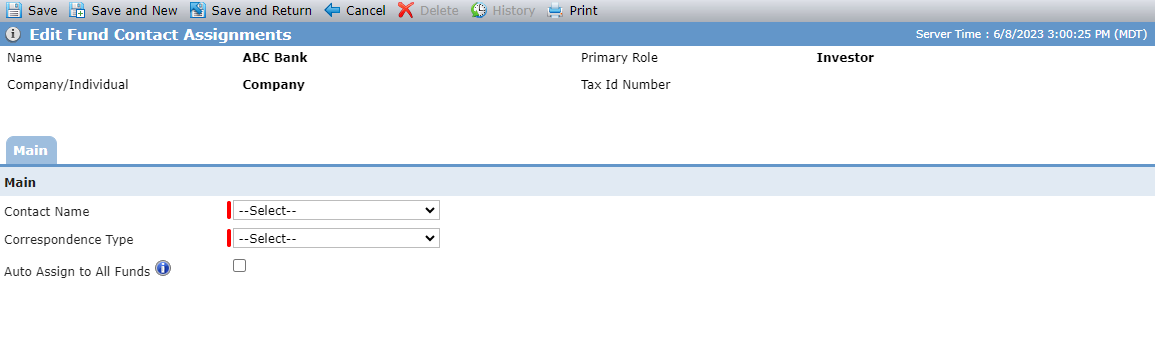
Select the Contact Name from a list of the contacts associated with the entity.
Select the Correspondence Type.
The system administrator can define the values in the PL_FundCorrespondenceType picklist.
Select the Auto Assign to All Funds checkbox to assign the selected contact as the contact for the selected correspondence type for all funds on the deal.
If the entity is added to any additional funds, the new funds will be automatically assigned to the contact for the selected correspondence type.
OR
Clear the Auto Assign to All Funds checkbox to select which of the deal's funds the contact should be assigned to.
Click Save.
If you need to select the funds to assign the contact to, click Add Fund(s) above the Fund(s) grid.
The Add Fund(s) popup opens. The popup lists every fund associated with the entity that has not already been added.
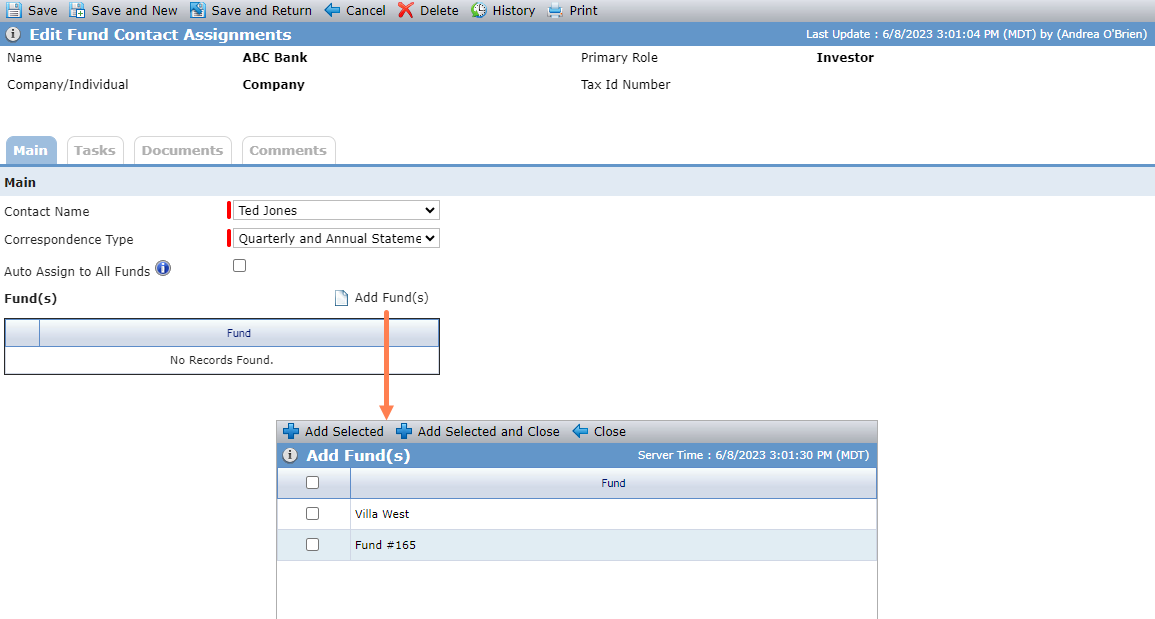
Select the checkbox(es) fo the fund(s) to assign the contact to.
Click Add Selected and Close.