What's New
The release introduces the following new functionality.
Note
Some of these changes might not apply to your organization's use of ProLinkAIM. Please contact us if you have questions about whether and how a particular change affects your organization.
Moved Construction Inspections
ProLink has moved Inspections from Draws to the main Construction option for easier access to Construction Inspection records throughout the construction lifecycle. You can now find an Inspections tab on the Edit Construction Budget screen, which shows all inspections sorted by Draw #. At least one draw must exist before you can create a Construction Inspection record. The Edit Construction Inspection screen remains the same, with the exception of an additional, required Draw Number field.
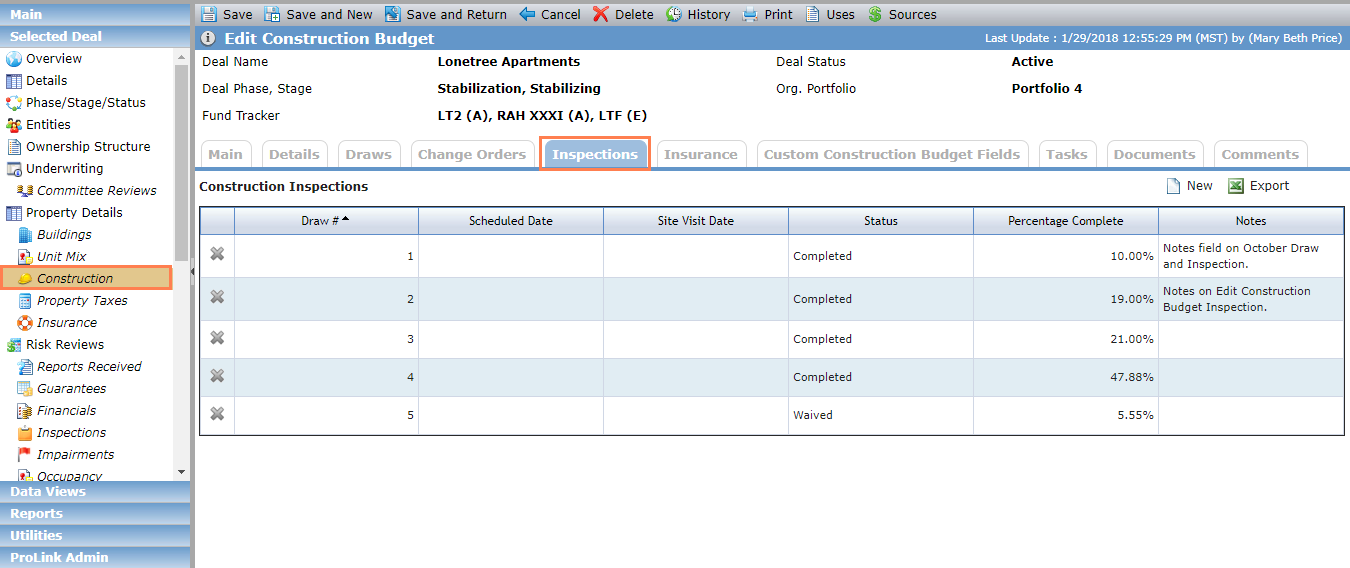
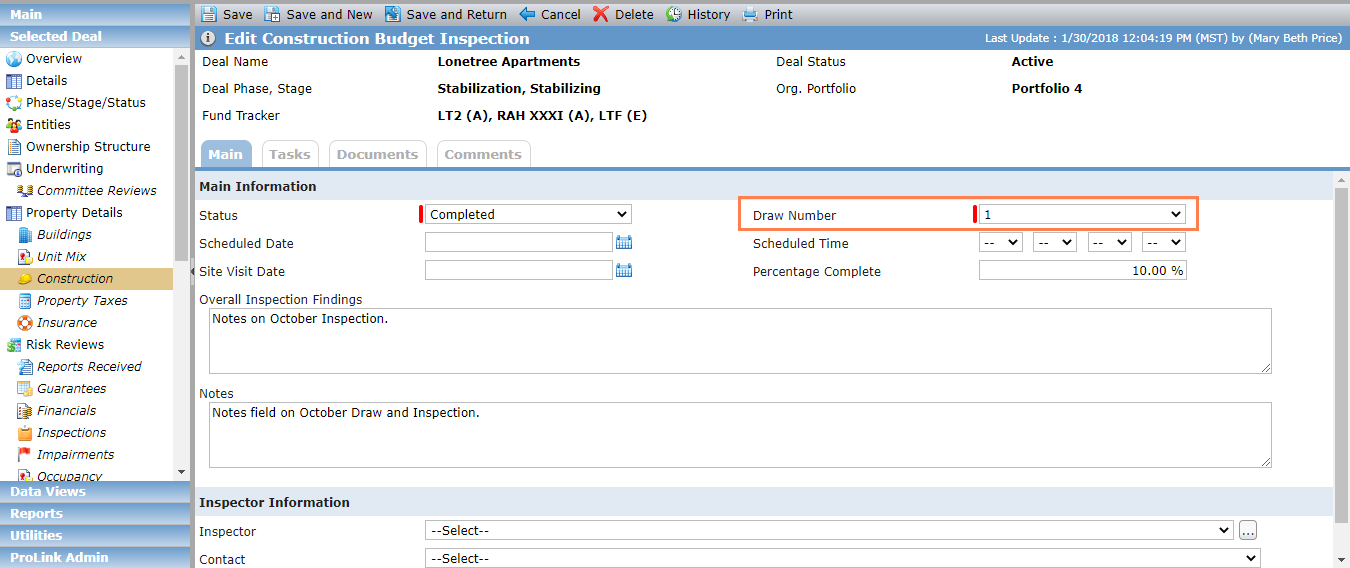
Edit Construction Budget screen; Edit Construction Inspection screen
Added Partnership Representative
We added Partnership Representative as an Entity Type. In a related change, we added the following fields to the Edit Tax Return screen:
Partnership Representative—This list displays only entities with a role of Partnership Representative.
Partnership Representative - Contact—This field is automatically populated after the entity is selected and displays a list of the contacts for the entity.
Partnership Representative - Email—This field is automatically populated from the Entity record after the entity is selected. If a Contact is selected, this field is populated with the contact's email.
Partnership Representative - Preferred Phone—This field is automatically populated from the Entity record after the entity is selected. If a Contact is selected, this field is populated with the contact's phone.
These fields are included in the Tax Return data view and SmartDox.
New Page-Specific Help
ProLink continues to develop accessible, robust help content for the entire application. As part of this ongoing effort, the ProLinkAIM help button  is now connected to an HTML5 website that provides the same help information located on the Support Center (support.prolinksolutions.com). However, you do not need separate login credentials to access the new help site. In addition, accessing the help from within ProLinkAIM will navigate you directly to the help page that corresponds to the screen from which you clicked the help button.