Introduction to ProLinkAIM Deal Tax Returns
The List Tax Returns screen displays the tax return information for a deal.
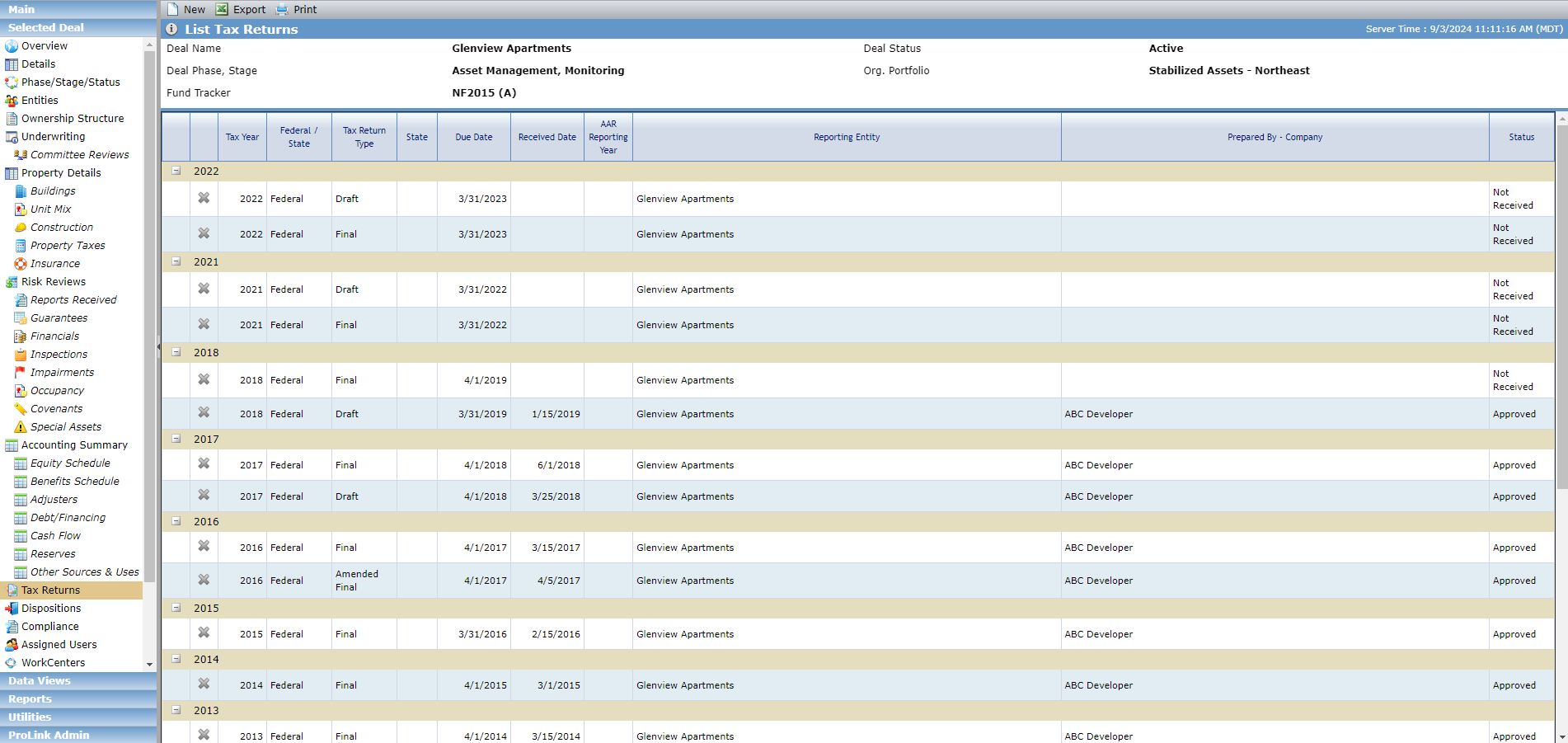
Add a Tax Return
Navigate to the deal, and then click Tax Returns in the left navigation menu.
The List Tax Returns screen opens.
Click New in the top toolbar.
The Add New Tax Return popup opens.
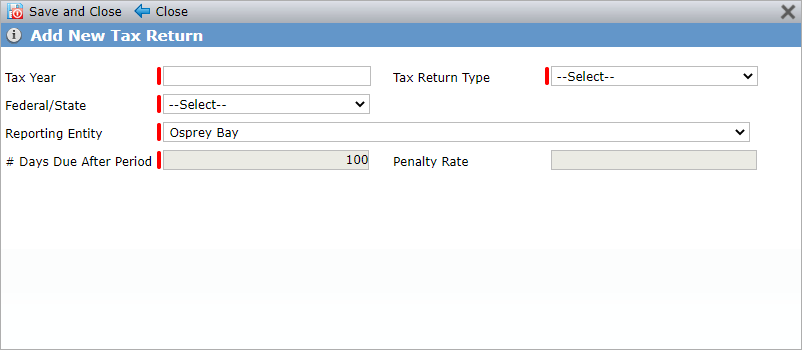
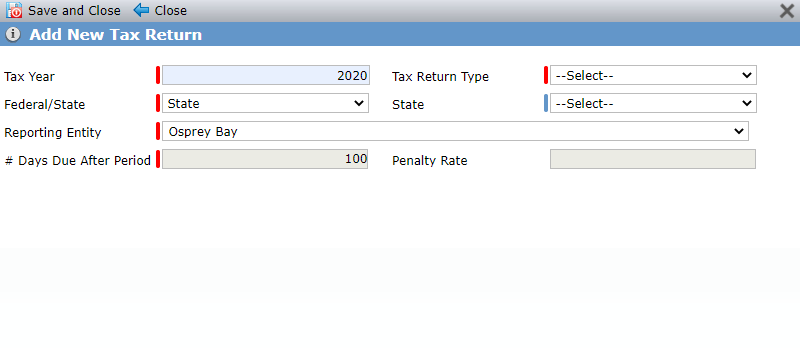
Federal Return; State Return
Enter the Tax Year.
Select the Tax Return Type.
Select whether the tax return is Federal or State.
If it is a state tax return, select the State.
Select the Reporting Entity. This field defaults to the deal partnership entity.
If Tax Return is required per the OPA tab on the Deal Details, then the # Days Due After Period and Penalty Rate fields display the OPA values.
Click Save and Close.
The Edit Tax Return screen opens. This screen includes two tabs: Main and Tax Forms.
Edit a Tax Return - Main Tab
The Main tab provides general information about the tax return, including important dates and responsible parties.
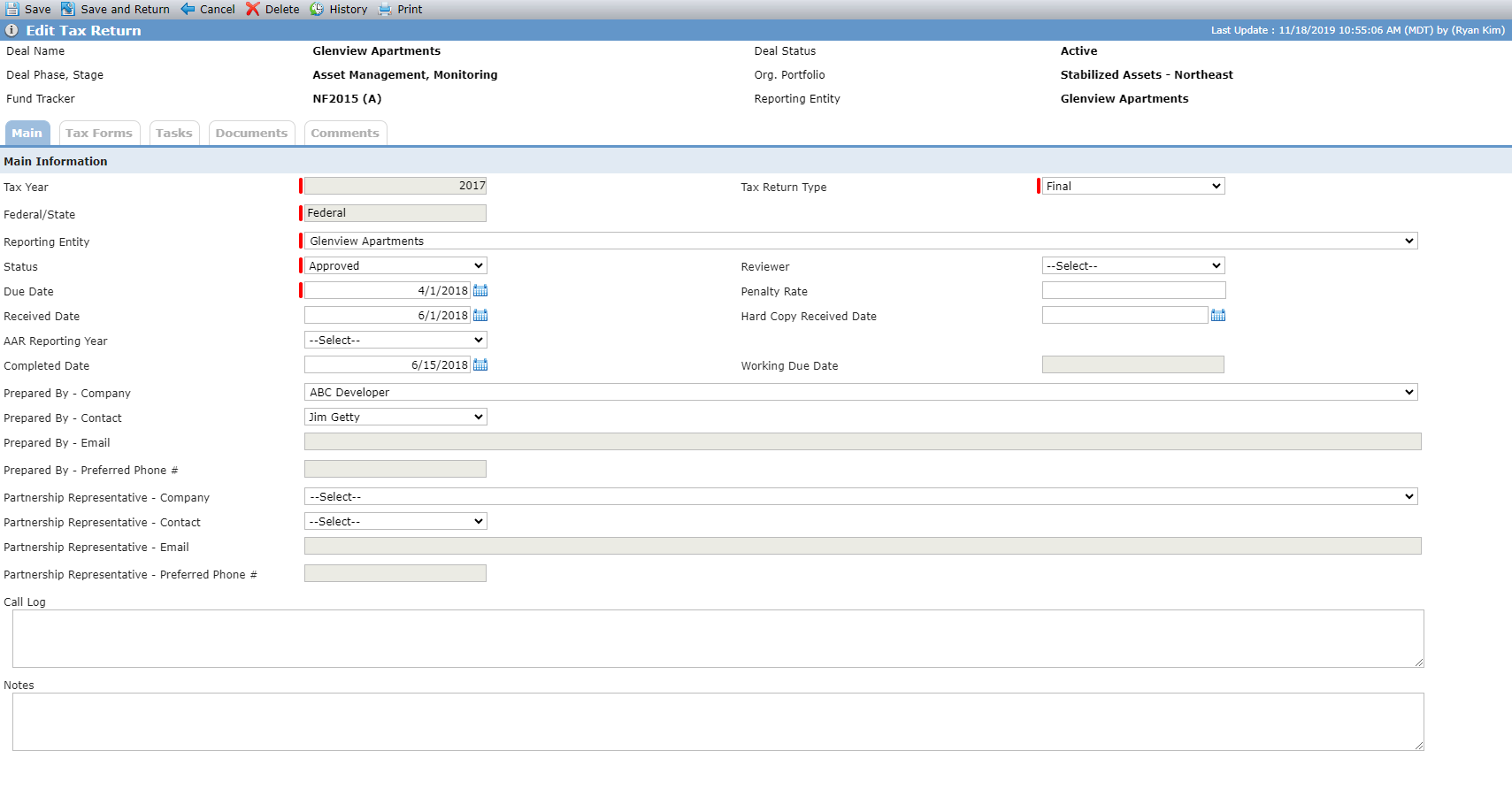
Field | Description |
|---|---|
Tax Return Type | Required. The type of return that is expected to be received. |
Reporting Entity | Required. The deal entity that serves as the reporting entity. |
Status | Required. The status of the tax return. |
Due Date | Required. The date the tax return is due. The date will default to the # of Days Due after Period from the OPA tab of Deal Details if Tax Returns are required. |
Received Date | The date the tax return was received. |
Hard Copy Received Date | The date the physical copy of the tax return was received |
Completed Date | The date the tax return has been reviewed and is in good order. |
Working Due Date | A read-only field that displays the date from the deal's active Syndicated Fund Owner's corresponding Tax Return record. If there is more than one active Syndicated Fund Owner, then the earliest Working Due Date for the corresponding record is used. |
Prepared By- Company | Select from a list of all Entities and their Associated Companies on the deal. |
Prepared By - Contact | Select from a list of all contacts associated to the entity selected in the Prepared By - Company field. |
Prepared By - Email | Displays the email address of the selected contact. If no contact is selected, then the email for the Prepared By - Company field is displayed. |
Prepared By - Preferred Phone # | Displays the phone number of the selected contact. If no contact is selected, then the phone for the Prepared By - Company field is displayed. |
Partnership Representative - Company | Select from a list of all Entities and their Associated Companies on the deal. |
Partnership Representative - Contact | Select from a list of all contacts associated to the entity selected in the Partnership Representative - Company field. |
Partnership Representative - Email | Displays the email address of the selected contact. If no contact is selected, then the email for the Partnership Representative - Company field is displayed. |
Partnership Representative - Preferred Phone # | Displays the phone number of the selected contact. If no contact is selected, then the phone for the Partnership Representative field is displayed. |
Edit a Tax Return - Tax Forms
The Tax Forms tab allows you to track the individual tax forms. The Tax Forms tab is hidden for State Tax Return records.
The 8609 Allocations and Certifications grid shows all Forms 8609 and 8609A listed on the Edit Building - LIHTC tab, sorted by Building Name. This grid is hidden if the deal does not have LIHTC selected as a Program.
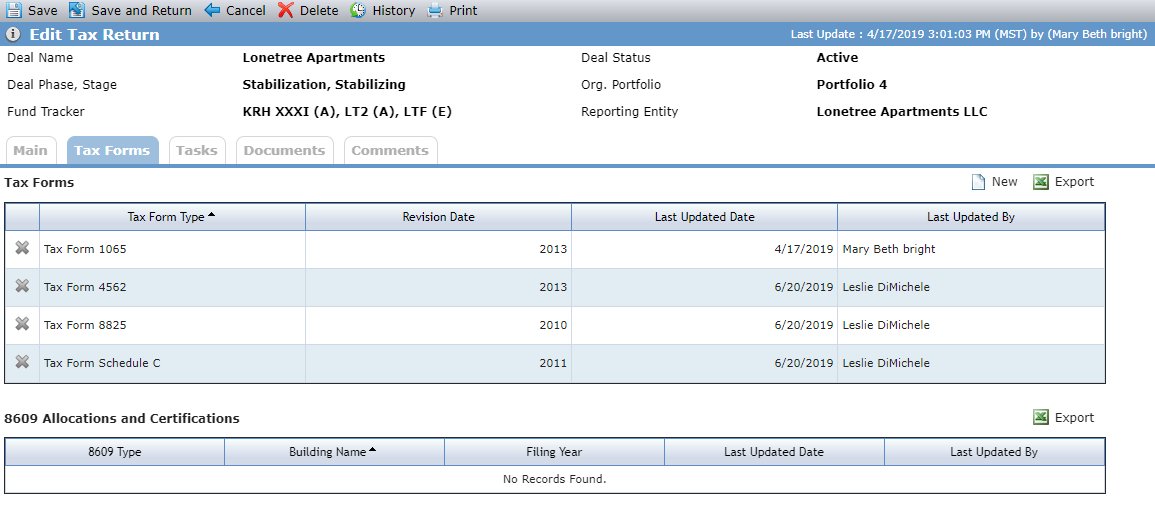
To add a new tax form:
Click New above the Tax Forms grid.
The Add Tax Form popup opens.
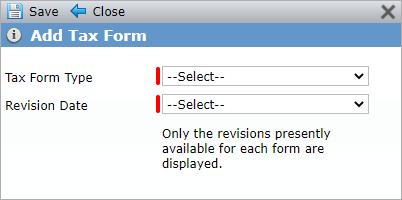
Select the Tax Form Type.
Select the Revision Date from a list of all revision dates available in the system for the selected tax form.
Click Save.