Protect SmartDox Templates
This information is for system administrators or super users who are responsible for setting up the SmartDox templates.
After fields have been mapped in a SmartDox template and prior to using the Get Data and Send Data features, you should protect the template. Protecting a template allows data to be entered directly into mapped fields. If not protected, the template could lose mapped fields.
Protecting a template also restricts the editing of regular text (non-mapped fields) within the template. To add new text or mapped fields to a protected template, you need to unprotect the template, edit the template, and re-protect the template once again.
To protect a template:
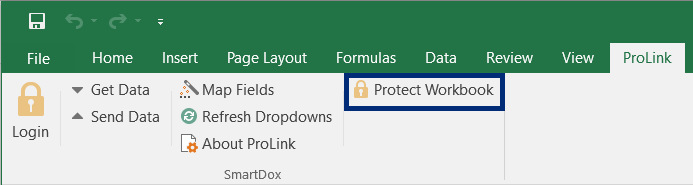
In the ProLink menu, click Protect Workbook in Excel or Protect Document in Word.
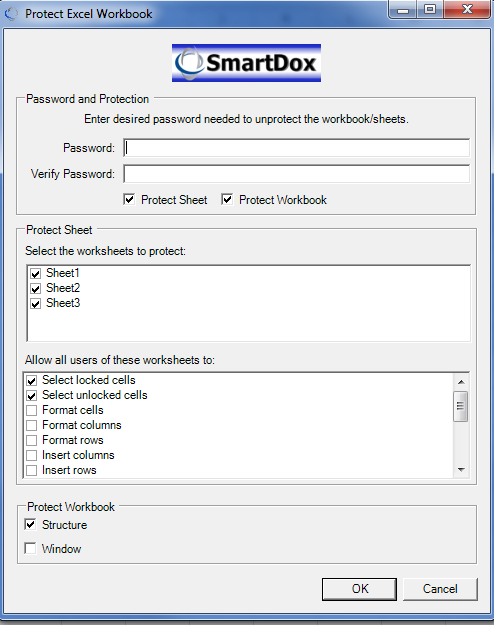
In Excel, use the Protect Excel Workbook form to identify password protection for the template as well as the areas of the template to protect.
OR
In Word, click Yes to confirm protecting the template's form fields, and then click OK to acknowledge the change.
Note
Click Unprotect Workbook or Unprotect Document in the ProLink menu to remove the restrictions on the template.