Fund Book Value Mass Update Import Utility
Important
You will need the Fund Book Value Import security privilege to be able to import a book value update file through the utility. You'll also need the Utilities - Panel - View privilege.
You will also need to ensure the applicable entities and funds are set up for impairments before using the utility.
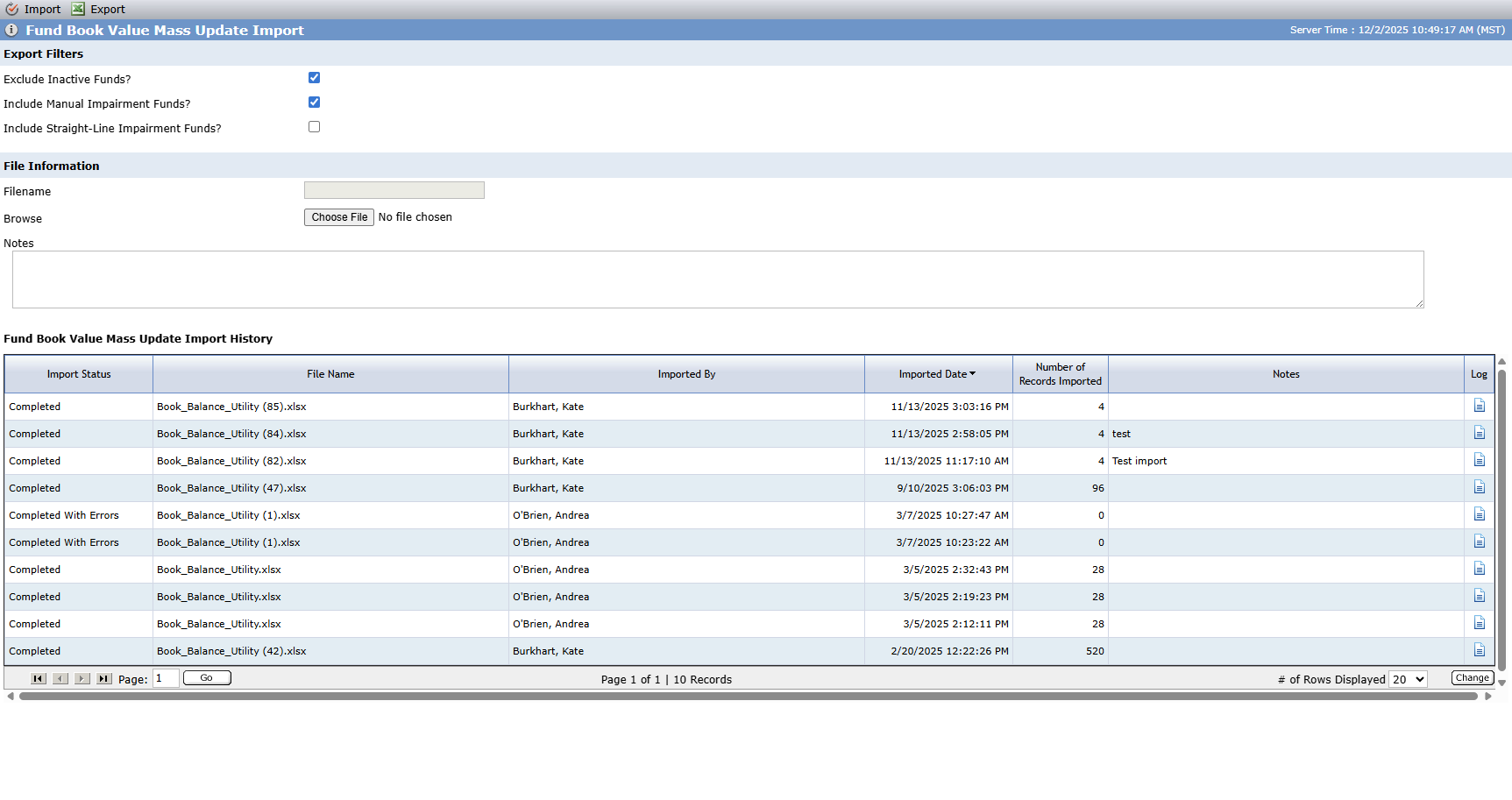
The Fund Book Value Mass Update Import utility is used to populate the book values for fund impairments. Your organization will use this utility if you are using the "Manual" Impairment Method for funds (set on Fund Details).
For more information about impairments, see Impairments.
When calculating impairments manually, you will typically complete the import process monthly.
The Fund Book Value Mass Update Import History grid shows a list of the imported files. The Import Status will be one of the following:
Processing
Completed
Completed with Errors—Processing is complete, but one or more records in the file could not be updated. You can download a log file to review any errors that occurred during the import process.
To use the utility to populate the book values for fund impairments:
Navigate to the Utilities panel, and then select the Fund Book Value Mass Update Import menu option.
The Fund Book Value Mass Update Import screen opens.
The Exclude Inactive Funds checkbox is selected by default. Clear the checkbox to include any funds marked as "Inactive" on the fund (Fund Details) on both the Projected and Actual tabs of the export file.
Select Include Manual Impairment Funds, Include Straight-Line Impairment Funds, or both.
When Include Manual Impairment Funds is selected (default), then all investments in funds with "Manual" as their impairment method are eligible for inclusion in the export.
When Include Straight-Line Impairment Funds is selected, then all investments in funds with "Straight-Line" as their impairment method are eligible for inclusion in the export.
Click Export in the top toolbar to download the template to your device.
Open the file to edit it.
The template includes two sheets, one for projected values and one for actual values. The sheets are populated with a list of all funds that met the export criteria.
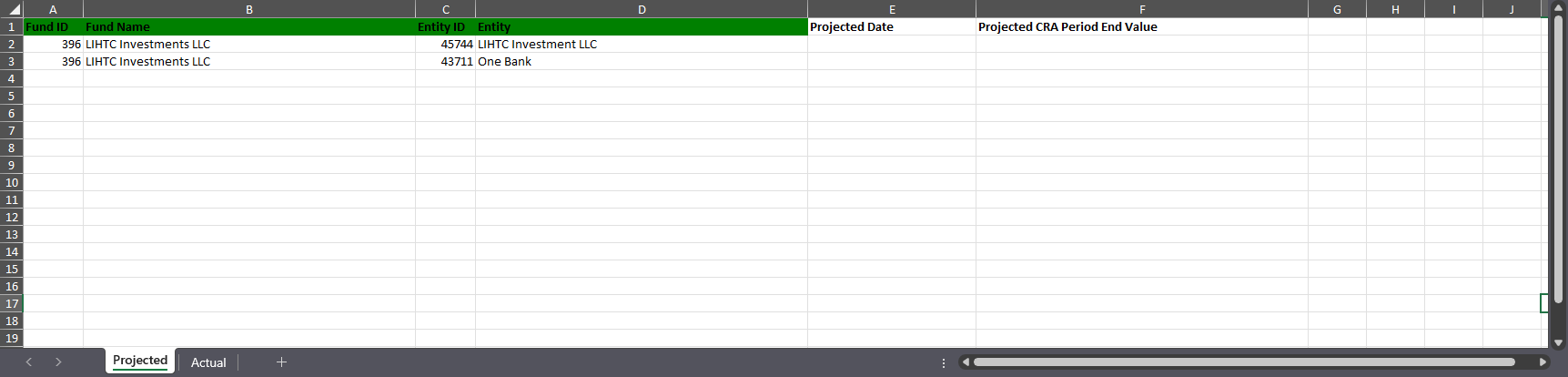
In the file, for each fund/entity, enter the Projected Date and Projected CRA Period End Value on the Projected tab.
The date format is MM/YYYY.
In the file, for each fund, enter the Date and Ending Book Value on the Actual tab.
The date format is MM/YYYY.
Save the file.
Tip
"Save As" if you would like to rename or move the file.
Click Choose File, and select the populated file.
Click Import in the top toolbar.
The book values are uploaded in the system to the applicable month/year. You can view the Impairment Schedule with updated values on the Edit Impairment screen for a fund.
The Beginning Book Value for annual schedules will show the previous year's December value.
The Projected CRA annual value will be displayed only if you entered a value for any month in that year in the spreadsheet. Otherwise, it will show zero.
The process is an update process. It does not delete or clear existing records in the impairment schedule.
If you import a file with more than one row for the same combination of Fund ID and Entity ID, the dates for those rows must represent a contiguous period of time. The rows do not have to appear in sequential order. If a fund-entity combination fails the validation, the system does not import any rows for the combination. The system does import all valid rows.
Log File
The system creates a log file every time the import process is run. If no errors occurred, the log file includes information about when the process began and ended.
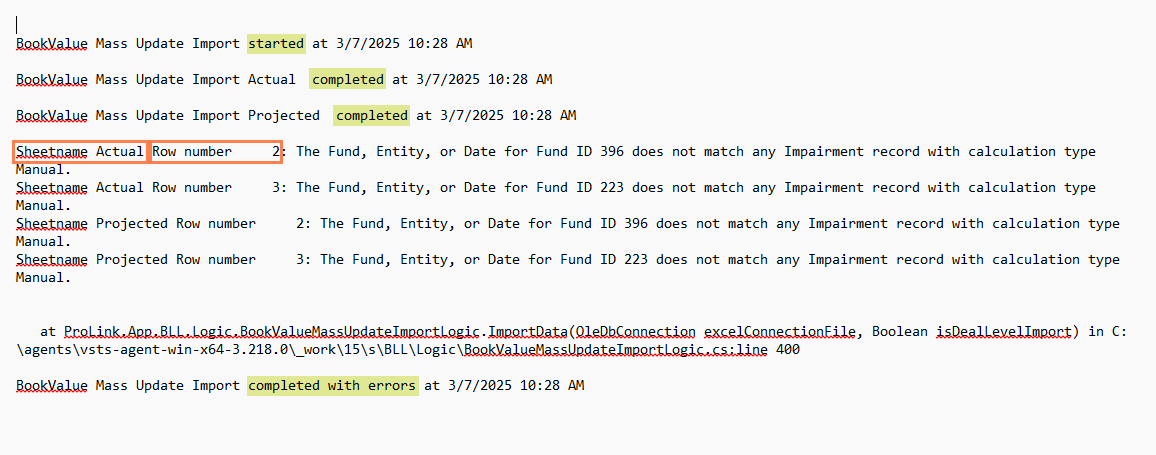
When an error is logged, the file indicates the tab (Sheetname) and Row Number of the error, followed by the error message.
The log file includes an error when:
The Fund ID, Entity ID, or Date are missing for a row.
The Fund ID, Entity ID, or Date for the deal does not match a manual Impairment record.
The Month/Year in the template does not match a Month/Year of the impairment schedule for the fund/entity or does not immediately follow the last Impairment Month/Year record (gap in the impairment schedule).