About Construction Inspections
Conducting construction inspections is typically required prior to paying a requested draw amount. The Inspections functionality allows you to track inspection results and associate them to a specific draw.
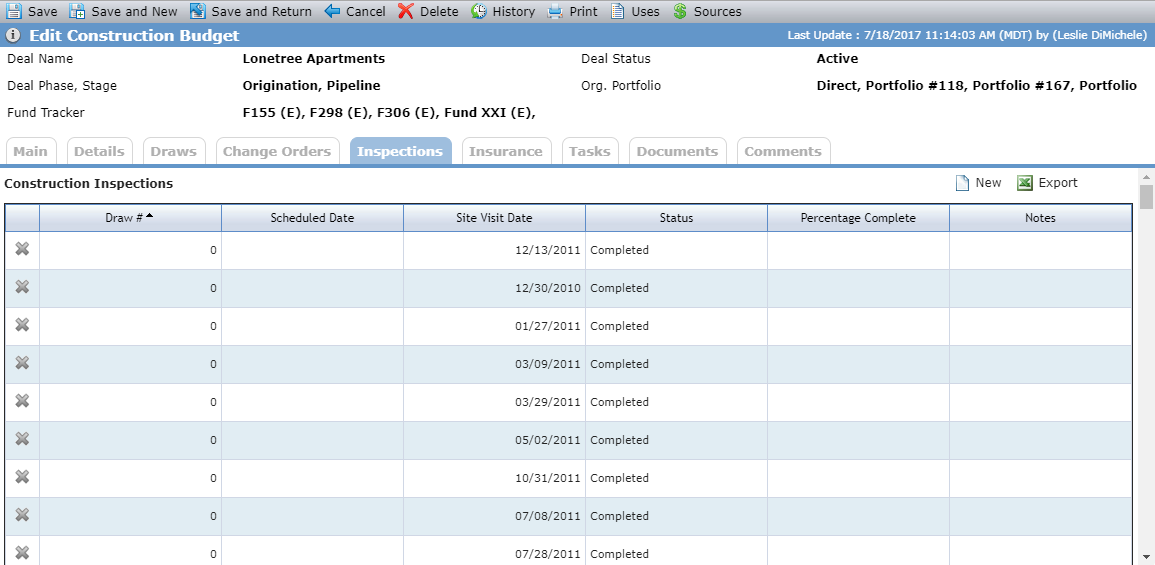
Create an Inspection
Navigate to the deal, and then select the Construction option in the left navigation menu.
The List Construction Budgets screen opens.
Select the construction budget to edit.
The Edit Construction Budget screen opens.
Click New above the Construction Inspections grid.
The Edit Construction Budget Inspection screen opens.
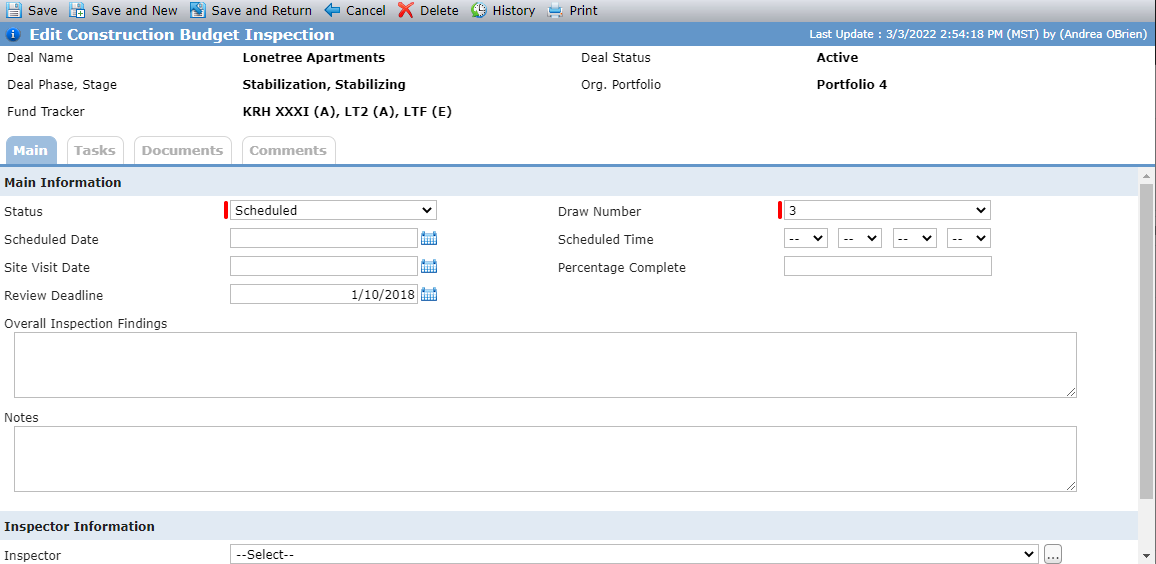
Enter the Status.
Select the Draw Number for the draw associated to the inspection.
When you save a new Inspection record, the system calculates the Review Deadline date based on the Received Date of the corresponding draw.
Note
The system adds the number of days from the NumOfDaysReviewDeadline config setting to the Received Date of the draw. The default value for the NumOfDaysReviewDeadline config setting is blank, which means the Review Deadline is the Received Date from the corresponding draw. The system administrator can update the value for the config setting.
Optionally, select the Construction Inspector. This field lists the entities on the deal with a deal role of Construction Inspector.
You can search for any entity in the system.
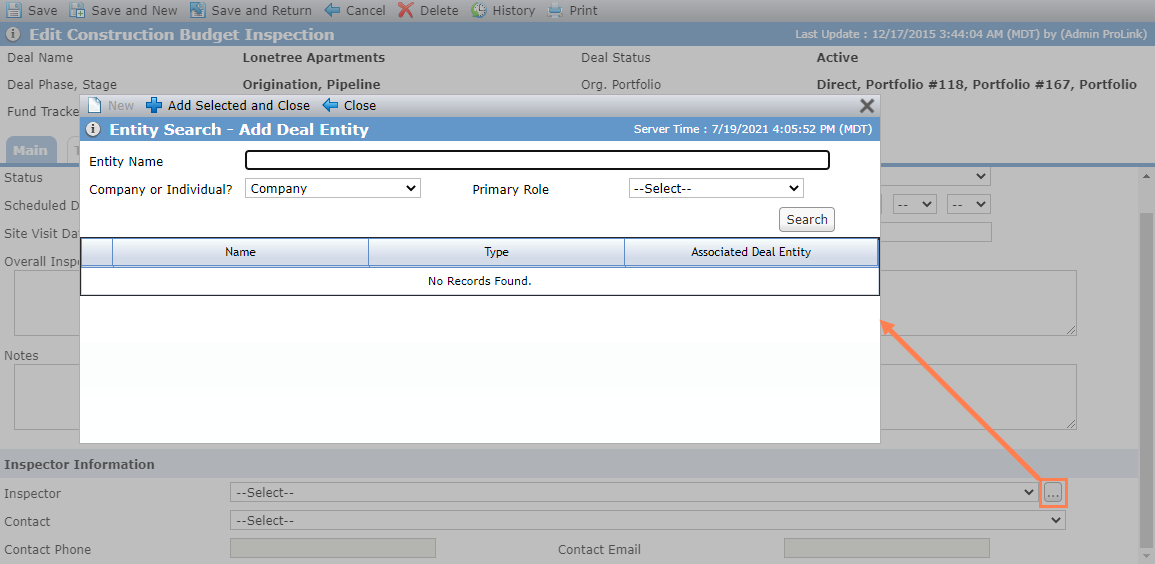
After you select an inspector, you can select a Contact. All entities listed as contacts are displayed.
The system populates the Contact Phone and Email based on the Inspector and Contact selected.
Click Save.