Admin Panel
The Admin panel is available only if you have the appropriate security privilege. This panel provides the system administrator access to items used to maintain the ProLink application
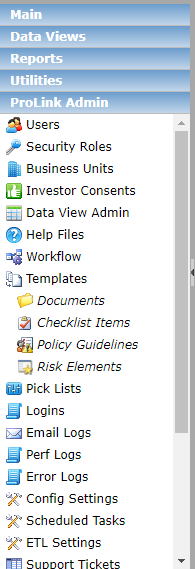
The Admin panel includes:
Users—Add, edit, or inactivate user records.
Security Roles—Track all security roles and users assigned to each security role.
Business Units—Manage the business units in the application.
Investor Consents—Configure the picklists for the Consent Templates and Action items.
Data View Admin—Manage public data views in the application.
Help Files—View a list of screens in the application that have help text files.
Workflow—Configure the automated notifications in the application; for example, when a field is updated, it triggers an email.
Templates—Manage templates for documents, checklist items, policy guidelines, and risk elements that are frequently used.
Pick Lists—Manage the values that are available in a drop-down list.
Logins—Track the history of users logging into the application.
Email Logs—View summary information about application-generated emails.
Perf Logs—View the activities of all users accessing the application.
Error Logs—View error messages generated by the application.
Config Settings—View the parameters and settings for your environment.
Scheduled Tasks—View all of the scheduled tasks that have funds in the application. Includes information about task frequency and last run date and time.
ETL Settings—Create a data mart for reporting purposes. This menu option should be made available only to technical users with a working knowledge of SQL and the creation of data marts.
HUD Income Limits—An import tool that allows you to set the HUD income limits for the application.
QA Test Page—Test certain scheduled tasks to verify they are working without general users being affected.
Bank CRA—Set the Bank CRA Exam Periods and track allocation by assessment area.
CRA Admin—View and edit the CR Assessment areas.
GL Admin—Track the organization's GL Account Numbers along with their Investment Balance and Unfunded Commitment Balance.
MSA Admin—Set the Metropolitan Statistical Areas for the application.
Market Analysis—Enter MSA Market analysis information.
Federal Tax Rate—Set the Federal Tax Rate and update it anytime it is changed with effective dates.