Introduction to Guarantees in ProLinkAIM
The guarantee management process in ProLinkAIM allows you to manage guarantees and the guarantors associated to them for a deal. You can maintain detailed information about guarantees, including the type of guarantee, the amount of the guarantee, the projected and actual expiration, and any associated guarantors.
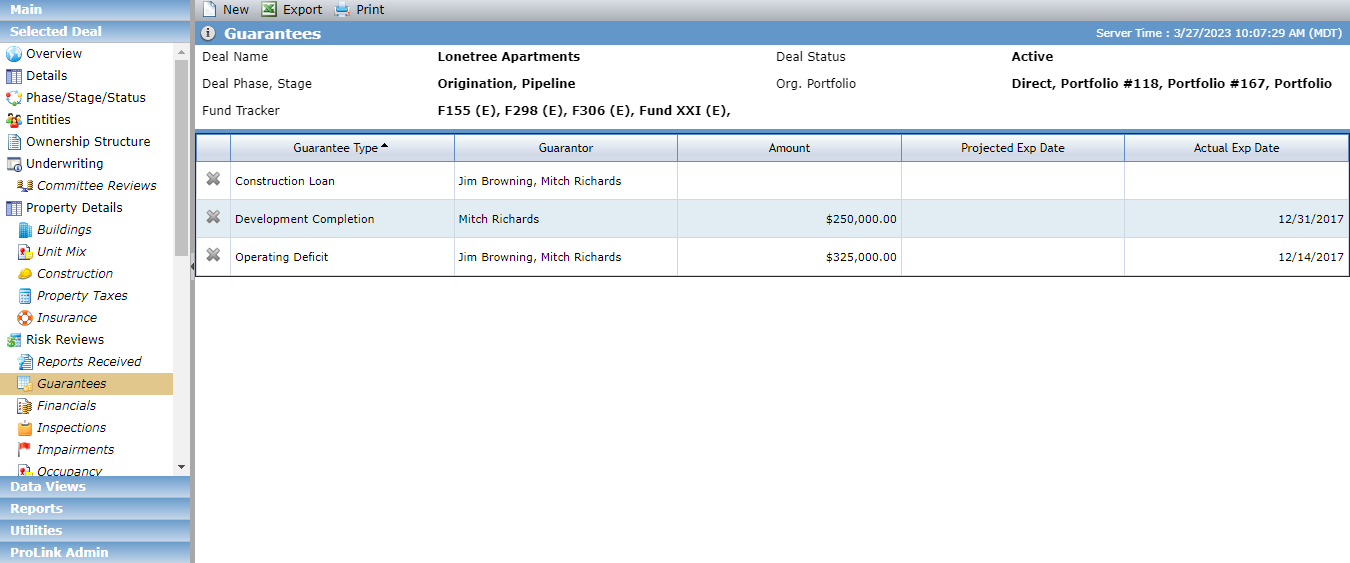
You'll use the Guarantees screen for a selected deal to manage this information.
Tip
Visit the Guarantees data view to report on guarantees across the system. If a guarantee has multiple guarantors, the data view shows a separate row for each guarantor on the guarantee.
Navigate to the deal, and then select Guarantees in the left navigation menu.
The Guarantees screen opens.
Click New in the top toolbar.
The Edit Guarantee screen opens.
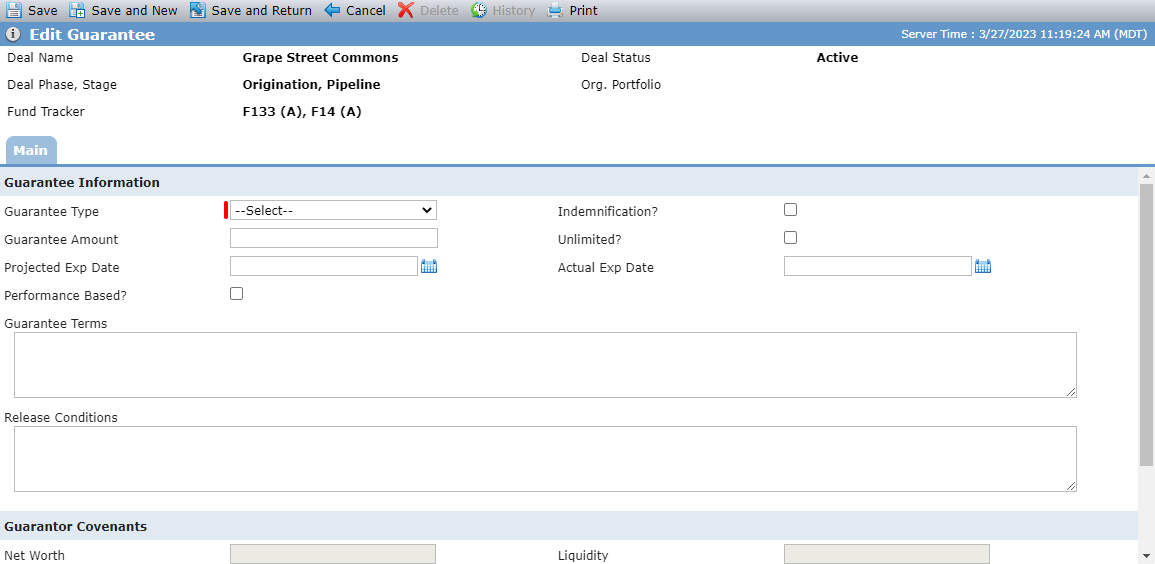
Select the Guarantee Type.
Enter any other optional fields as needed.
Click Save.
The Find Guarantor popup opens, listing the entities on the deal with a deal role of Guarantor.
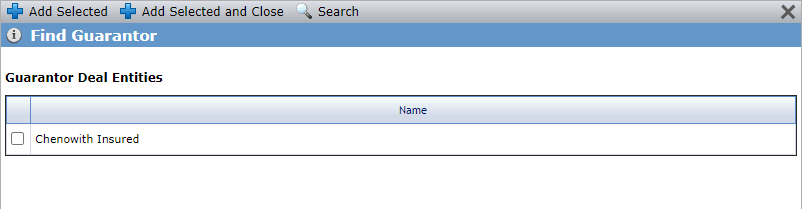
You can close the popup without adding guarantors at this time.
OR
Add a guarantor(s):
Select the checkbox for the deal entity(ies) to add, and then click Add Selected and Close.
OR
Click Search to open the Entity Search popup and find the entity in the system to add.
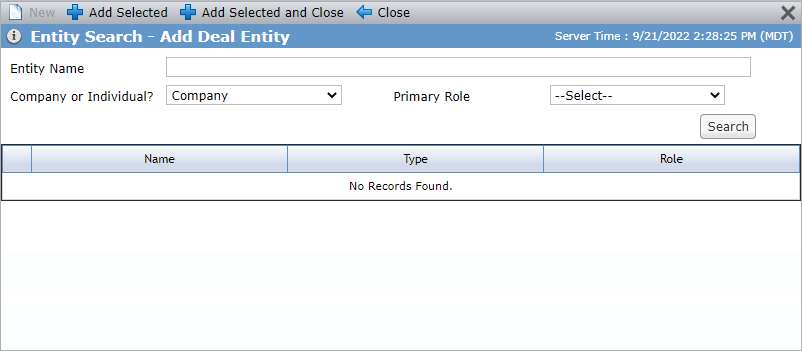
The Find Guarantor popup allows you to select from all deal entities and associated companies with a deal role of Guarantor that is not already linked to the guarantee.
If you remove a guarantor from the Guarantee record, they are not removed from the Deal Team.
Navigate to the deal, and then select Guarantees in the left navigation menu.
The Guarantees screen opens.
Click the row of the guarantee to edit.
The Edit Guarantee screen opens.
Click New above the Guarantors grid.
The Find Guarantor popup opens, listing the entities on the deal with a deal role of Guarantor.
Select the checkbox for the deal entity(ies) to add, and then click Add Selected and Close.
OR
Click Search to open the Entity Search popup and find the entity in the system to add.
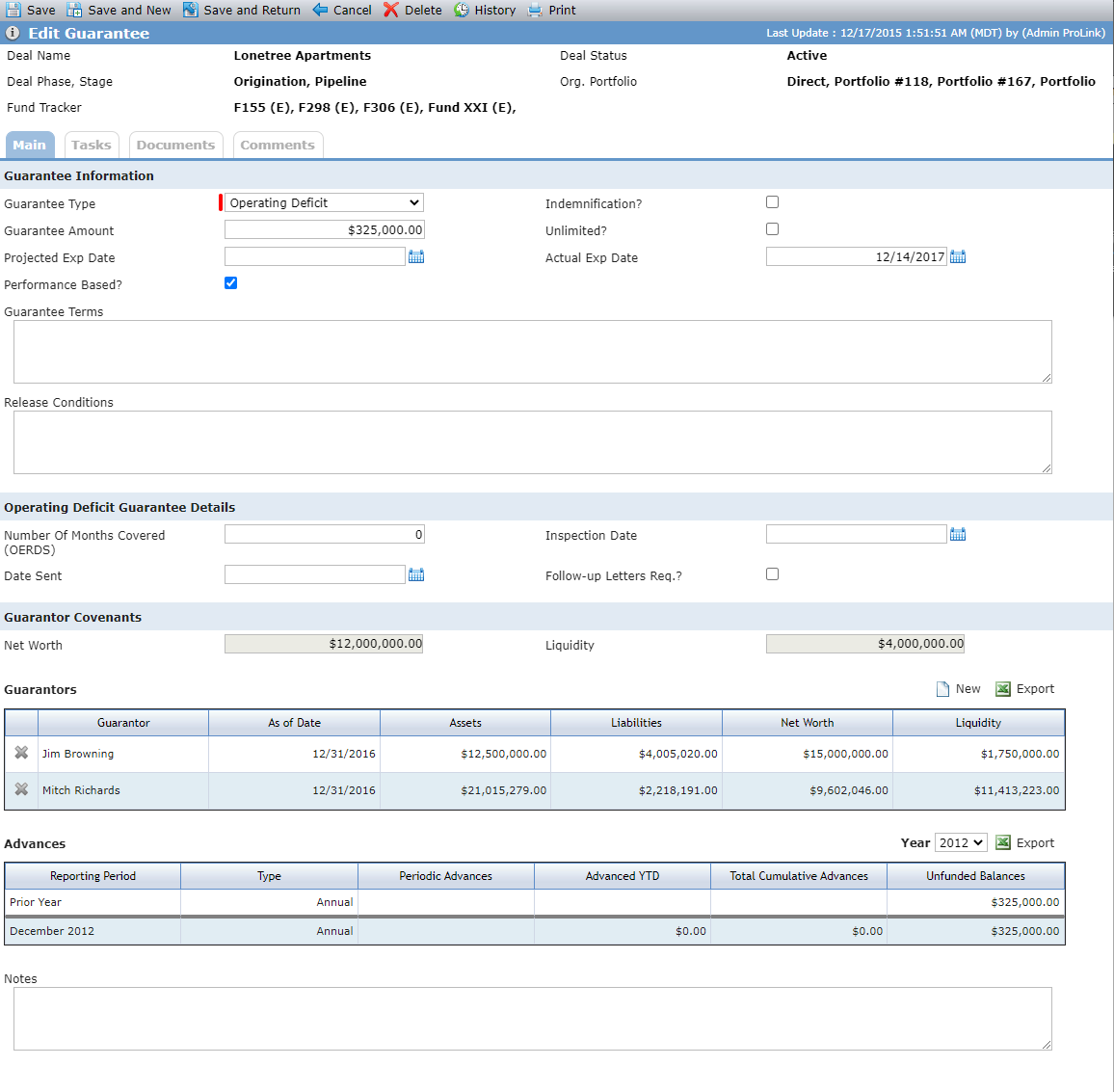
Field | Description |
|---|---|
Guarantee Information | |
Guarantee Type | Required system picklist. |
Guarantee Amount | When the Unlimited checkbox is selected, the Guarantee Amount will be blank and read only. |
Operating Deficit Guarantee Details | |
This section is only displayed when the Guarantee Type = Operating Deficit. Developers may be required to provide operating deficit loans through the completion of construction. After construction, the guaranty will be release when certain milestones and amount of time have passed. | |
Guarantor Covenants | |
Net Worth | Displays from Deal Details - OPA tab - Guarantor Covenants section. |
Liquidity | Displays from Deal Details - OPA tab - Guarantor Covenants section. |
Guarantors | |
As of Date | Displays the As of Date from the most recent Financial Summary record for the guarantor. |
Liabilities | Displays the Liabilities from the most recent Financial Summary record for the guarantor. |
Net Worth | Displays the Net Worth from the most recent Financial Summary record for the guarantor. |
Liquidity | Displays the Liquidity from the most recent Financial Summary record. |
Advances | |
This section is only displayed when the Guarantee Type = Operating Deficit. See Guarantee Advances for more information. | |
This section is only displayed when the Guarantee Type = Operating Deficit.

The system updates the data in the grid based on updates to financial records:
Periodic financial is set with a Completed Date.
Update is made to the Operating Deficit Advances line item from the income statement for a Completed record.
Annual Financial has a Data Entry Status of Complete.
In the Year list, select from all years that the deal has financial records.
Column | Prior Year Row | Periodic Rows | Annual Row |
|---|---|---|---|
Reporting Period | Populated with "Prior Year" for the first row. | Populated with the Month and Year (for example, March 2023) for each periodic financials record with a completed date for the deal. | Populated with the last month of the year and the year (for example, December 2023). |
Type | Annual | Periodic | Annual |
Periodic Advances | Blank | The current Advanced YTD amount minus the previous Advanced YTD amount. For the first Periodic row, the previous row will be Prior Year, and will have no value. In that situation, the Advanced YTD value will be used to populate the Periodic Advances column. | Blank |
Advanced YTD | Blank | Displays the Operating Deficit Advances line item from the income statement on the corresponding financial. | Displays the Operating Deficit Advances line item from the income statement on the corresponding financial. |
Total Cumulative Advances | Displays the Total Cumulative Advances amount from the previous year's annual amount. If no value exists, $0.00 will be displayed. | Displays the Prior Year Total Cumulative Advance plus the Advance YTD for the current period. If no value exists, $0.00 will be displayed. | Displays the Prior Year Total Cumulative Advance plus the Advance YTD for the annual. If no value exists, $0.00 will be displayed. |
Unfunded Balances NoteWhen the Unlimited checkbox is selected, the Unfunded Balance column will be blank. | For the Prior Year row for the first year, displays the Guarantee Amount for the record. For the Prior Year row, displays the Unfunded Balance from the previous year's Annual Unfunded Balance amount (if the previous year's Annual Financial has a Data Entry Status of Complete); otherwise, displays the Unfunded Balance from the last periodic Unfunded Balance from the previous year that is greater than zero. | Displays the previous period Unfunded Balance - Periodic Advances for the current period. | Displays the Prior Year Unfunded Balance - Annual Advance YTD. |
Tip
Visit the Operating Deficit Advances data view to report on advances across the system.