Introduction to ProLinkAIM Special Assets
The Special Assets functionality allows you to track the activities that might be required when a deal is on the Watchlist. This tracking goes hand-in-hand with moving the deal to the Phase/Stage of "Special Assets."
You can access Special Assets in ProLinkAIM through the Special Assets menu option on a selected deal.
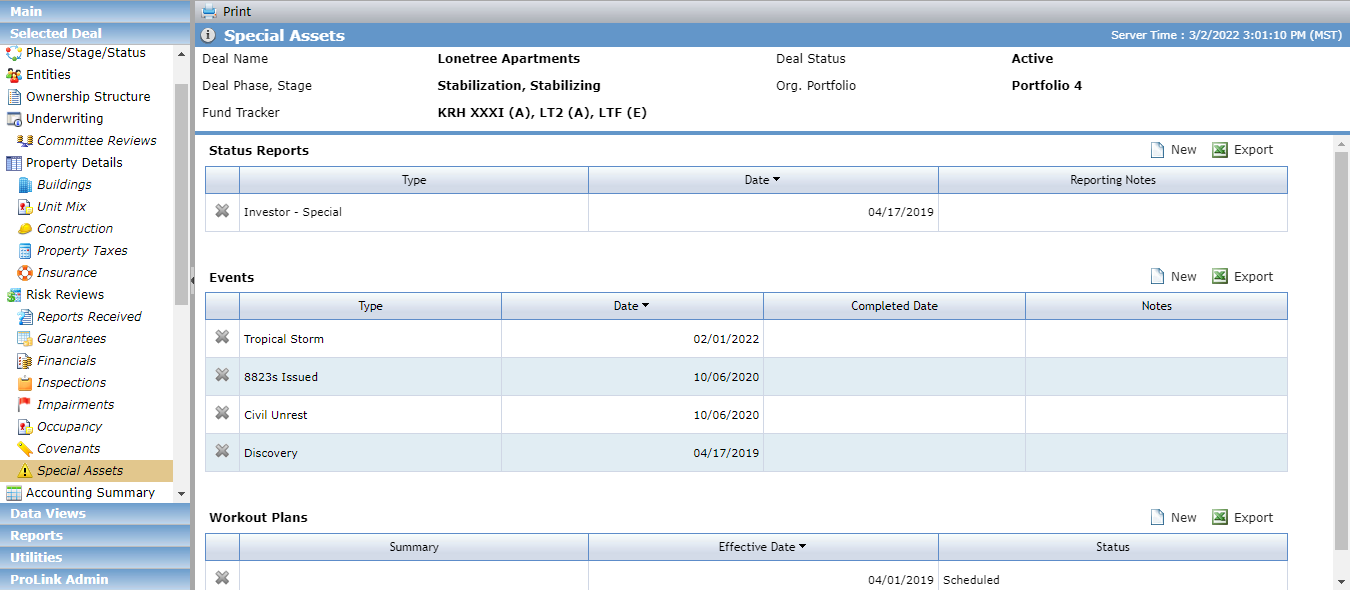
From the Special Assets screen, you can view and track Status Reports, Events, and Workout Plans.
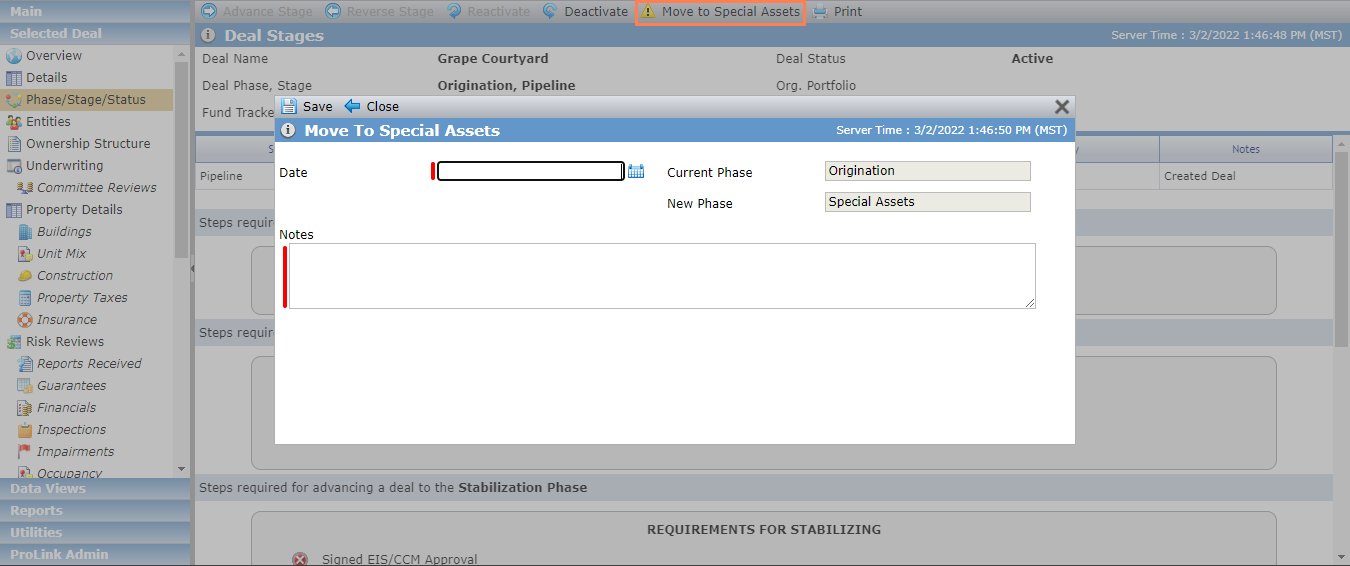
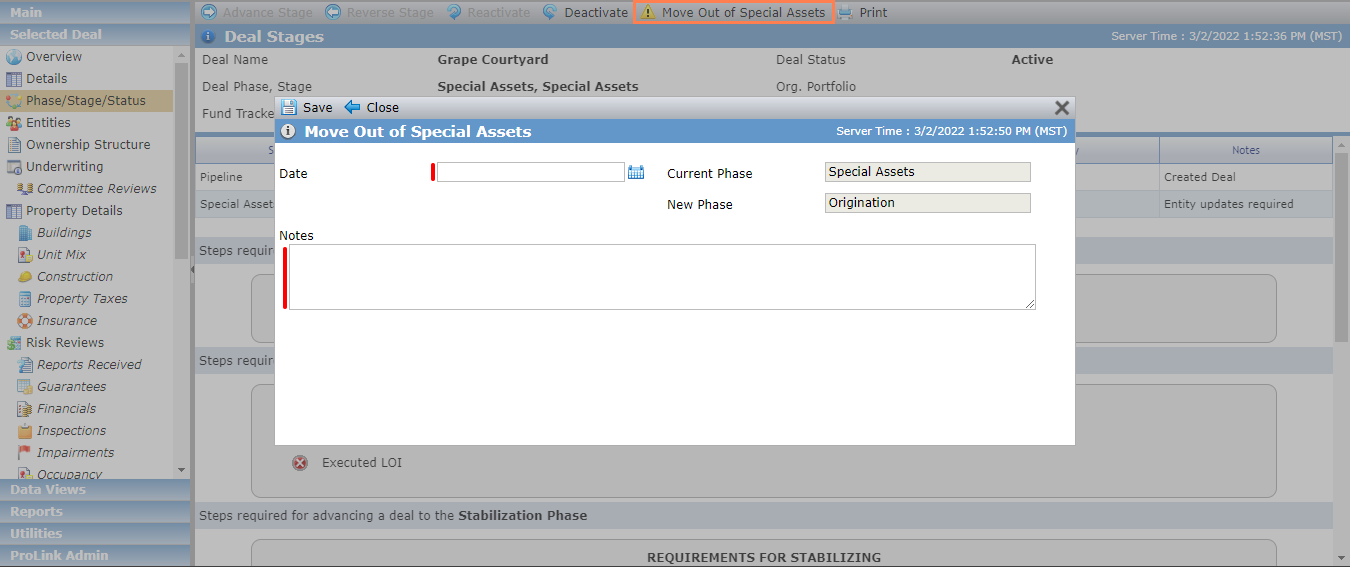
Move to Special Assets; Move out of Special Assets
Navigate to the deal, and then select the Phase/Stage/Status option in the left navigation menu.
The Deal Stages screen opens.
In the top toolbar, click Move to Special Assets to flag the deal for "Special Assets" tracking.
OR
Click Move out of Special Assets to remove the flag.
Enter the Date of the phase change and Notes about the reason for the phase change.
Click Save.
You can maintain information about specific status reports.
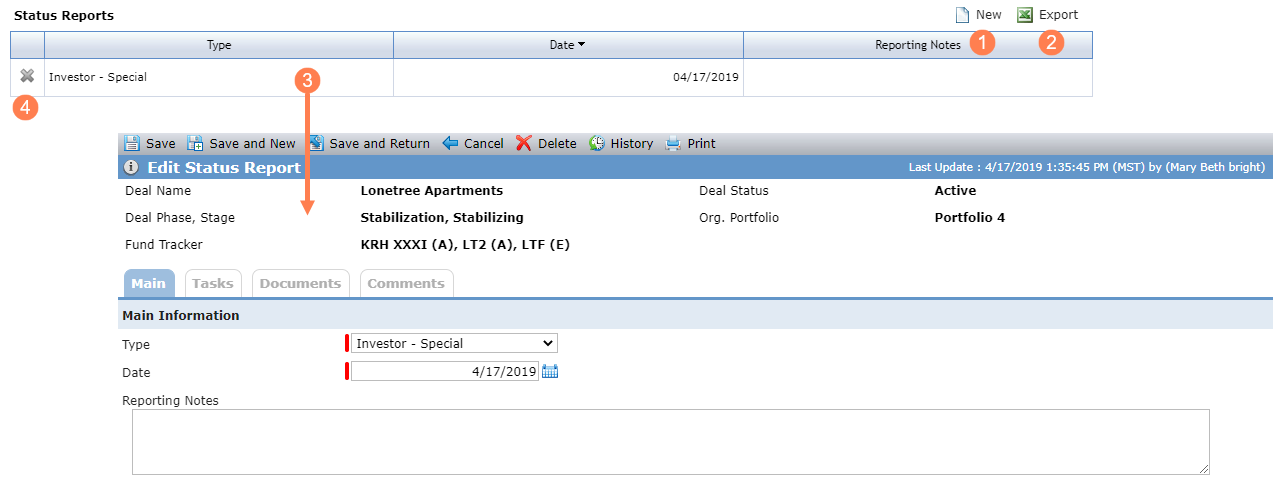
From the Status Reports grid, you can:
Create a new Status Report.
Export the grid.
Click a row to open the Edit Status Report screen to view or update the details.
Delete a Status Report.
Note
The Type field is a non-system picklist, which means your system administrator can configure additional values as needed.
You can maintain information about specific events.
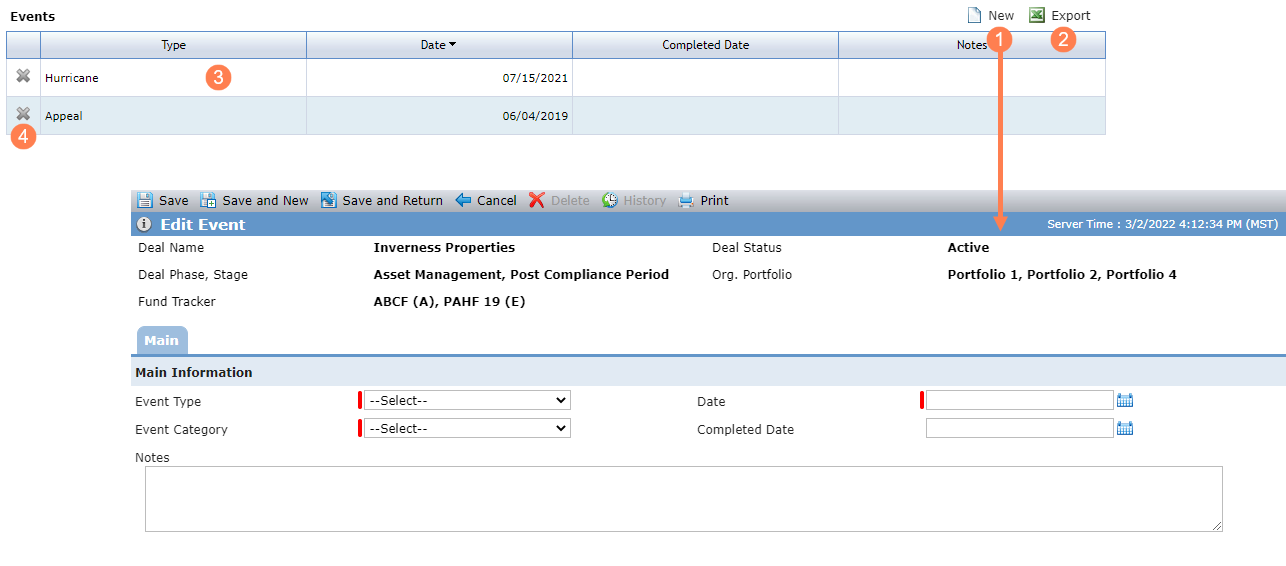
From the Events grid, you can:
Create a new Event.
Export the grid.
Click a row to open the Edit Event screen to view or update the details.
Delete an Event.
The Event Type determines what type of options and information are available on the Edit Event screen.
Note
The Event Type and Event Category fields are non-system picklists, which means your system administrator can configure additional values as needed.
Event Type | Event Category | Damage Type | Screen |
|---|---|---|---|
Legal | Appeal Counter Claim Default Notice Deposition Discovery Forbearance Agreement General Partner Removal General Partner Replacement General Partner Withdrawal Hearing Judgment Lawsuit Mediation Motion/Response Filed Order Other Repurchase Demand Retained Expert Settlement Agreement Summary Judgment Hearing Temporary Restraining Order Tenant Claim Trial | N/A | 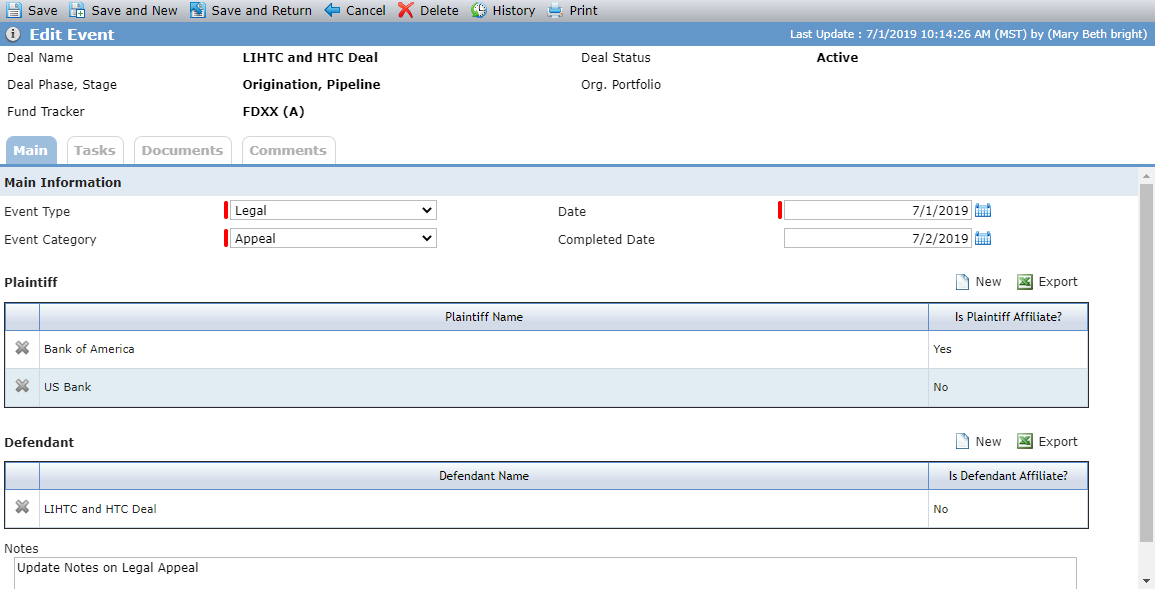 |
General | 8823s Corrected/Amended 8823s Issued Correspondence Crime Insurance Claim IRS Audit Loan Amendment Loan Extension Major Modification Management Company Change Meeting OPA Amendment Other Perm Loan Conversion Physical Issues Recapture Notice Resolution/Disposition Site Visit Storm Damage Tax Appeal Transfer to Asset Management Transfer to Special Assets Working Capital | N/A | 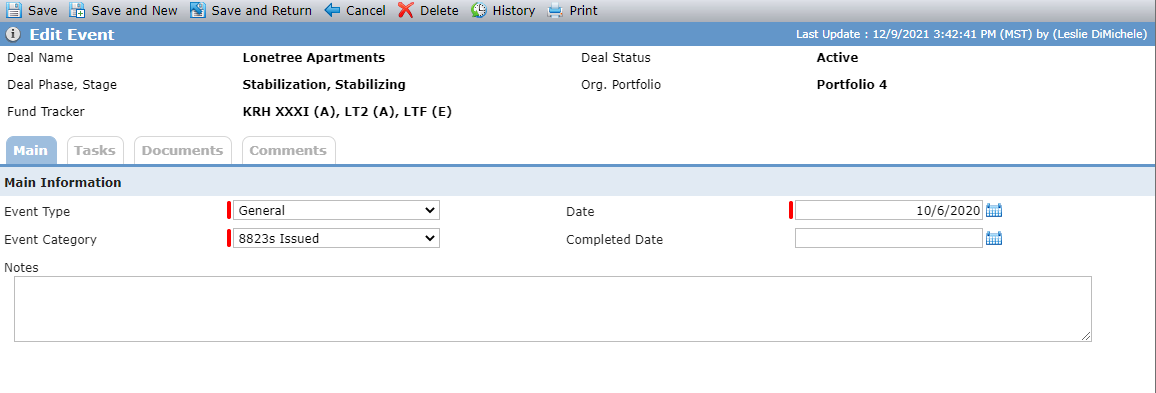 |
Catastrophic | Civil Unrest Earthquake Fire Flood Hurricane Tornado Tropical Storm Wildfire Winter Storm | No Damage Superficial Damage Major Damage | 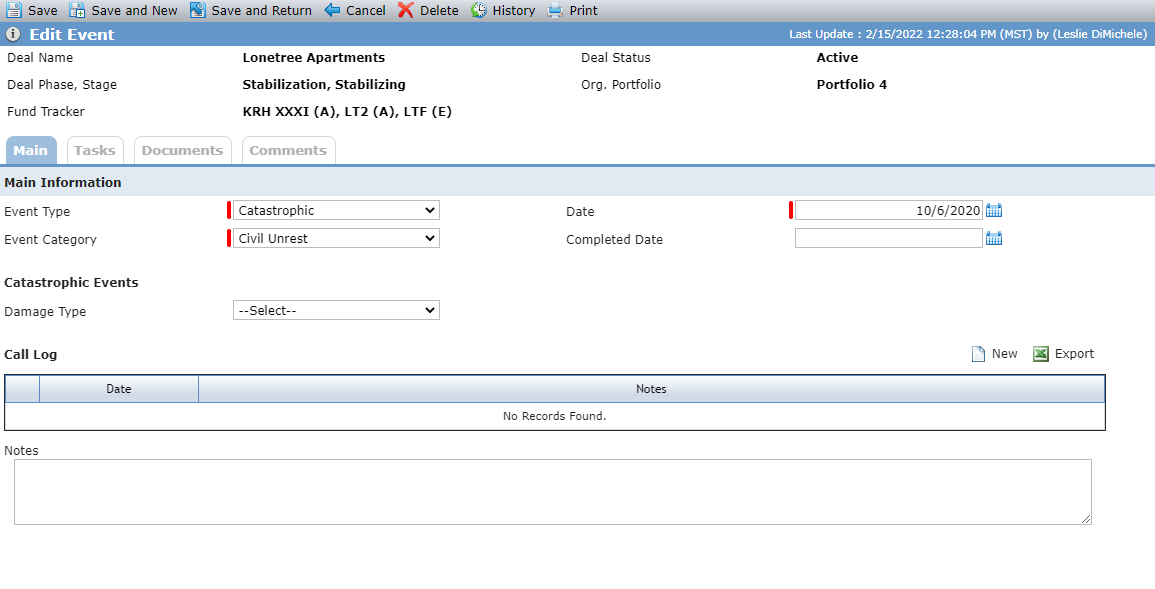 |
Plaintiff and Defendant Information for Legal Event Types
You can add plaintiff and defendant information to Legal events. The plaintiff and defendant cannot be the same entity.
If the Is Affiliate checkbox selected on the Edit Entity screen for the plaintiff entity or defendant entity, then the Is Plaintiff Affiliate field or Is Defendant Affiliate field will show "Yes."
Call Log Information for Catastrophic Event Types
You can add call log information related to Catastrophic events.
You can maintain information about specific workout plans. Workout Plans are typically created to identify the tasks or requirements that need to occur to remove the deal from the Watchlist. Deal-level information from other areas of the system is displayed here to assist in defining the plan.
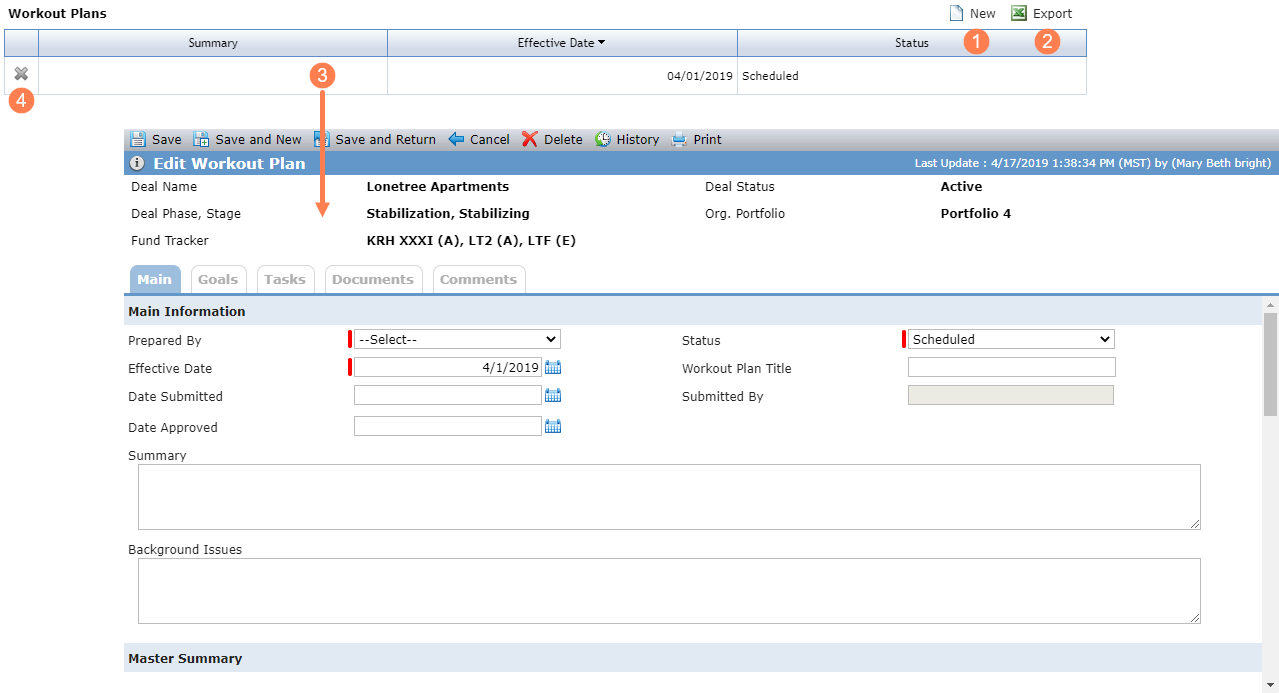
From the Workout Plans grid, you can:
Create a new Workout Plan.
Export the grid.
Click a row to open the Edit Workout Plan screen to view or update the details.
Delete a Workout Plan.
Field/Section | Description |
|---|---|
Main Information 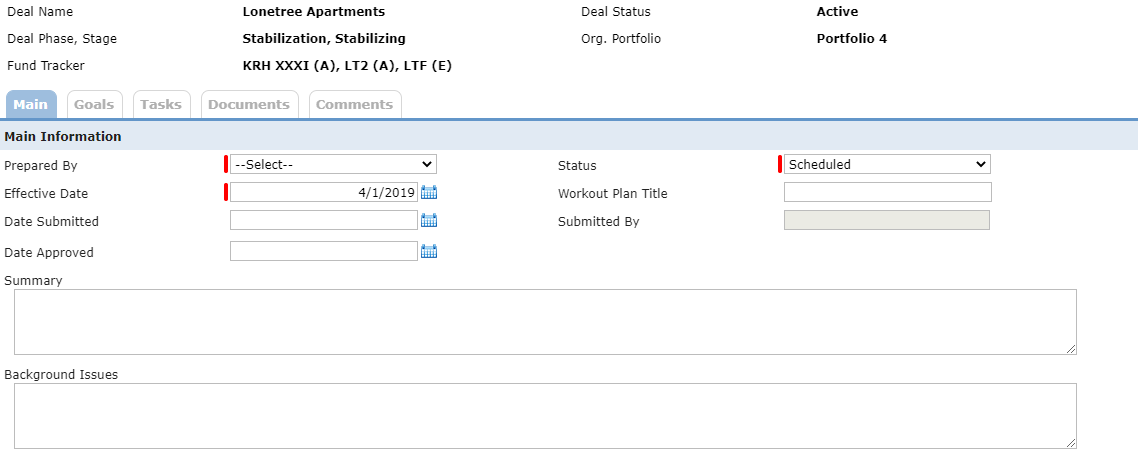 | |
Prepared By | Select from all active users. |
Submitted By | Displays the user's name that last saved the Date Submitted. |
Approved By | Displays the user's name that last saved the Date Approved |
Properties Grid—Lists all properties on the deal  | |
Property Name | Displays the Property Name from Edit Property Details. |
PISD | Displays the Actual PISD from Edit Property Details - Main Tab |
PISD Days Behind Schedule | Displays the difference between the Projected PISD from the Edit Property screen and the current date unless the Actual PISD from the Edit Property screen is populated (then displays the difference between the Projected PISD and Actual PISD). |
100% TC Occupancy Date | Displays the 100% TC Occupancy Date from Edit Property Details. |
100% TC Occupancy Days Behind Schedule | Displays the difference between the Projected 100% Occupancy from the Edit Property screen and current date unless the Actual 100% TC Occupancy from the Edit Property screen is populated (then displays the difference between the Projected 100% TC Occupancy and Actual 100% TC Occupancy). |
LIHTC Compliance End Date | Displays the LIHTC Compliance End Date from the Edit Property Details - LIHTC Tab. |
Have 8609s | If any building on the property has an 8609 record (Edit Building LIHTC tab), then the field displays "Yes." ("N/A" when LIHTC is not selected as a program on the deal.) |
Entities Grid  | |
Entity Name | Lists the General Partner(s), Developer, Guarantor(s), and Property Manager associated with the deal. |
Entity Role | Displays the Deal Role of the entity from the Entities screen. |
Debt Summary Grid 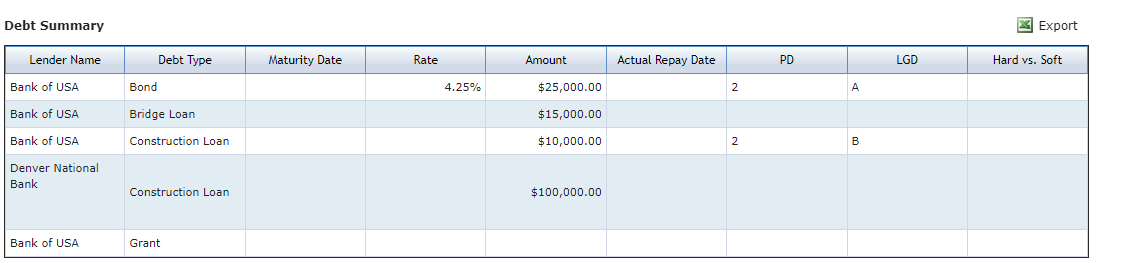 | |
Lender Name | Displays From (Lender) from the Main tab on the Edit Debt Details screen. |
Debt Type | Displays Debt Instrument Type from the Main tab on the Edit Debt Details screen. |
Maturity Date | Displays Maturity Date from the Terms tab on the Edit Debt Details screen. |
Rate | Displays Rate from the Rates tab on the Edit Debt Details screen. |
Amount | Displays Actual Amount from the Main tab on the Edit Debt Details screen. |
Actual Repay Date | Displays the Actual Date for a "Repay" Stage on the Edit Debt Instrument Stage screen (Edit Debt Details screen - Main tab > Stages grid). |
PD | Displays PD from the Main tab on the Edit Debt Details screen. |
LGD | Displays LGD from the Main tab on the Edit Debt Details screen. |
Hard vs. Soft | Displays Hard vs. Soft from the Terms tab on the Edit Debt Details screen. |
Equity Information  | |
Original Equity | Displays Total Forecast Amount from the OPA Commitments grid on the Equity Schedule screen. |
Adjuster Total | Displays Calculated Adjuster from the Adjuster Summary on the Equity Schedule. |
Funded Equity | Displays Total Adjusted Capital from the Capital Contributions grid of all Capital Amounts with Paid = Yes. |
Waived | Displays Waived Adjuster from the Adjuster Summary on the Equity Schedule. |
Remaining Equity | Displays Total Adjuster Capital from the Capital Contributions grid of all Capital Amounts with Paid = No. |
Invoked | Displays Applied Adjuster from the Adjuster Summary on the Equity Schedule. |
WCR Funded to Date | Displays Funded Advance Total from the Fund Tracking Summary on the Working Capital tab of the Equity Schedule. |
Legal Expenses Grid—Lists all Deal Costs where Deal Cost Type = Legal  | |
Date | Displays the Funding Date on Edit Deal Cost records (Equity Schedule > Deal Costs tab) where Deal Cost Type = Legal |
Entity | Displays the To Entity on Edit Deal Cost records (Equity Schedule > Deal Costs tab) where Deal Cost Type = Legal |
Amount | Displays the Funding Amount on Edit Deal Cost records (Equity Schedule > Deal Costs tab) where Deal Cost Type = Legal |
Notes | Displays the Notes on Edit Deal Cost records (Equity Schedule > Deal Costs tab) where Deal Cost Type = Legal |
Operating Information  | |
Property Equity Rating | Displays Overall Risk Score from the risk review that has the most recent Review Period Year and Review Period Quarter on the Edit Risk Review screen with a Status = Complete. |
Operating Reserves | Displays the Operating Reserves line item from the Balance Sheet (Financials screen > Edit Periodic Financials > Balance Sheet tab) of the most recent periodic financial statement for the deal where the Status is not equal to "Not Received." |
Replacement Reserves | Displays the Replacement Reserves line item from the Balance Sheet (Financials screen > Edit Periodic Financials > Balance Sheet tab) of the most recent periodic financial statement for the deal where the Status is not equal to "Not Received." |
DSCR | Displays DSCR = NOI/Hard Debt from the Income statement (Financials screen > Edit Periodic Financials > Income Statement tab) of the most recent periodic financial statement for the deal where the Status is not equal to "Not Received." |
Physical Occupancy | Displays the calculated field from the Percent column and Residential row under the Unit Information section on the Edit Occupancy screen from the most recent record with a Status not equal to "Not Received" and with Physical Units not equal to "Null." |
Last Reporting Period for Occupancy | Displays the Reporting Period for the most recent record with a Status not equal to "Not Received" and with Physical Units not equal to "Null." |
Economic Occupancy | Displays Economic Occupancy line item on the Detail tab of the Edit Periodic Financials screen (Financials screen > Edit Periodic Financials > Income Statement tab) for the most recent Financial record where the Status is not equal to "Not Received." |
Last Completed Date for Income Statement | Displays Completed Date from the Main tab on the Edit Periodic Financials screen (Financials screen > Edit Periodic Financials > Income Statement tab) for the most recent Financial record where the Status is not equal to "Not Received." |
Operating Deficit Guarantee | Displays Guarantee Terms from the Guarantee on the deal where the Type = Operating Deficit. If more than one Operating Deficit Guarantee exists, the field displays "Multiple." |
Operating Deficit Guarantee Expiration Date | Displays the Actual Exp Date if populated, otherwise the Projected Exp Date, from the Guarantee on the deal where the Type = Operating Deficit. If more than one Operating Deficit Guarantee exists, the field displays "Multiple." |
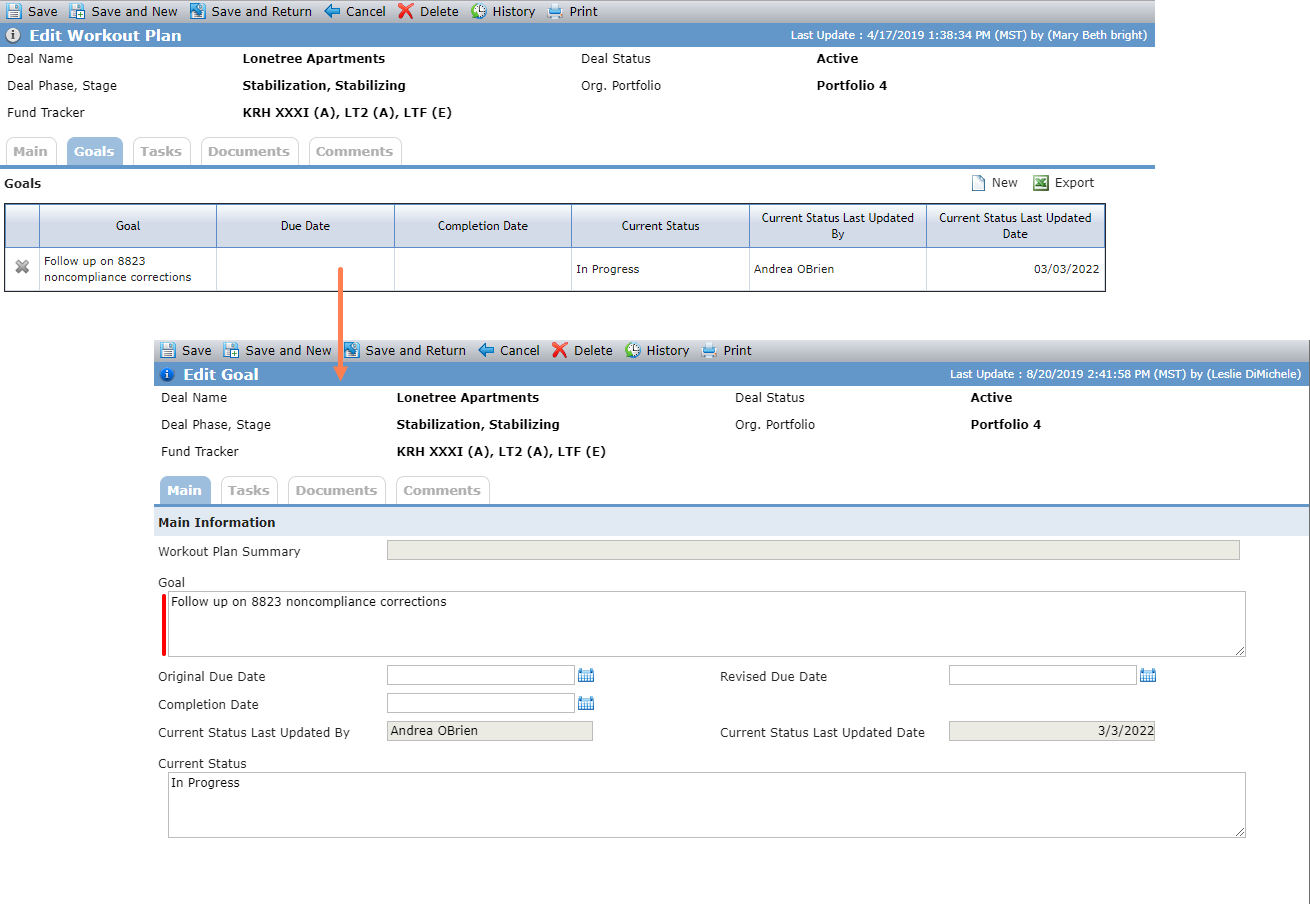
Workout Plan Goals
You can track goals associated to a Workout Plan, or the action(s) needed to take the deal off the Watchlist. This tab becomes available after the Workout Plan is saved initially.