Introduction to Templates
Important
Only administrators can create and modify template information in the Admin panel and Templates list screen.
Organizations can create templates to match criteria in the system for the selected deal and assign a set of checklists, documents, policy guidelines, and risk elements to that deal. A template’s criteria and associations can be configured on a template-by-template basis. The template’s associations will then be auto-populated on the deal when an individual deal is opened.
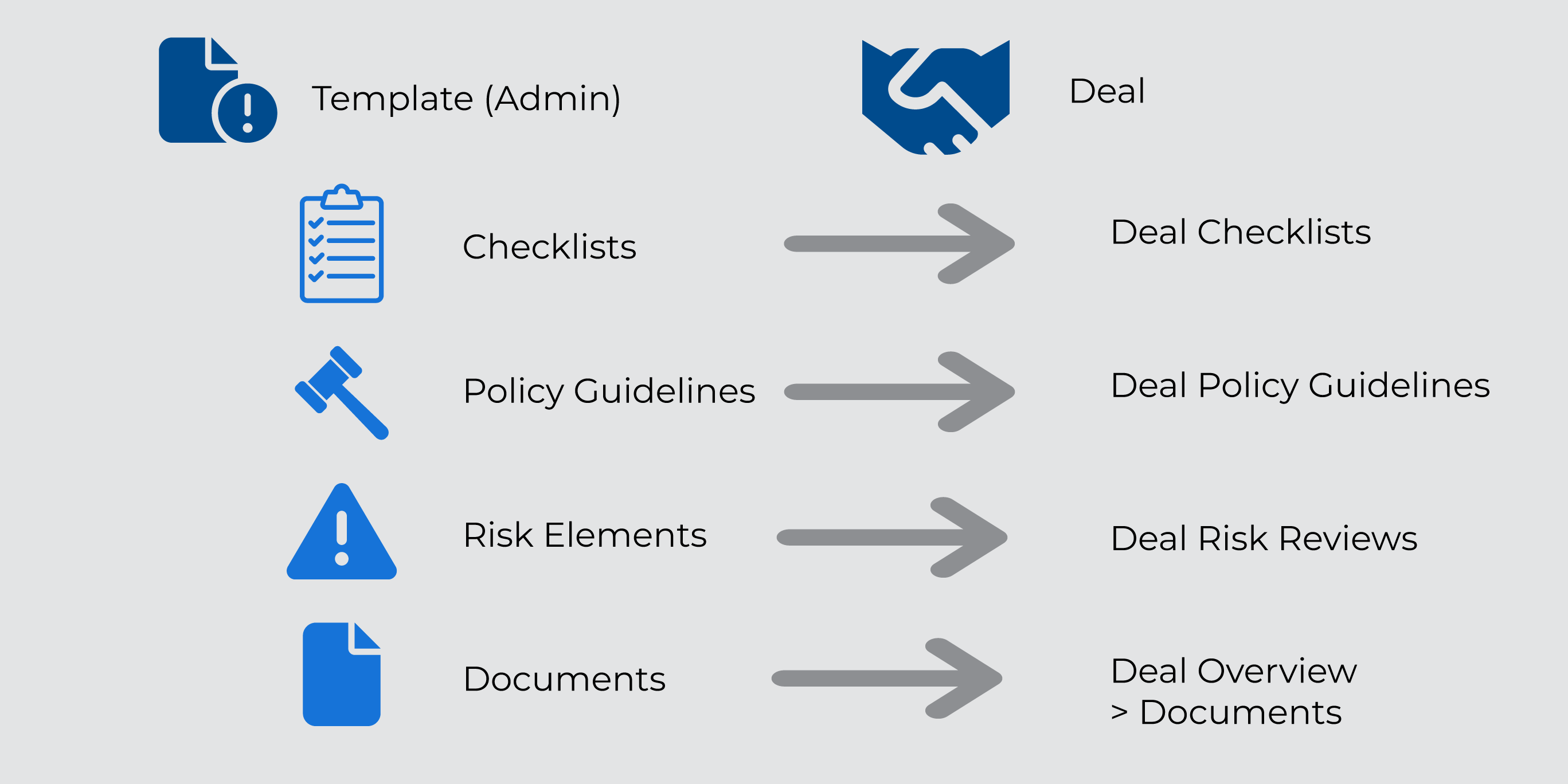
The template associated to a deal is based on the combination of program(s), deal type, and structure type.
Typically, a Default Template is configured to be used on deals that do not meet specific criteria. If there are documents or checklist items that must be used and or completed on all deals in the system, those could be attached to the Default Template in addition to being attached to all other templates.
Caution
If criteria are changed on a deal (Deal Type, Deal Structure, HTF program, LIHTC program, NMTC program, and/or STC program), then the next time a user visits the Deal Overview, List Checklists, Deal Lifecycle, List Policy Guidelines, or List Committee Review screens, the system refreshes the deal to use the template that matches the deal. If no template matches the deal, the default template is used.
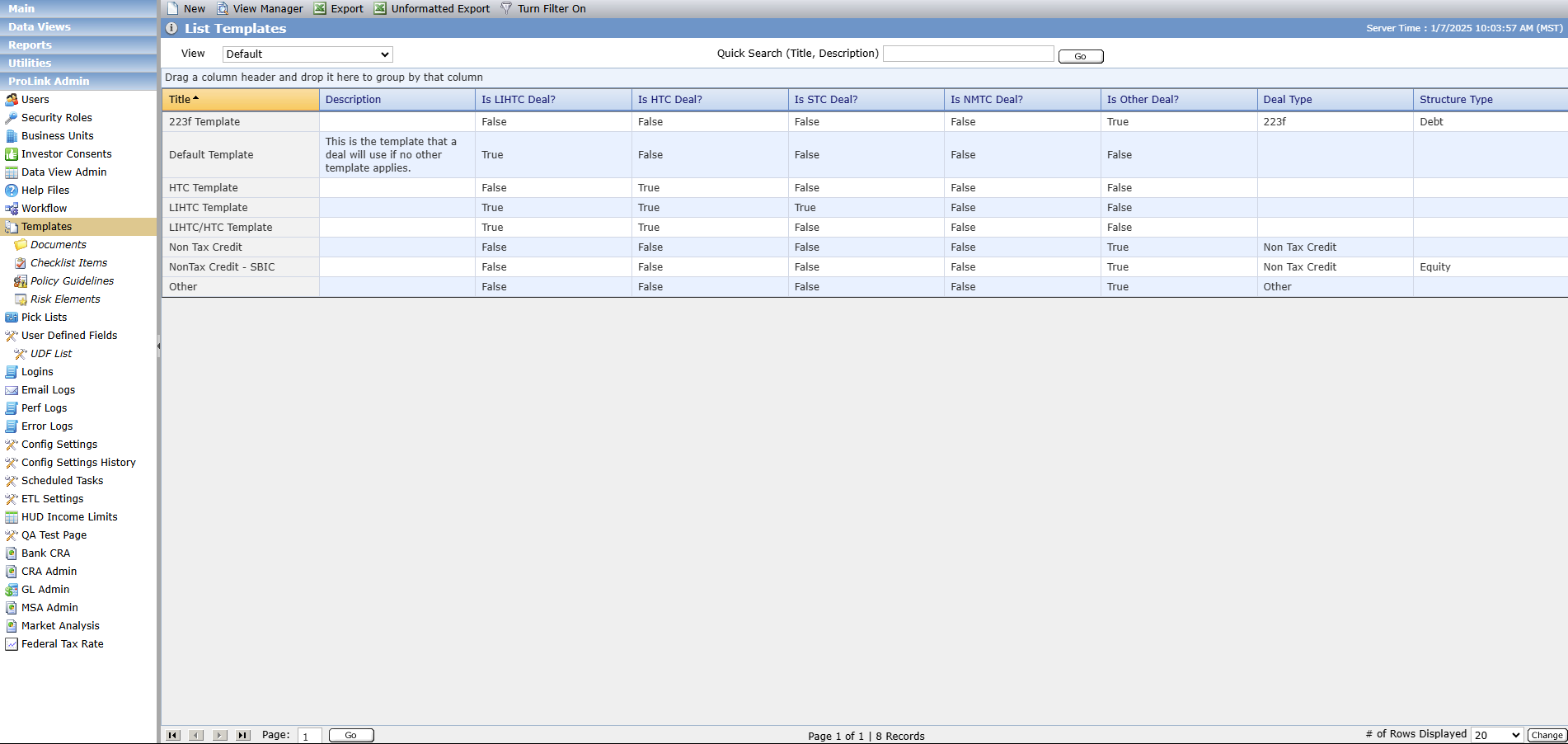
From the List Templates screen, you can add new templates, edit existing ones, and export all data displayed on the list screen.
Create a Template
Navigate to Templates in the ProLink Admin panel.
The List Templates screen opens.
Click New in the top toolbar.
The Edit Template screen opens.
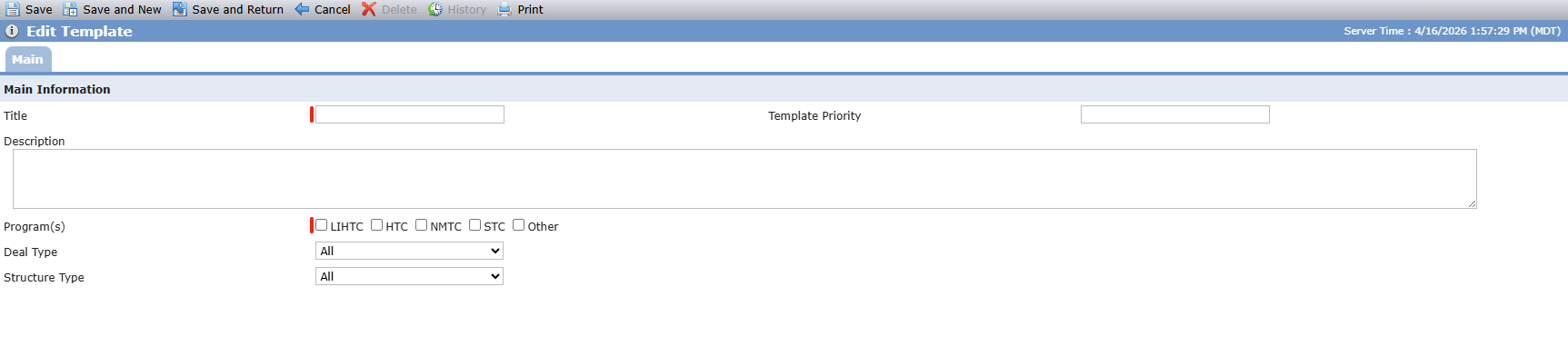
Enter the template Title.
Optionally, enter the Template Priority.
Optionally, enter a Description for the template.
Select the Program(s) that the template applies to.
Select the Deal Type that the template applies to.
Select the Structure Type that the template applies to.
Click Save.
Additional tabs are displayed: Checklists, Policy Guidelines, Quarterly Risk Elements, Quarterly Overall Risk, and Template Documents.
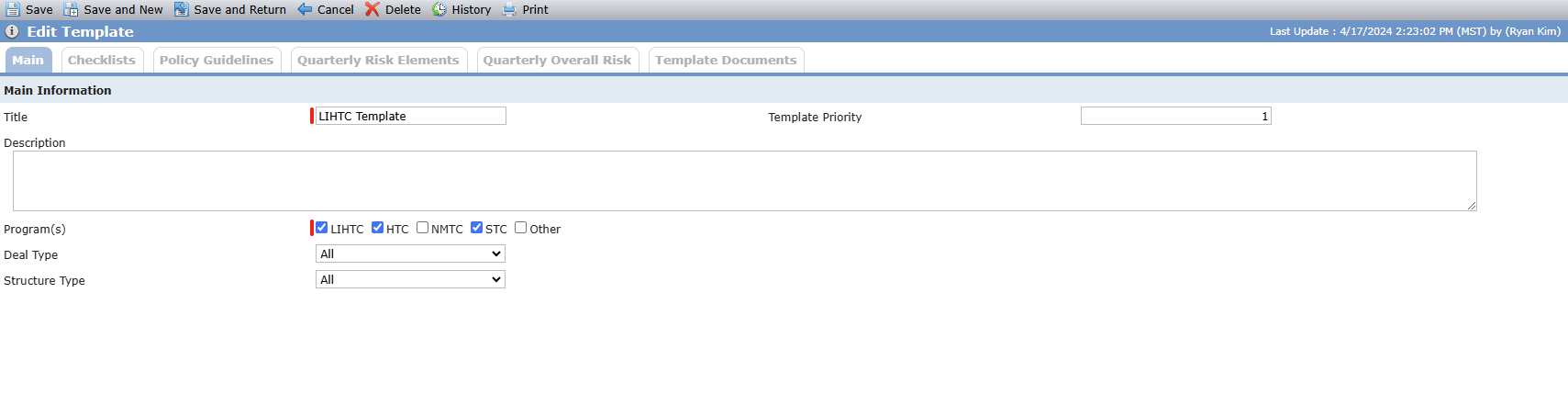
Attach the template checklists, policy guidelines, risk elements, and documents that apply to this template.